
Unfortunately we are having trouble with our phone system this morning. If you need to reach the school please use our backup number of 01736 756915. Thank you.

  • Contact Us

Headteacher
Chris Coyle-Chislett

Email the Office
secretary@penpol.cornwall.sch.uk

Telephone Number
01736 753472

Our Address
2 St George’s Road, Hayle,
Cornwall, TR27 4AH

“Penpol pupils are curious, creative and courageous learners. Our school community believes in authenticity as the foundation of deep-rooted learning. Through our rich and relevant curriculum, we nurture community-minded, forward-facing international citizens of the future.”

Exploring Energy and Innovating Ideas

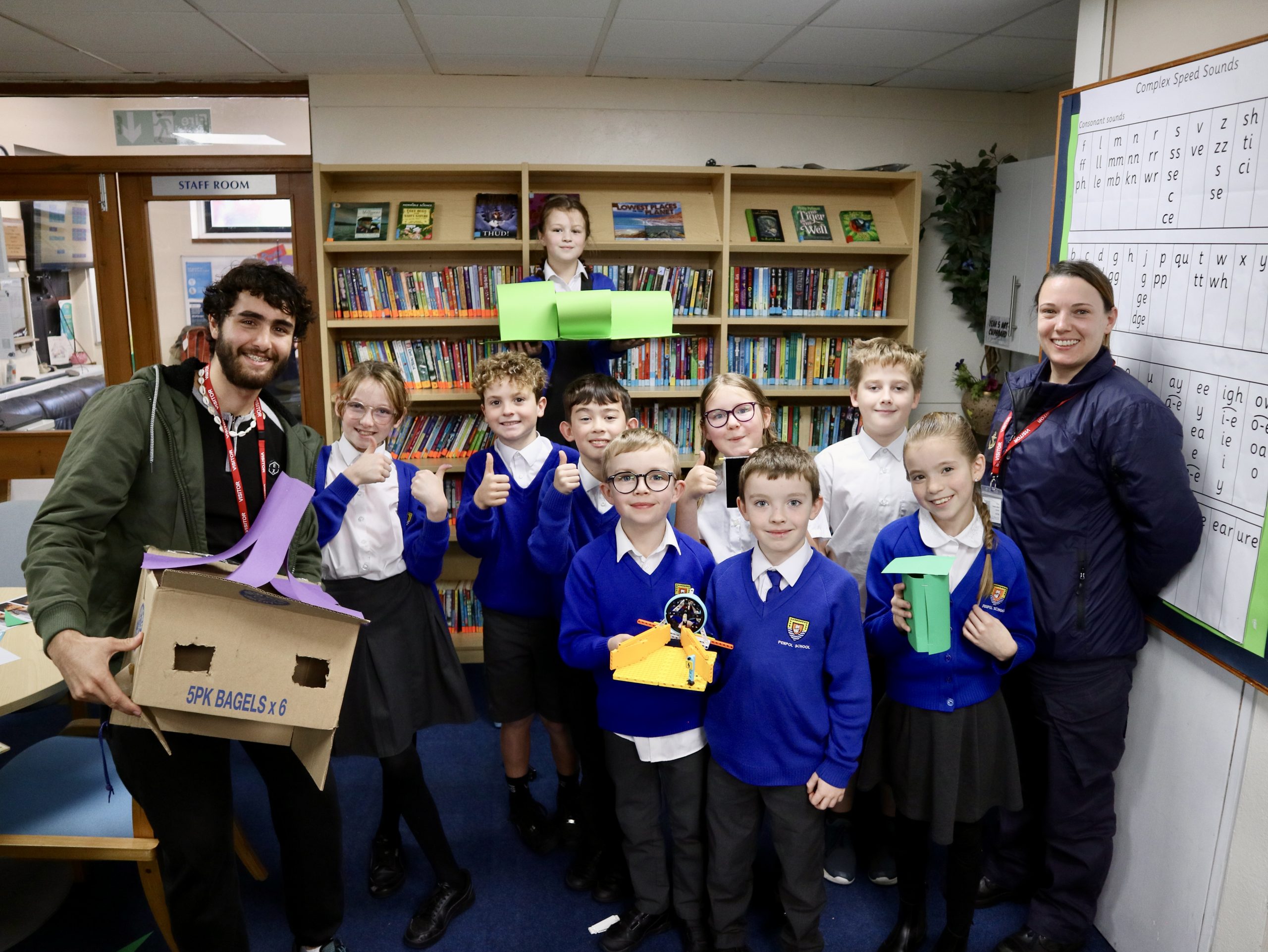
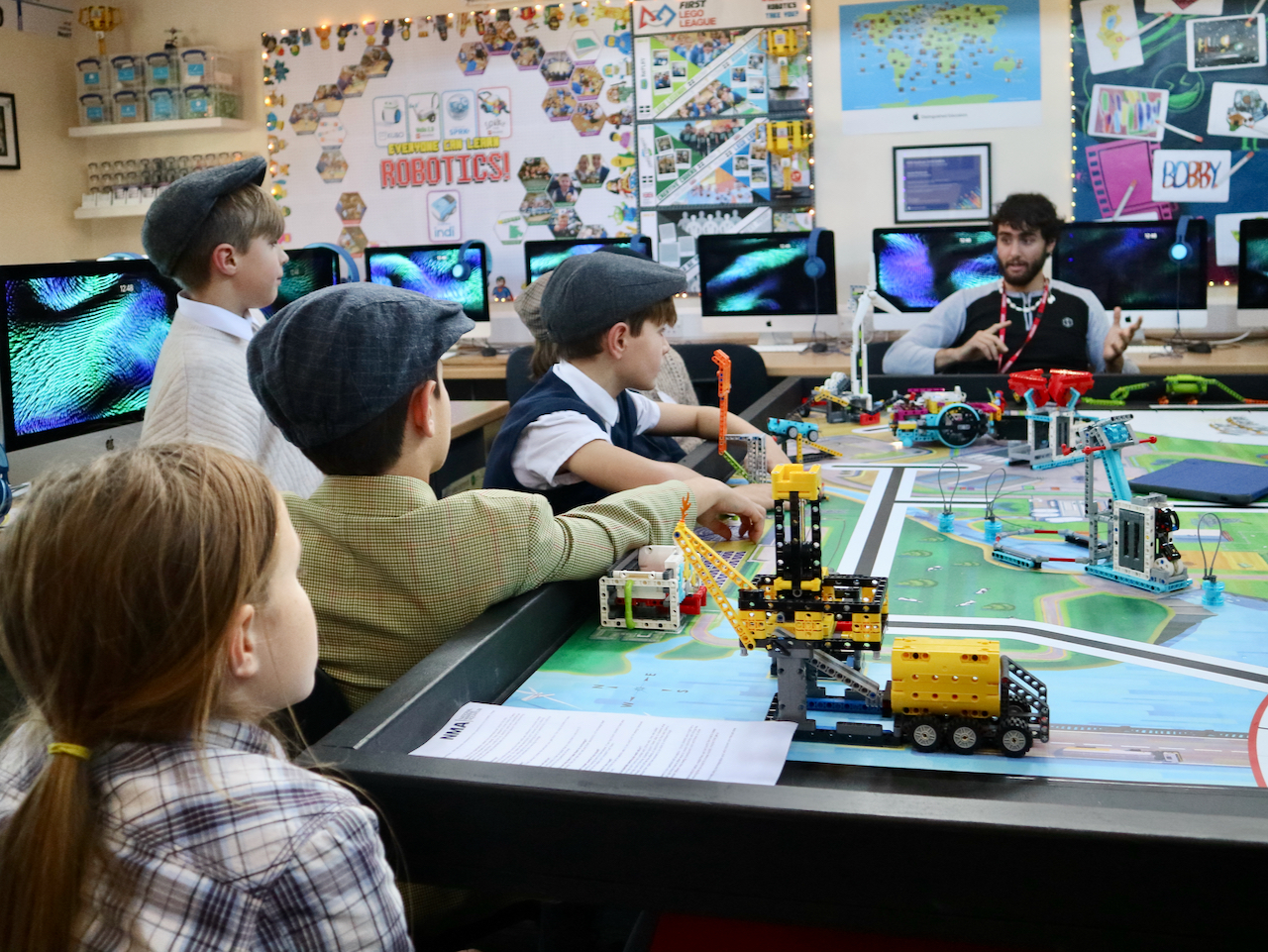
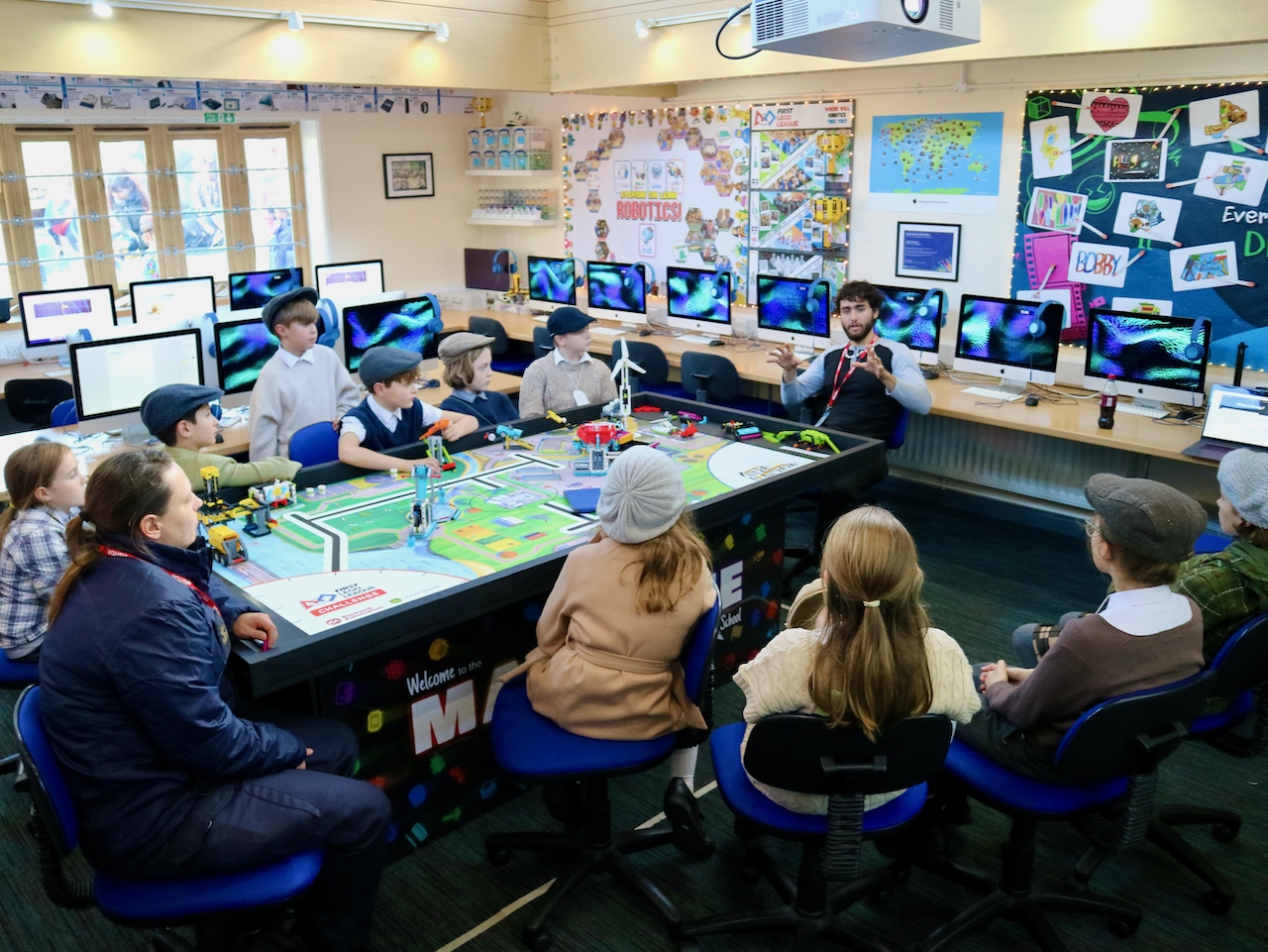
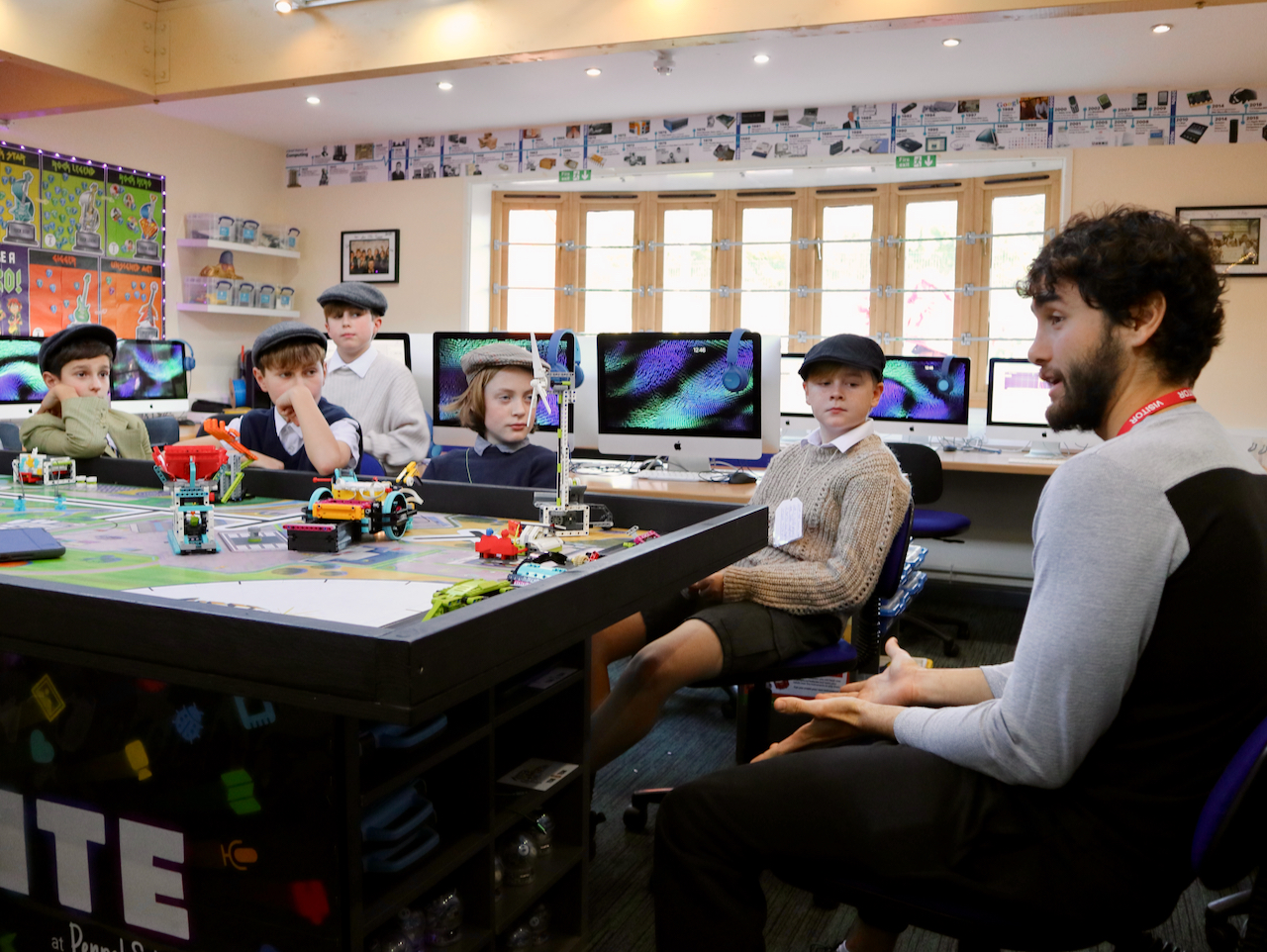
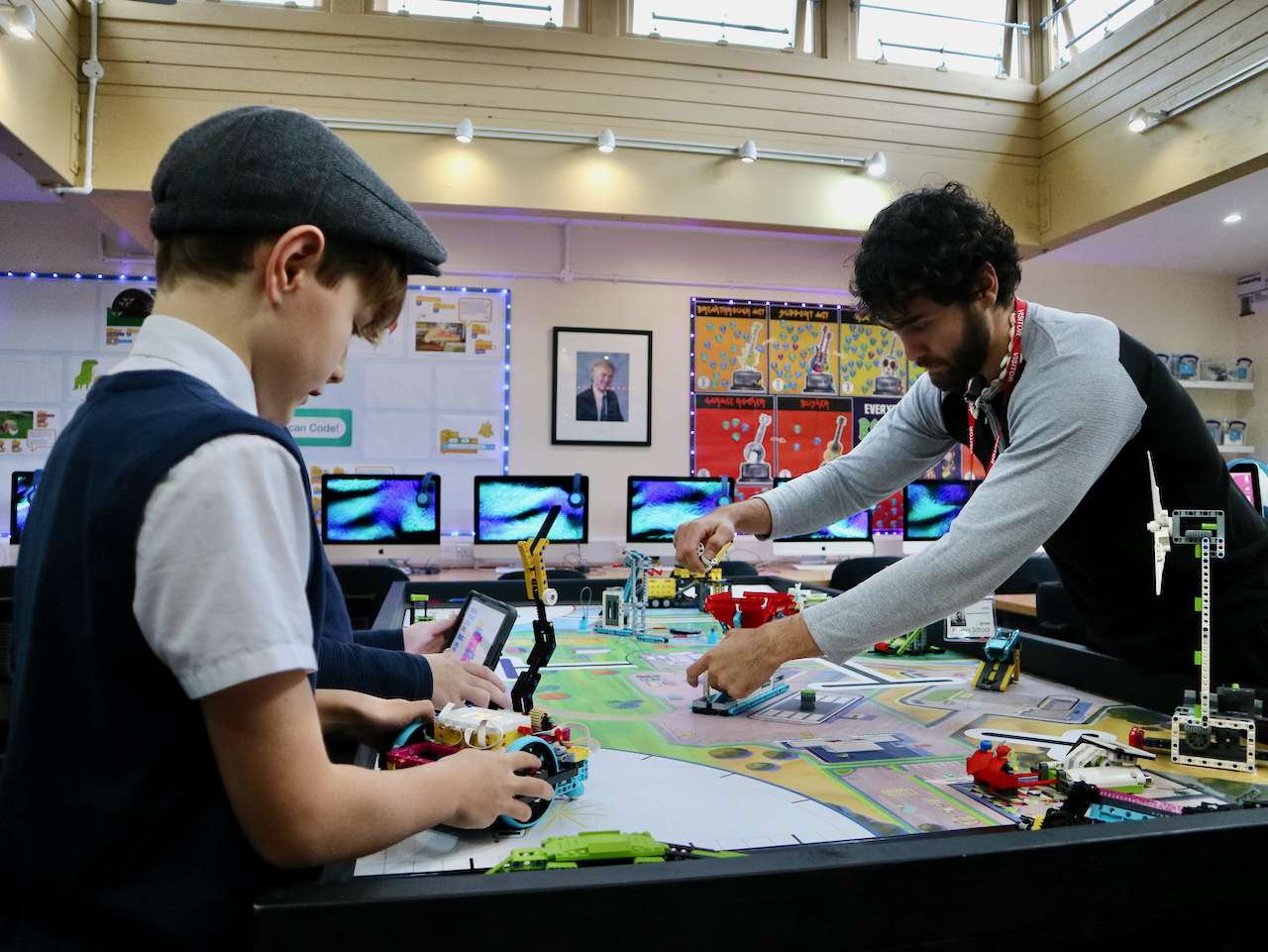
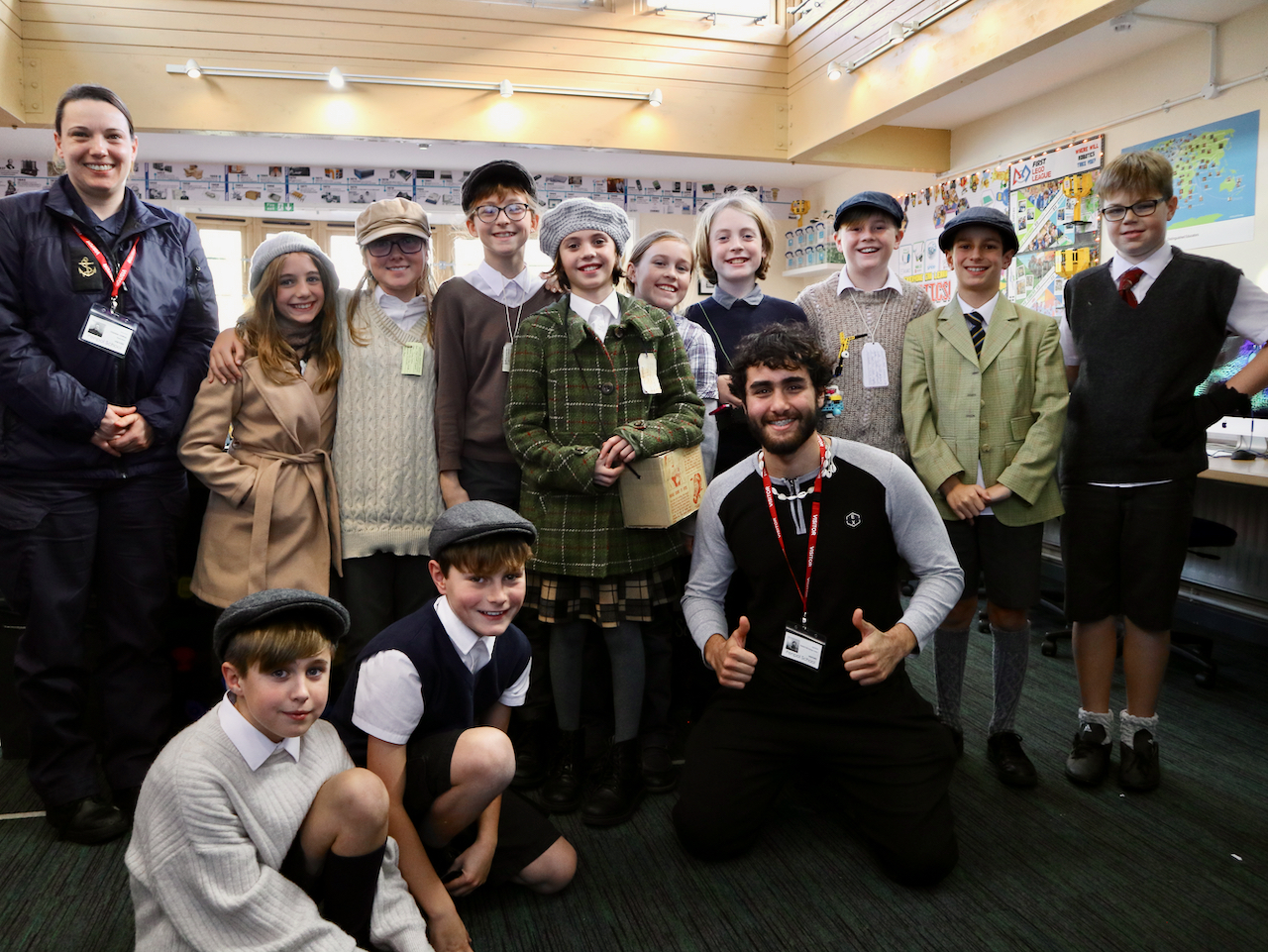
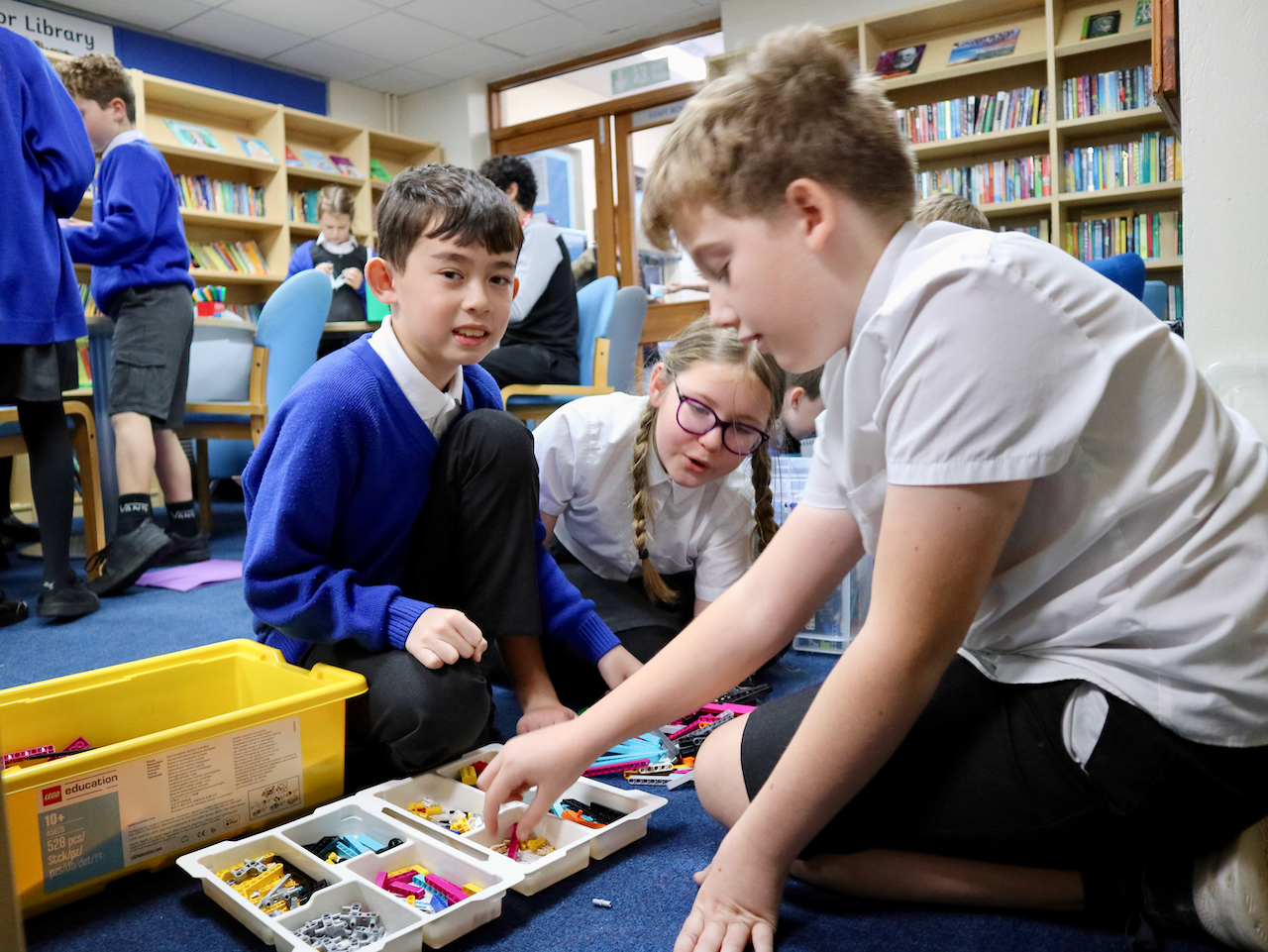
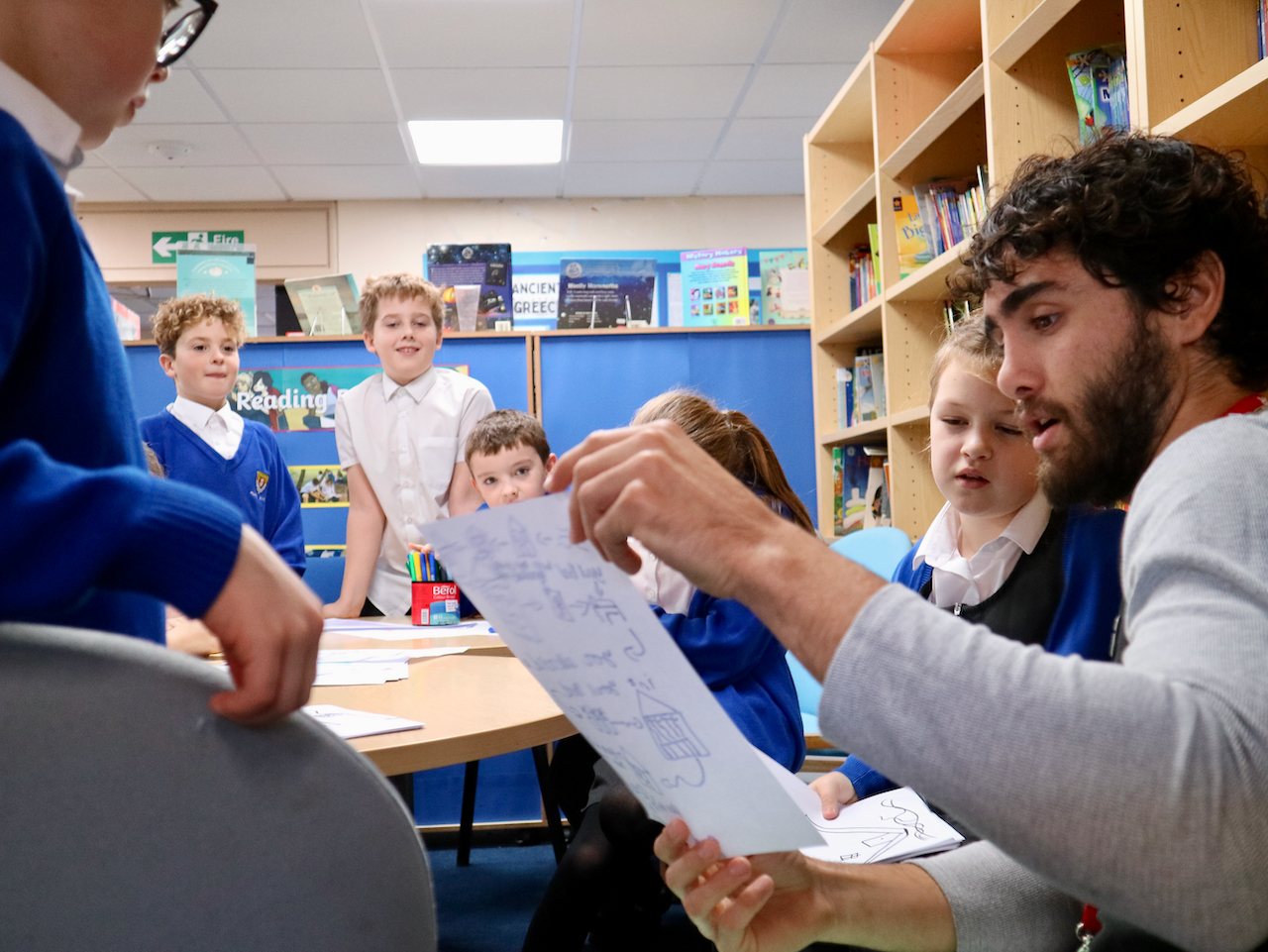
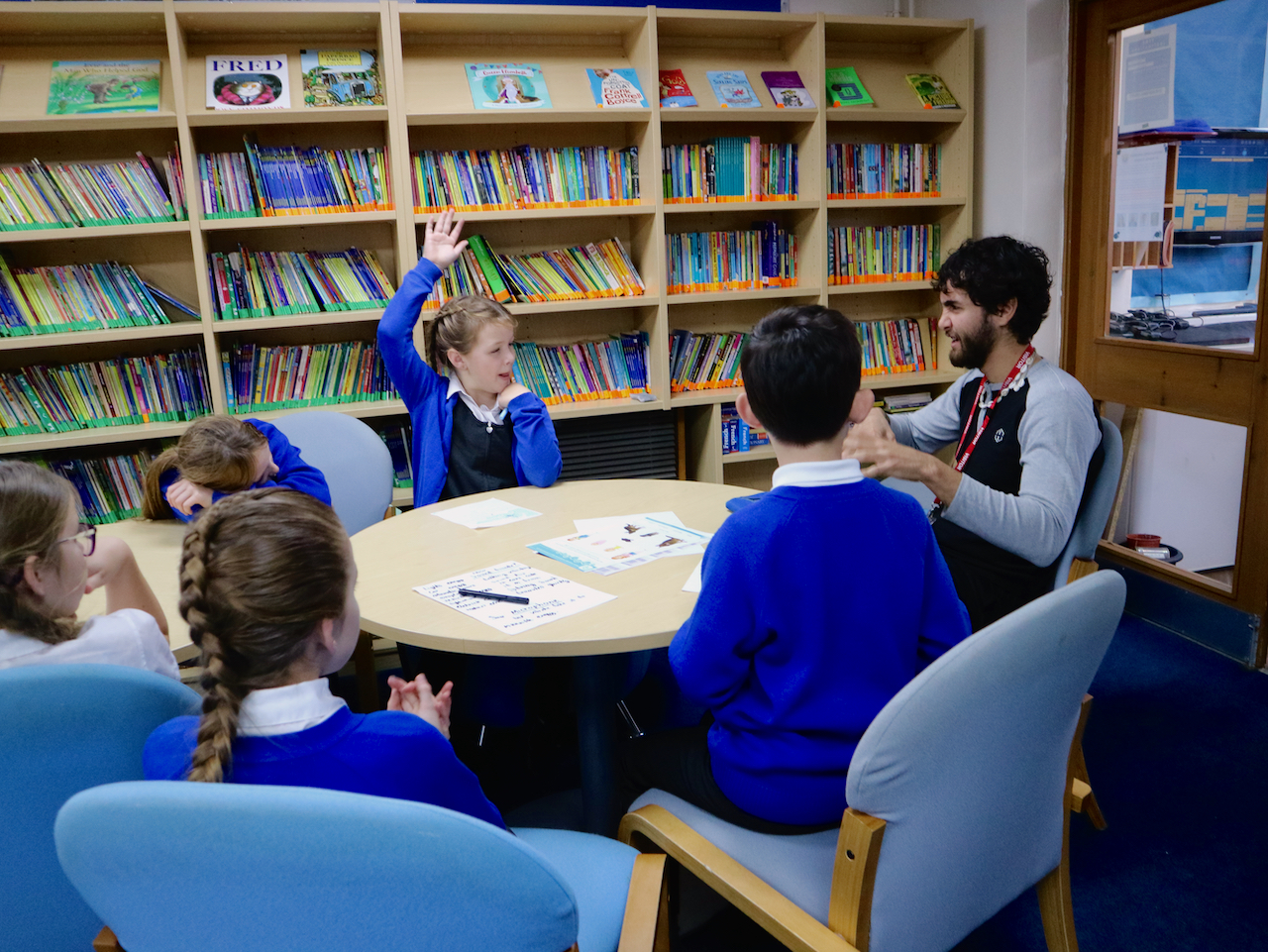
Today our Year 5 and Year 6 LEGO League teams were fortunate enough to have not one but two very special guests around to help mentor and support them with their competition preparation.

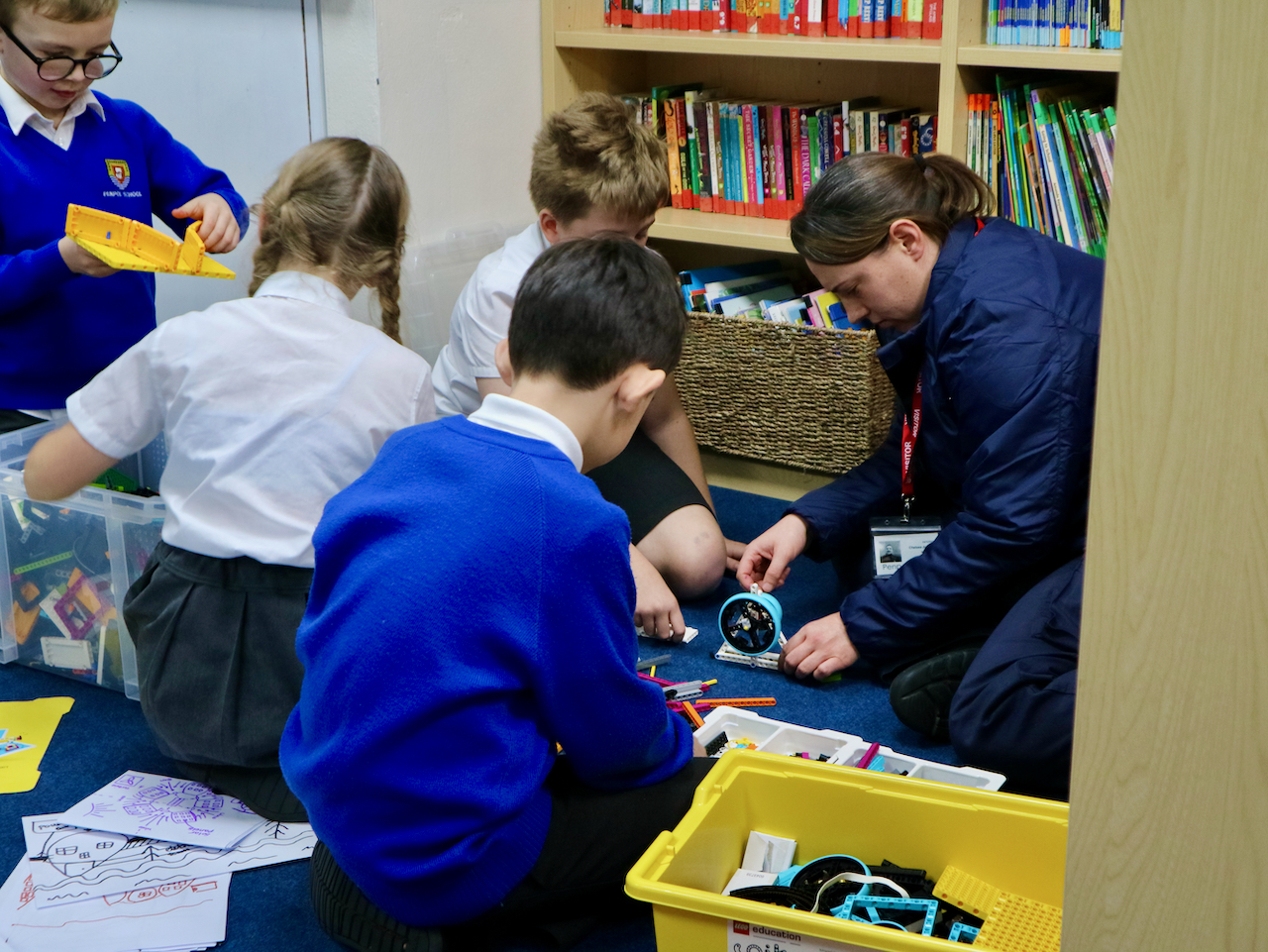
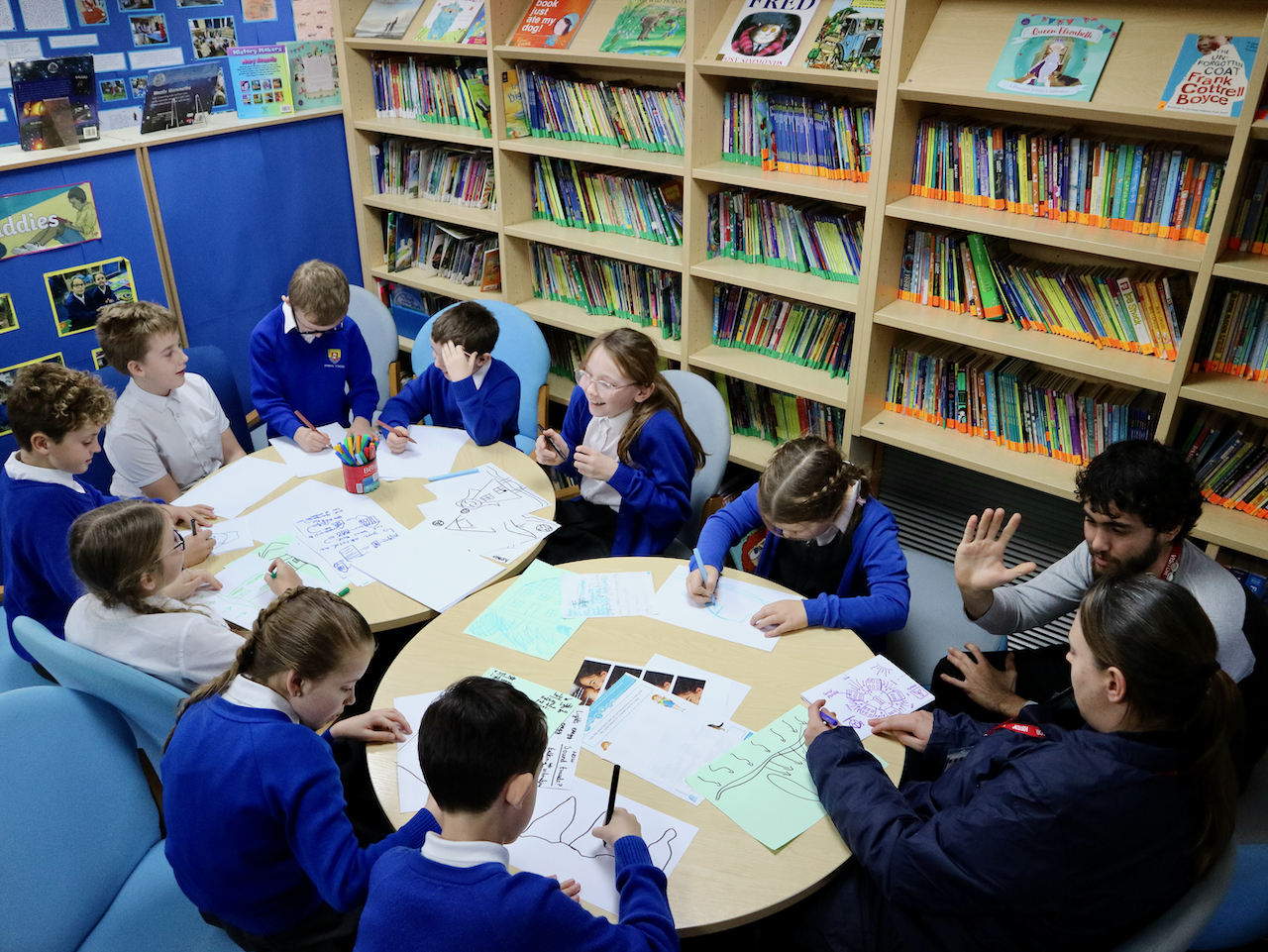
Our team mentor, Chelsea from RNAS Culdrose, has kindly agreed to visit every Thursday to help coach both teams.  She’s a familiar face at Penpol now having worked closely with our teams last year as well – in fact she asked if she could come back this year!

Alongside Chelsea we also had another very special visitor – somebody who has travelled slightly further than Culdrose to join us…

Alejandro Buitrago is an engineering student from the University of Technology and Engineering Careers (UTEC) in Lima, Peru.  He is currently travelling around Europe and through a happy coincidence ran into Mr Woolcock.  Upon chatting, Mr Woolcock discovered that Alejandro is in the middle of a degree in Renewable Energy Engineering – which just so happens to be the exact theme for this years LEGO League competition!  

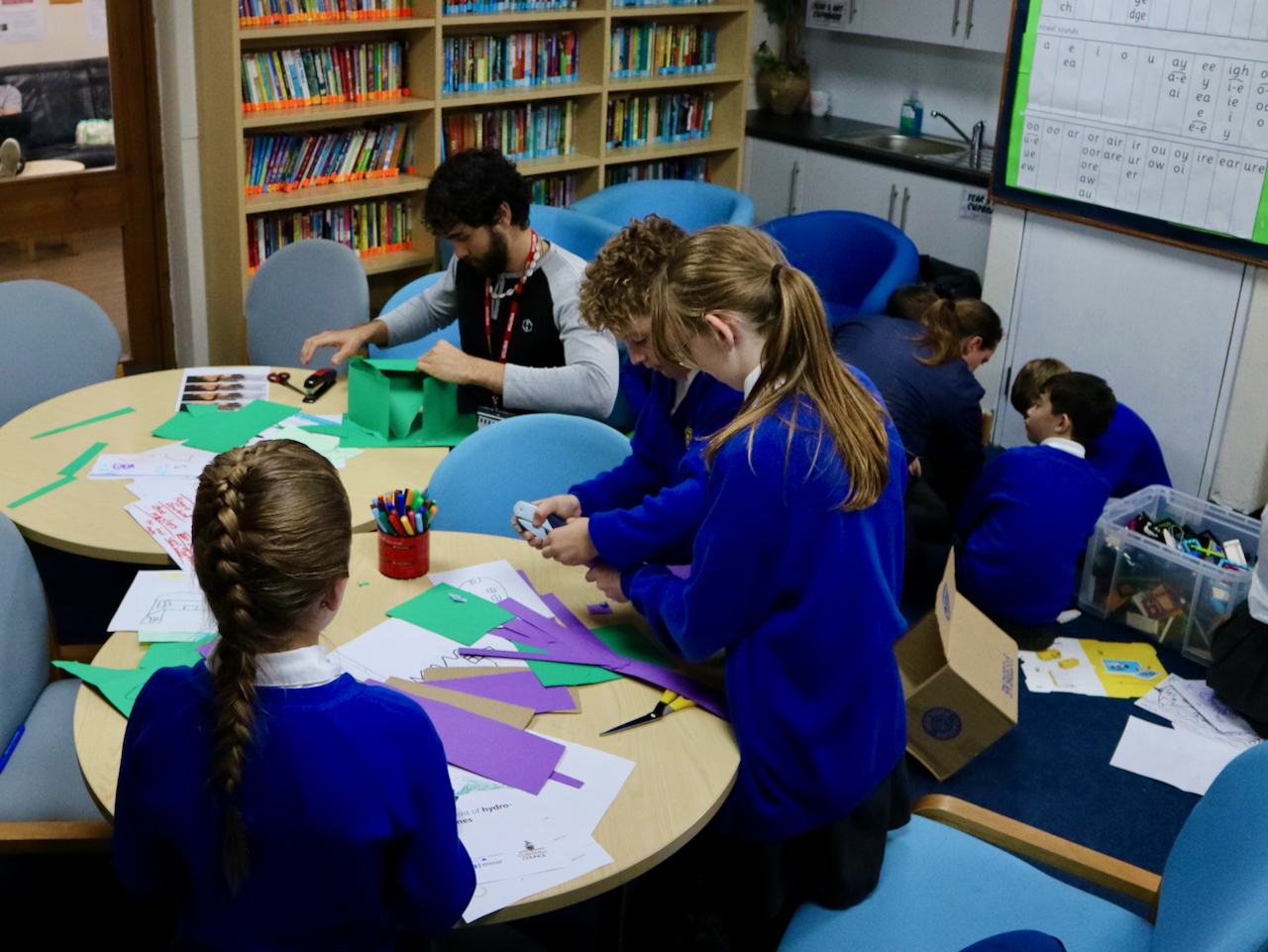
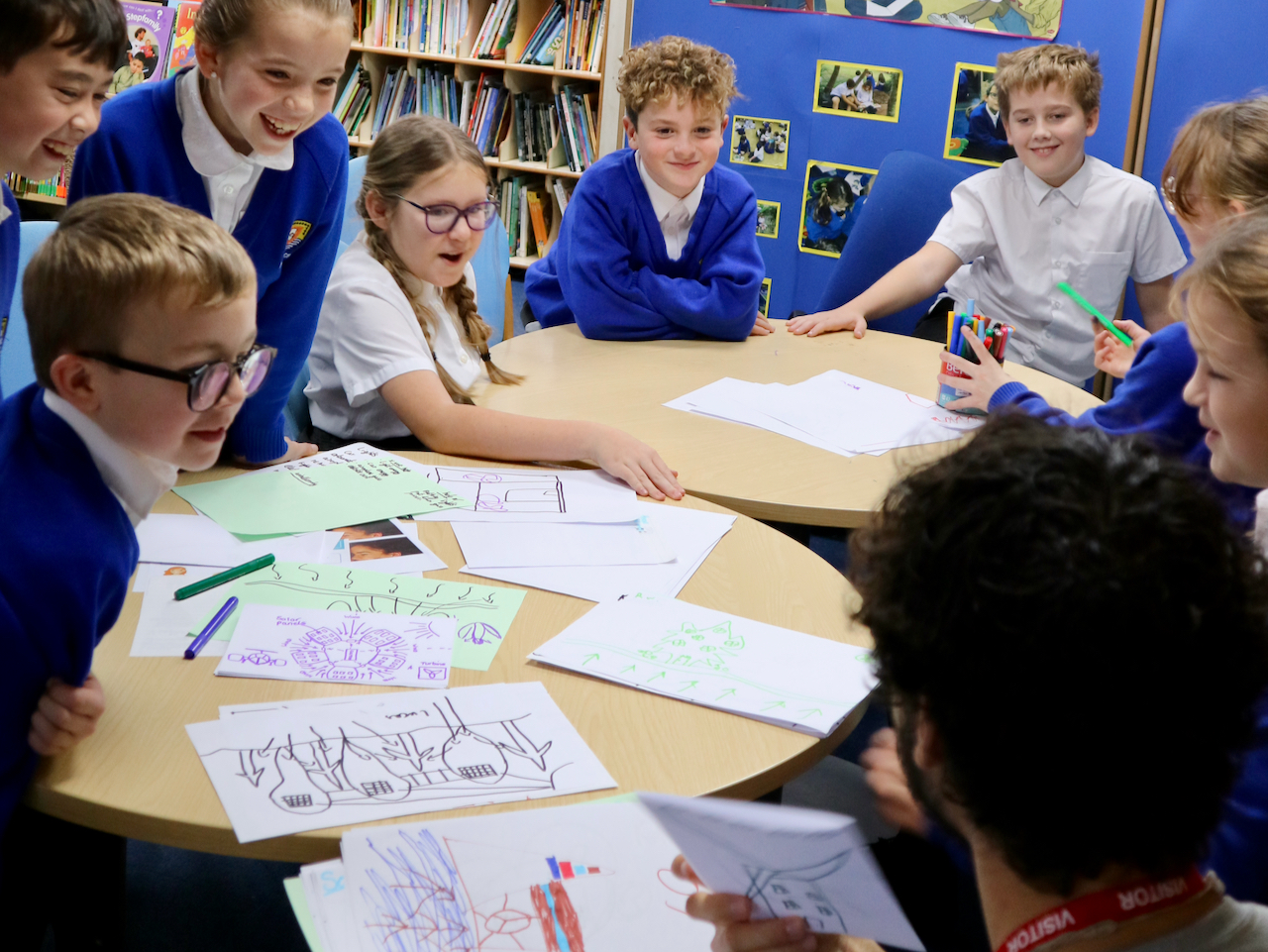
Alejandro very kindly agreed to spend an afternoon with us and spent time working with our Year 6’s over lunchtime and our Year 5’s this afternoon.

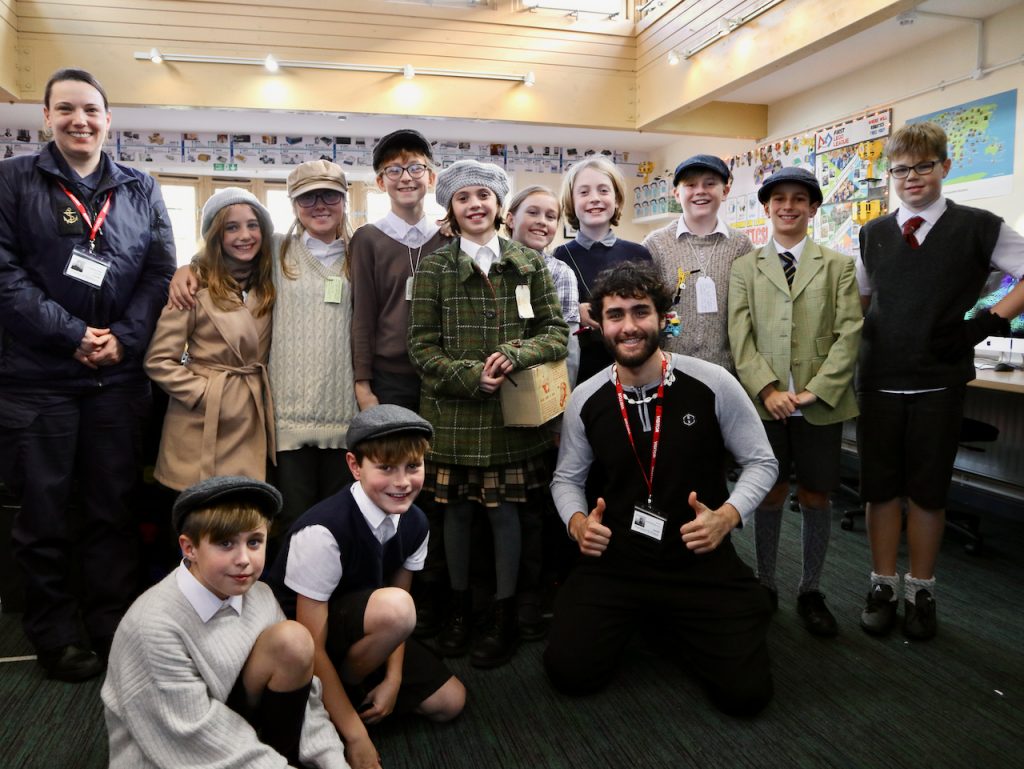
Y6's took time out from Evacuee Day to learn about Energy
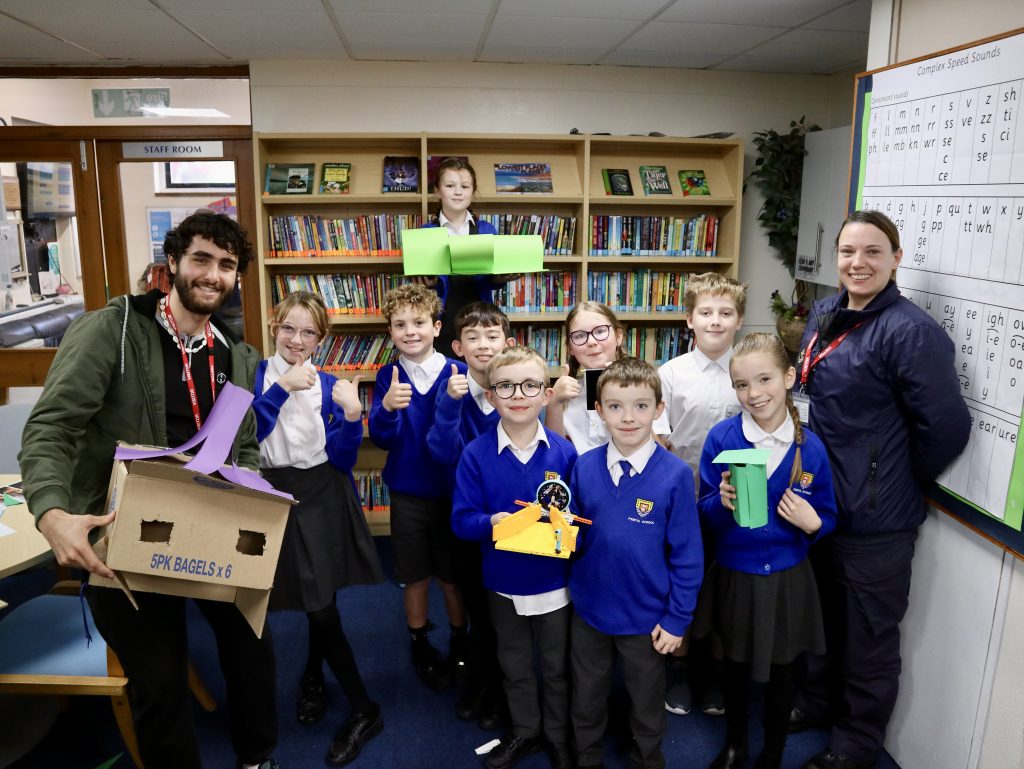
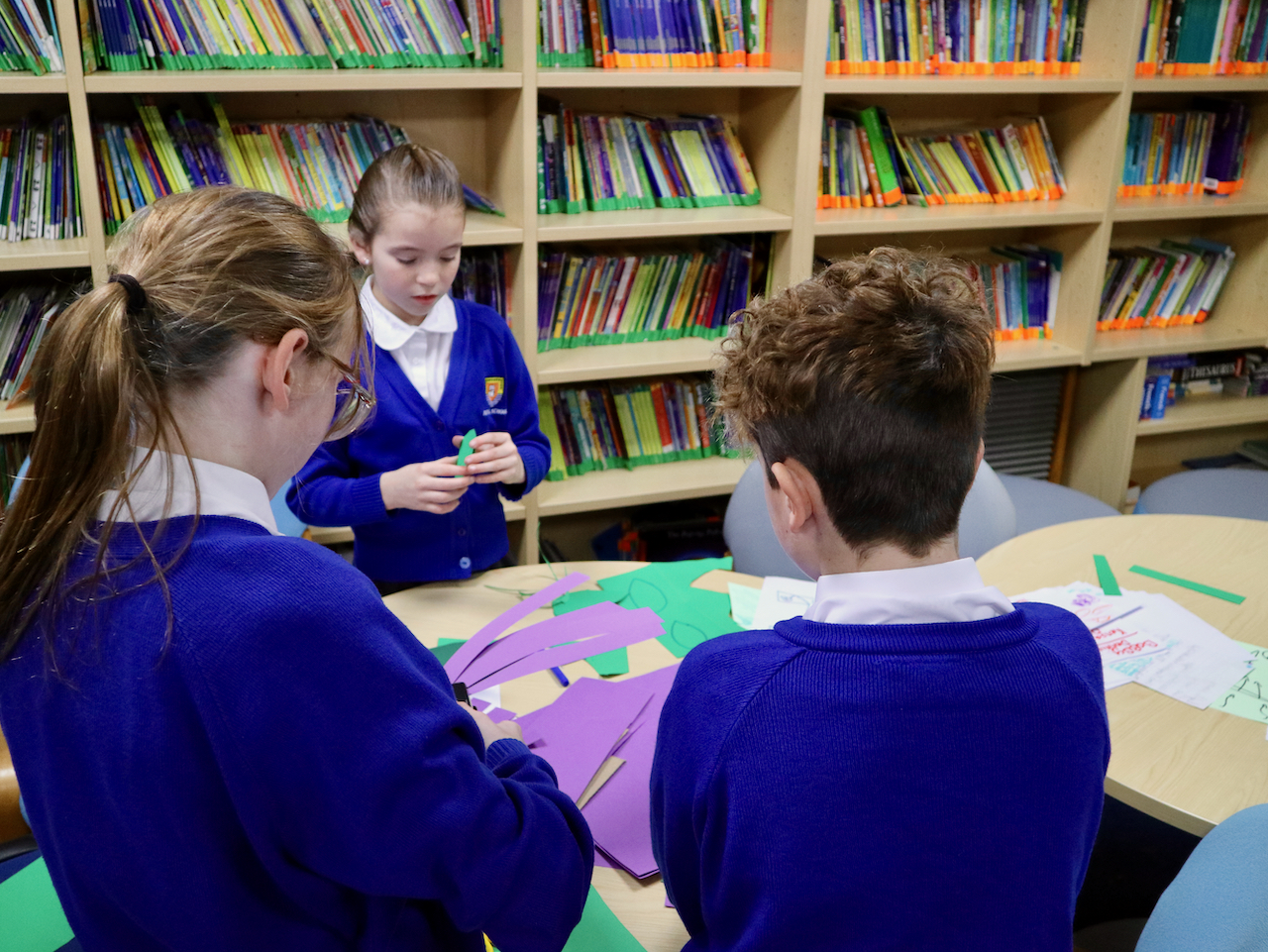
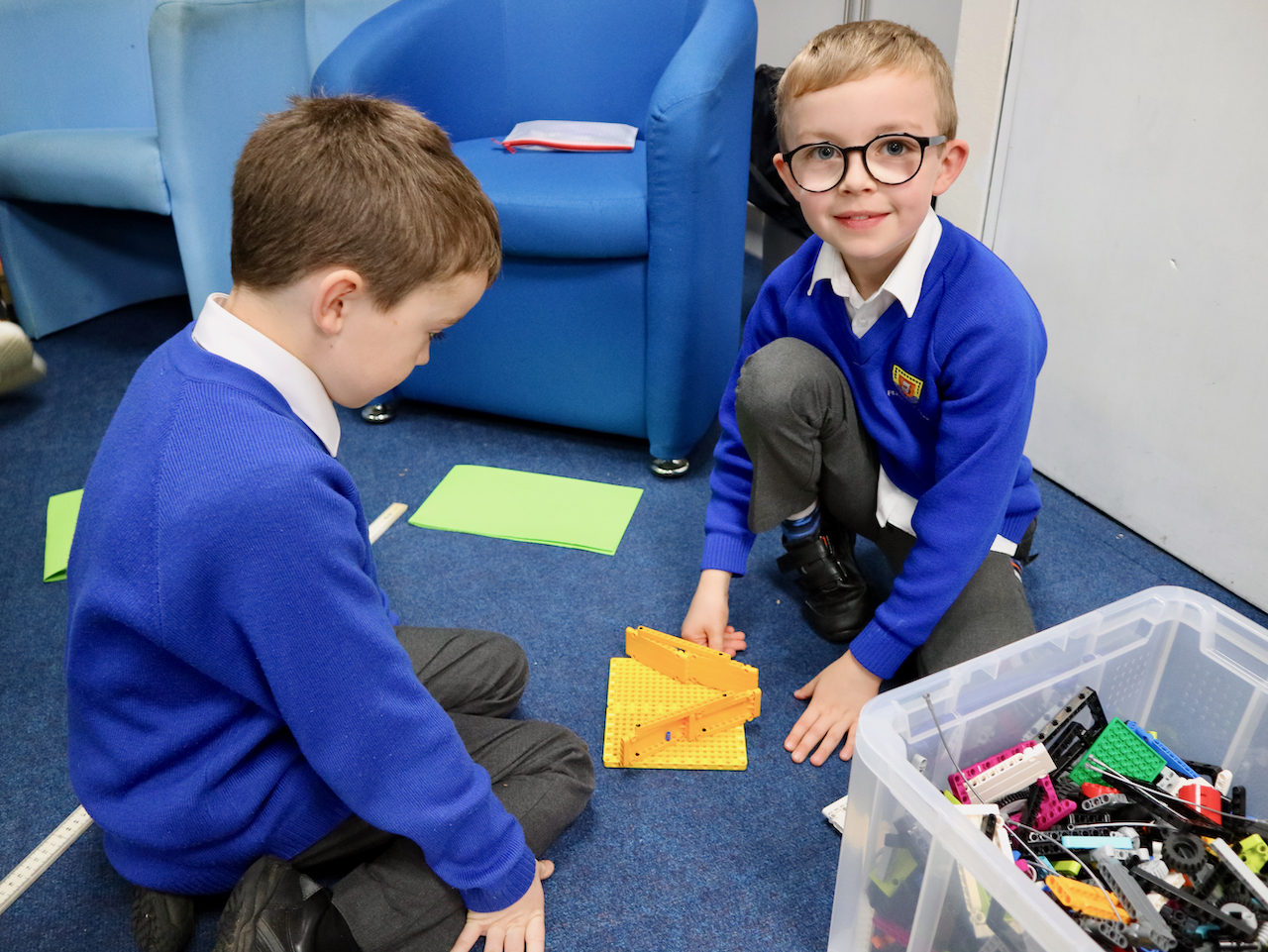
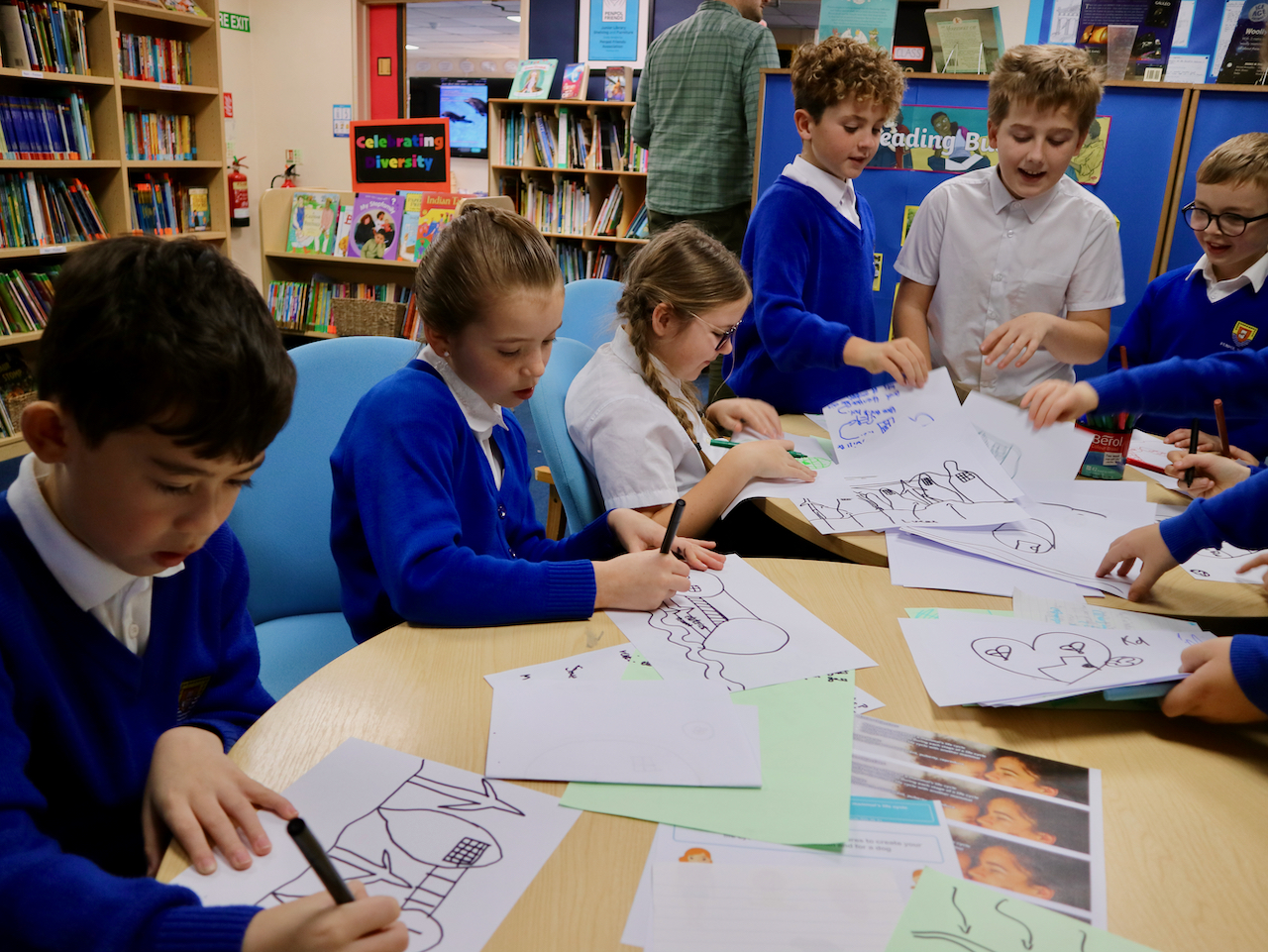
A lot of Energy-themed prototyping and idea development with the Y5's

During this time Alejandro kindly answered questions, shared a wealth of knowledge and inspired the children to pursue and develop their innovative ideas for the Innovation Project.  By the end of the day the library was covered in hand-drawn sketches, coloured paper, glue sticks, cardboard boxes turned into prototypes and assorted LEGO constructions.  All the signs of a good afternoon!

A massive thanks to both Chelsea and Alejandro for their support.

Year 6 Photos

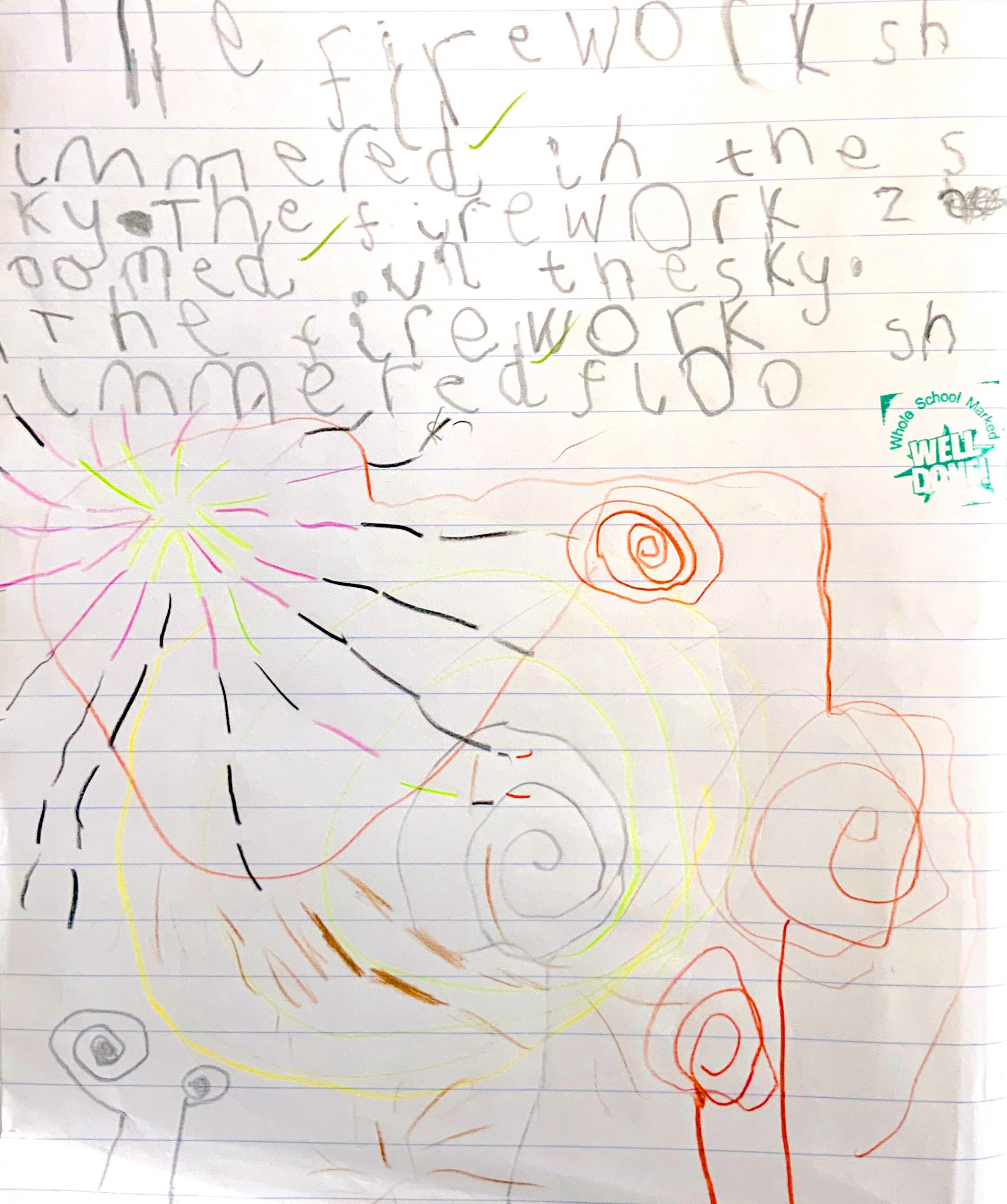
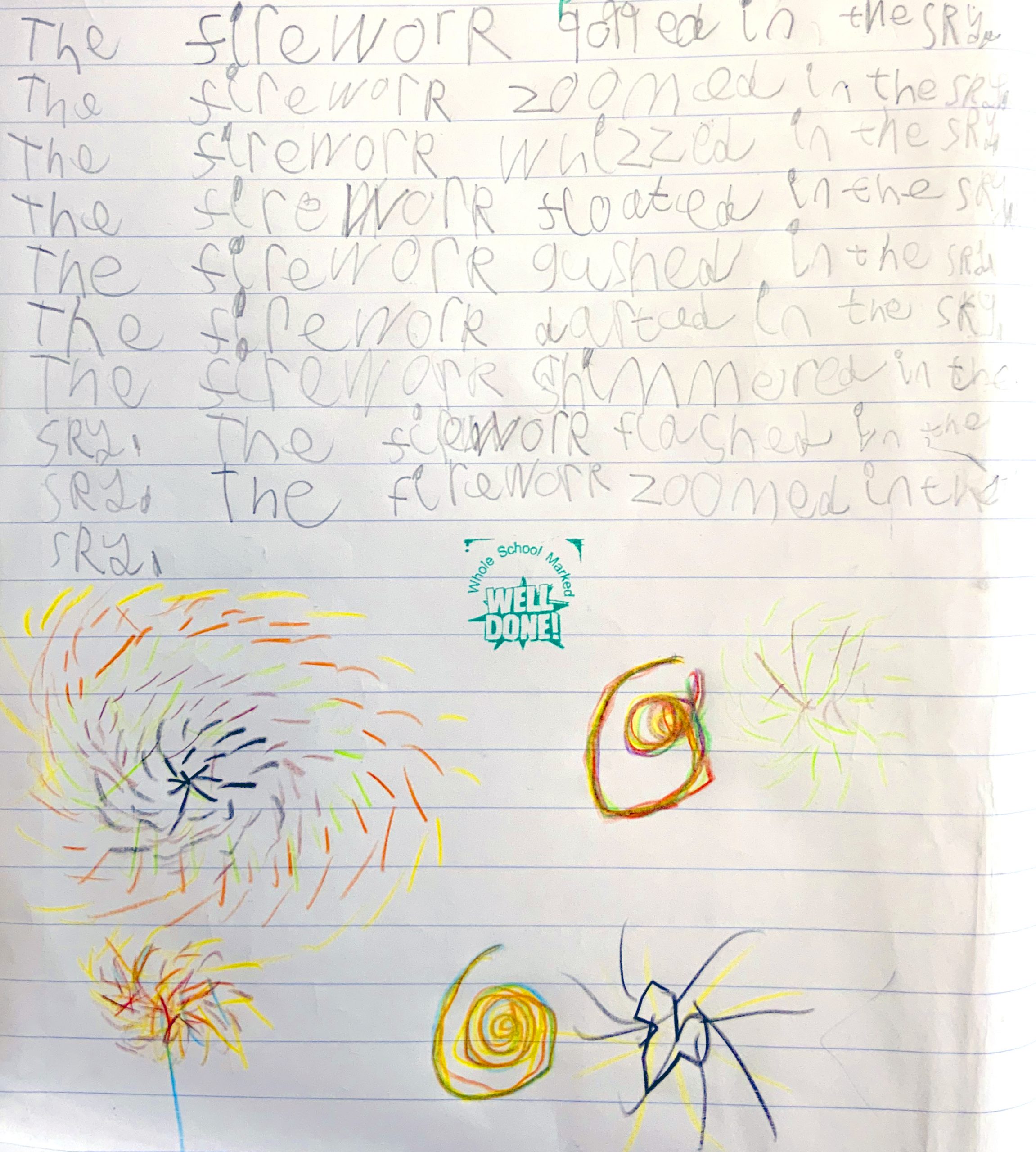
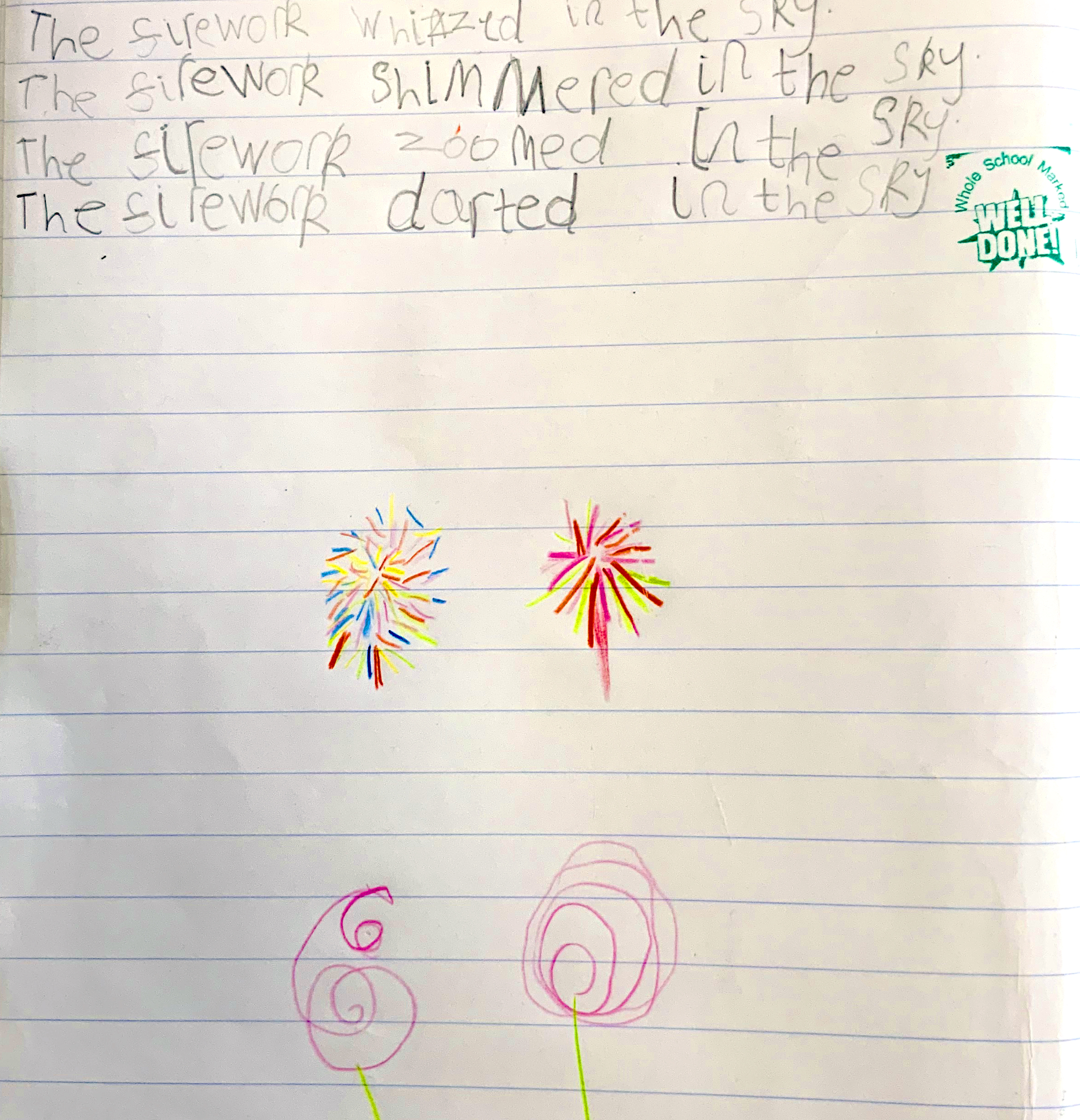
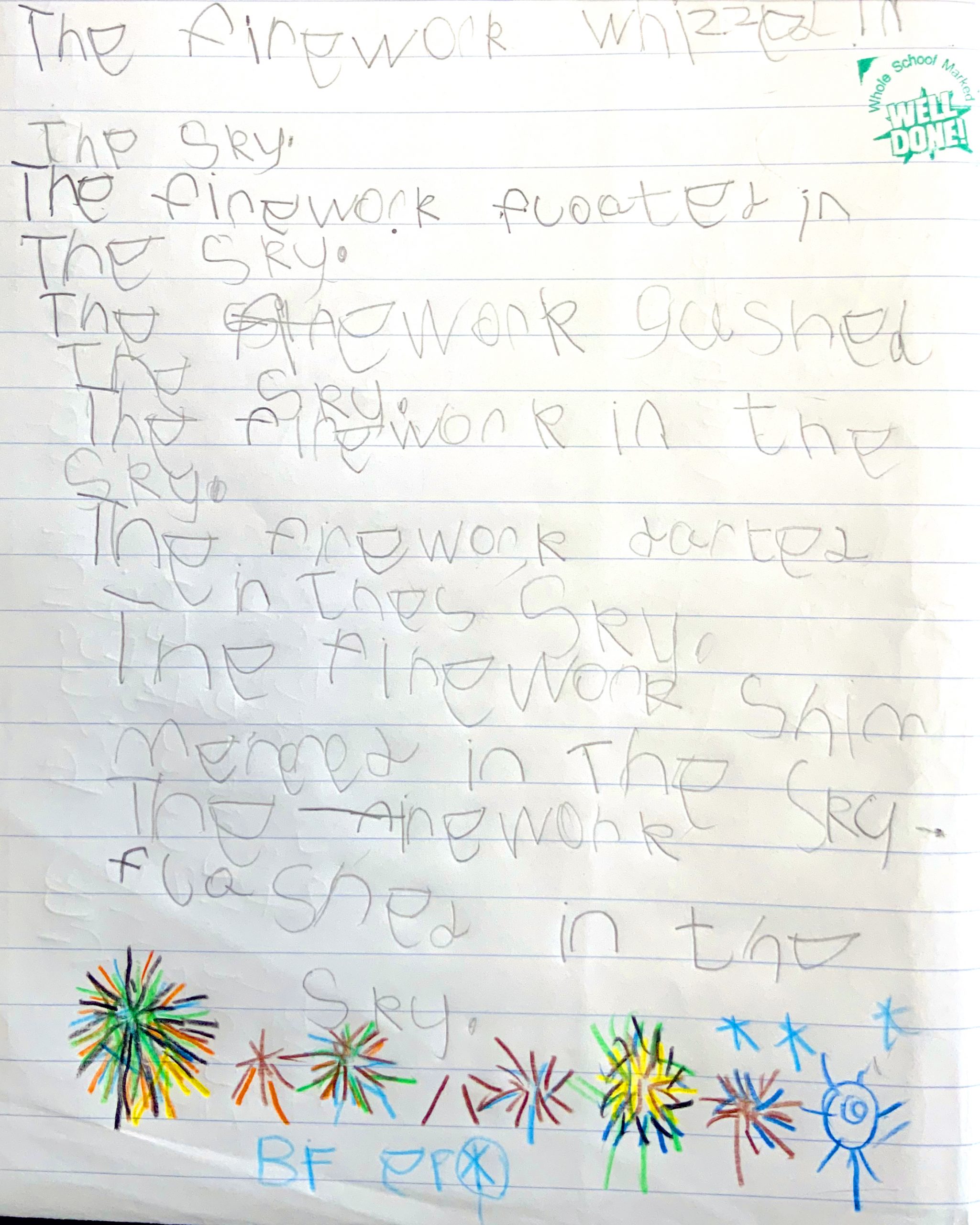
Fantastic Fireworks in Year 1

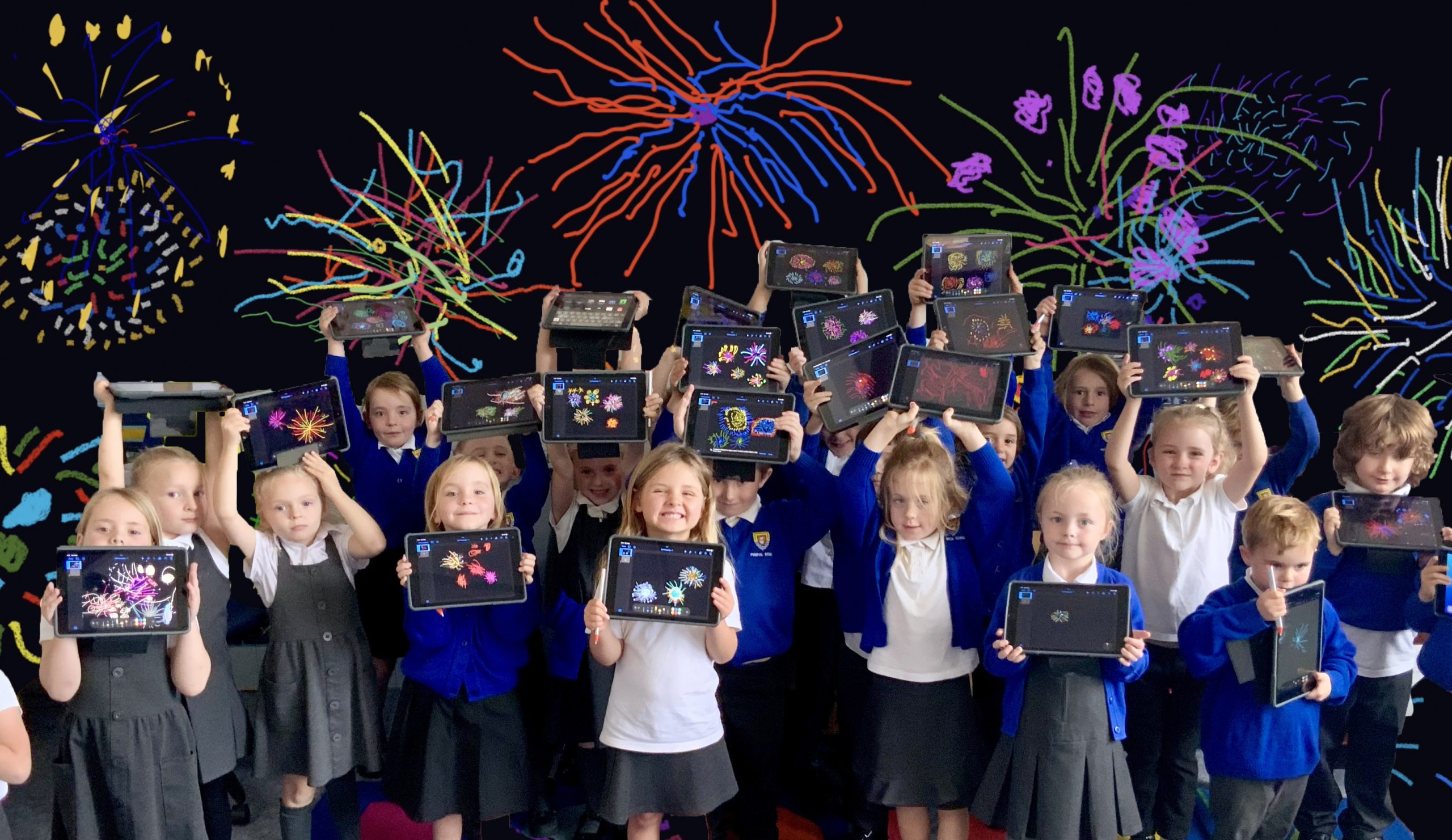
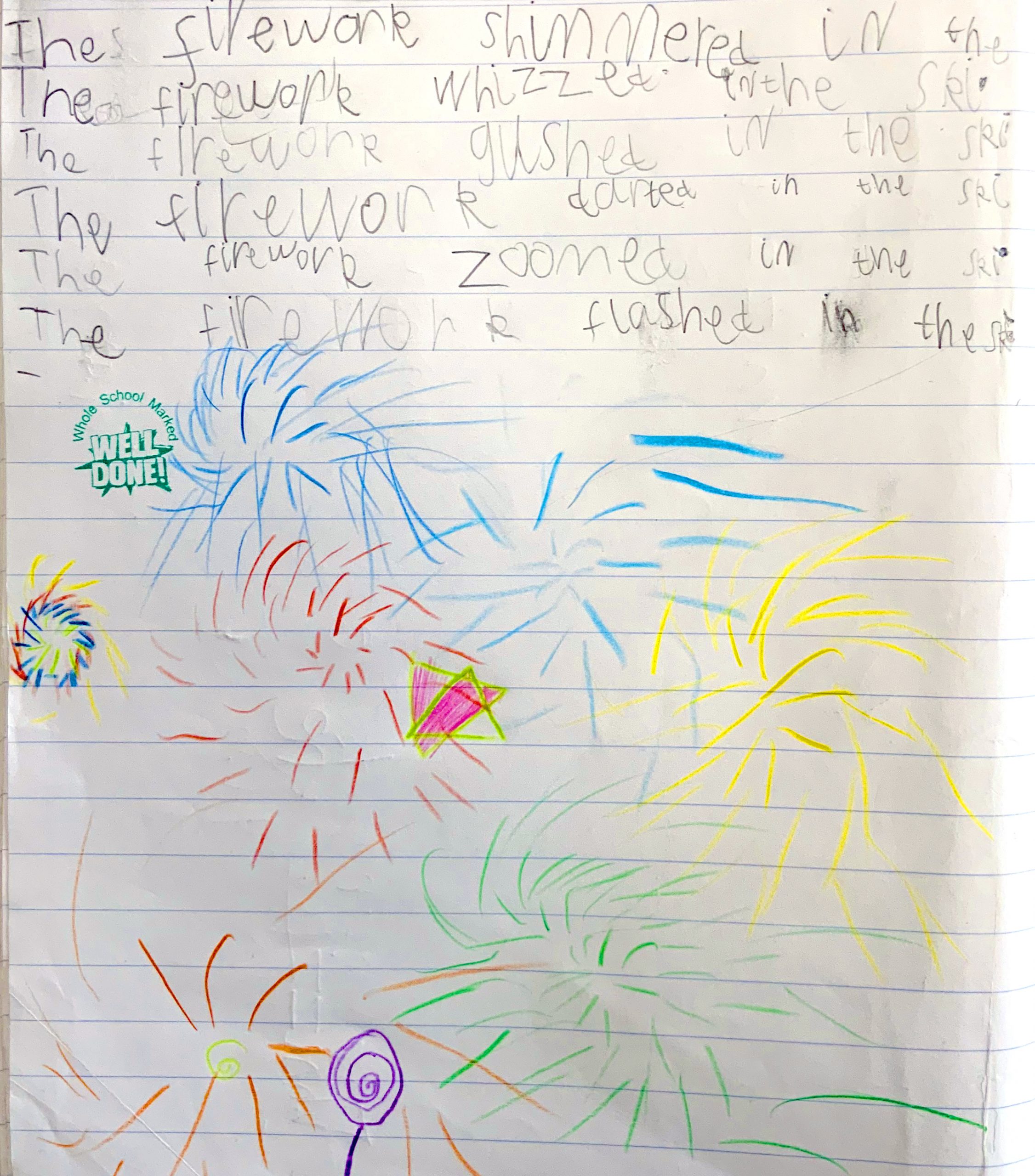
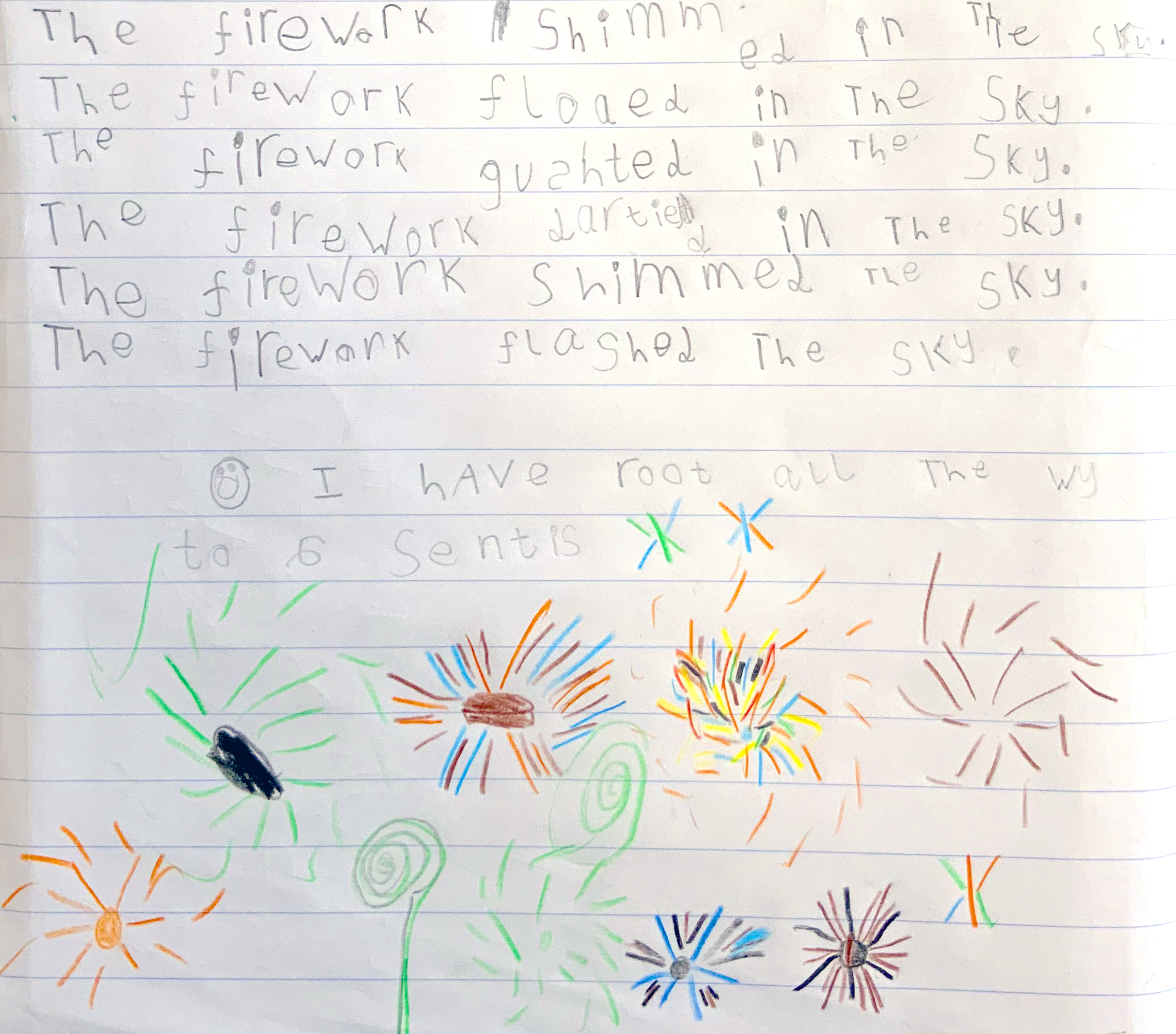
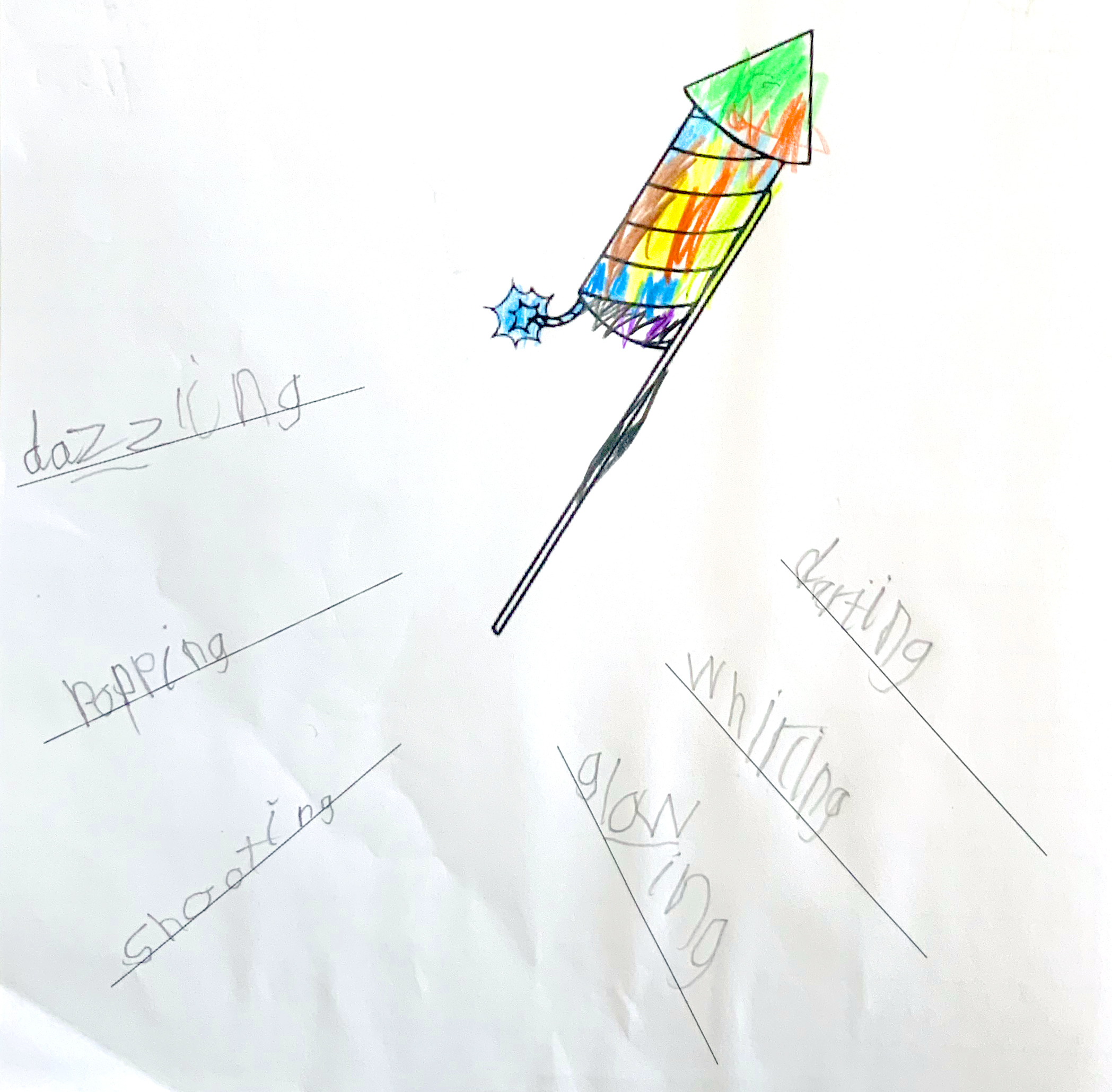
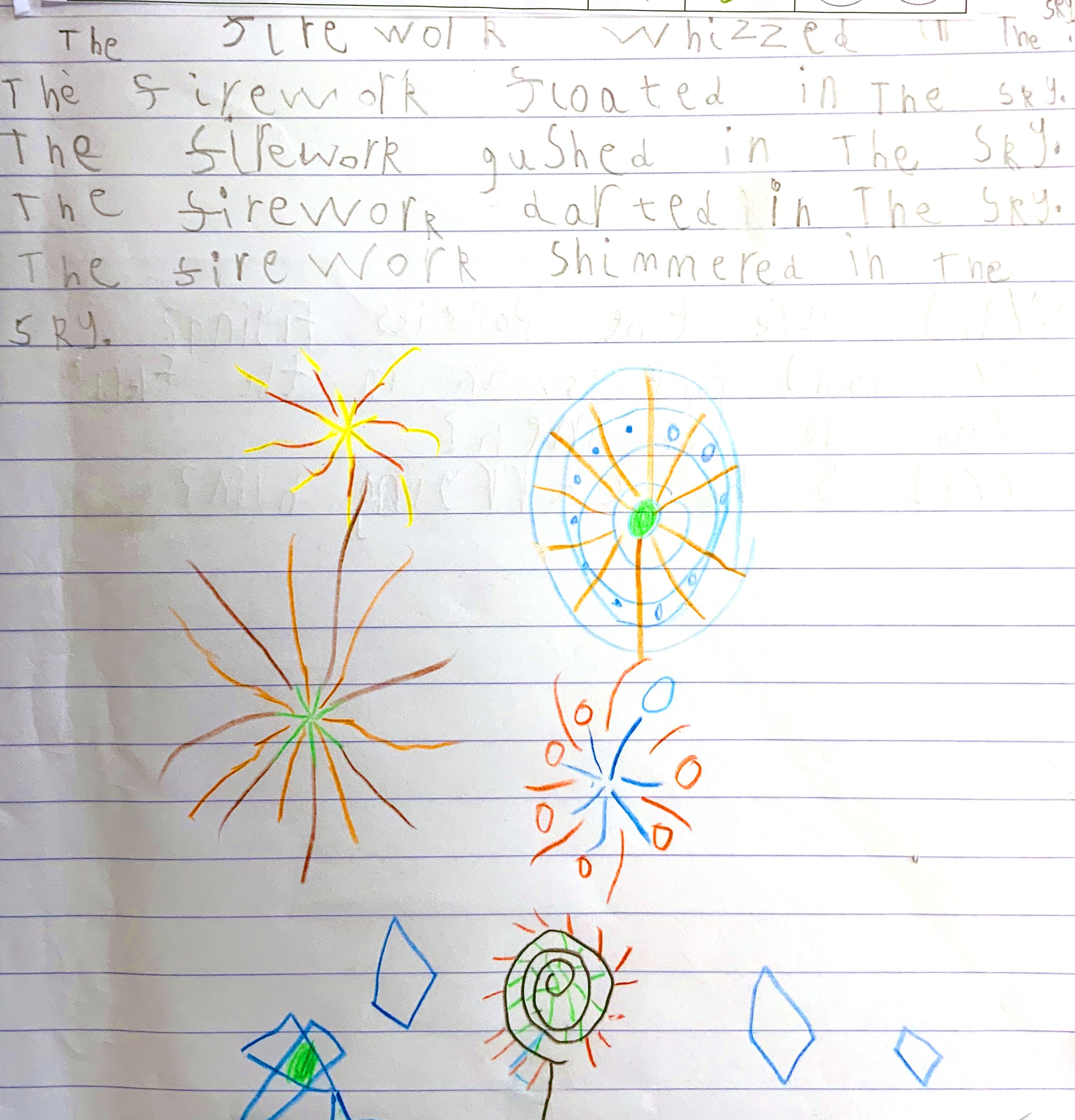
This week Year 1 have been learning all about fireworks by writing poetry and creating digital art.

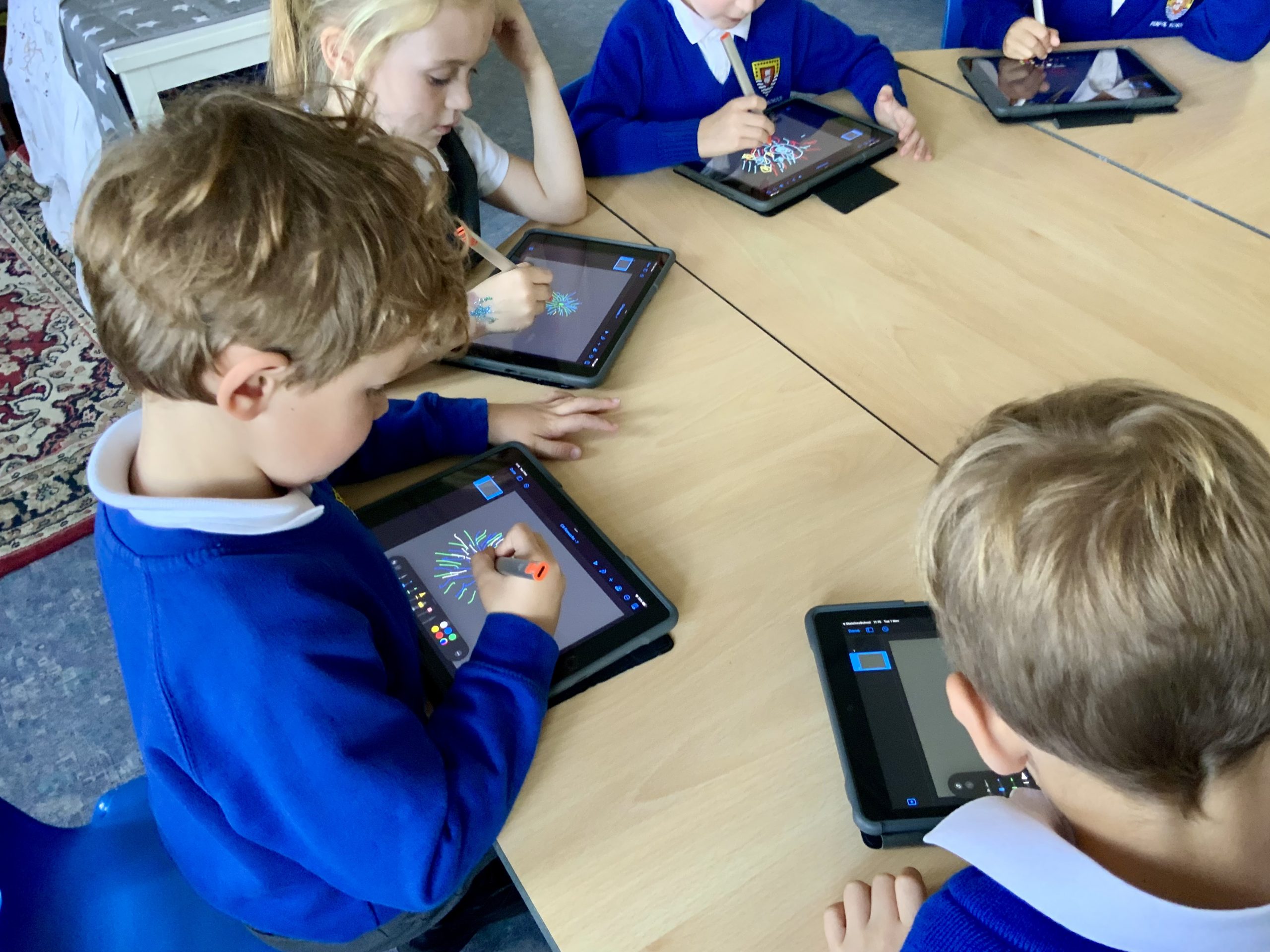
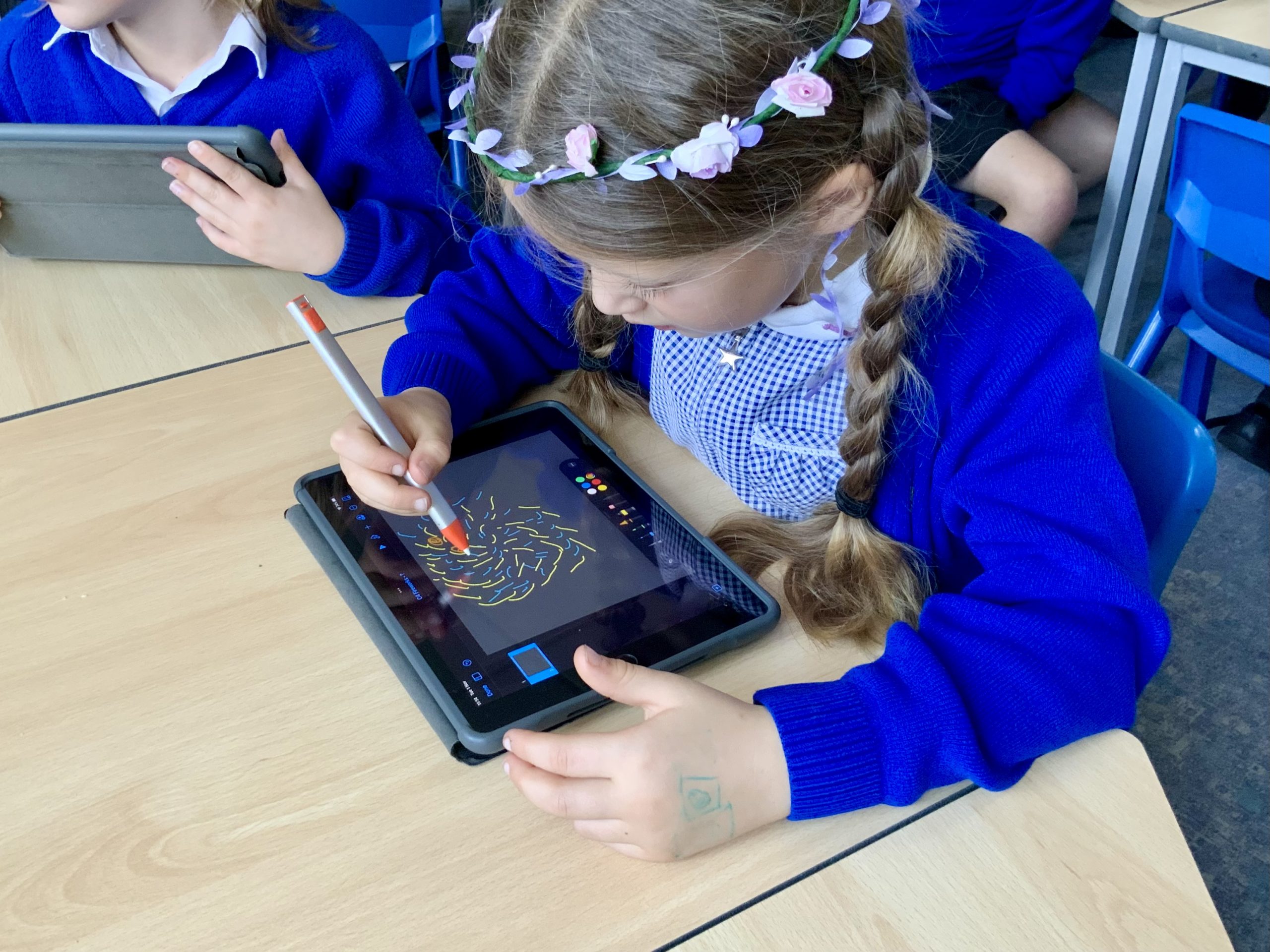
The children started on Tuesday by getting used to drawing on the iPads with the Logitech Crayons. They used Keynote to draw some colourful, bright fireworks using lots of small mark making around a central point.

These fireworks were then all put together into one large image (with the help of our Year 6’s!) to create the lovely animation you can see above.

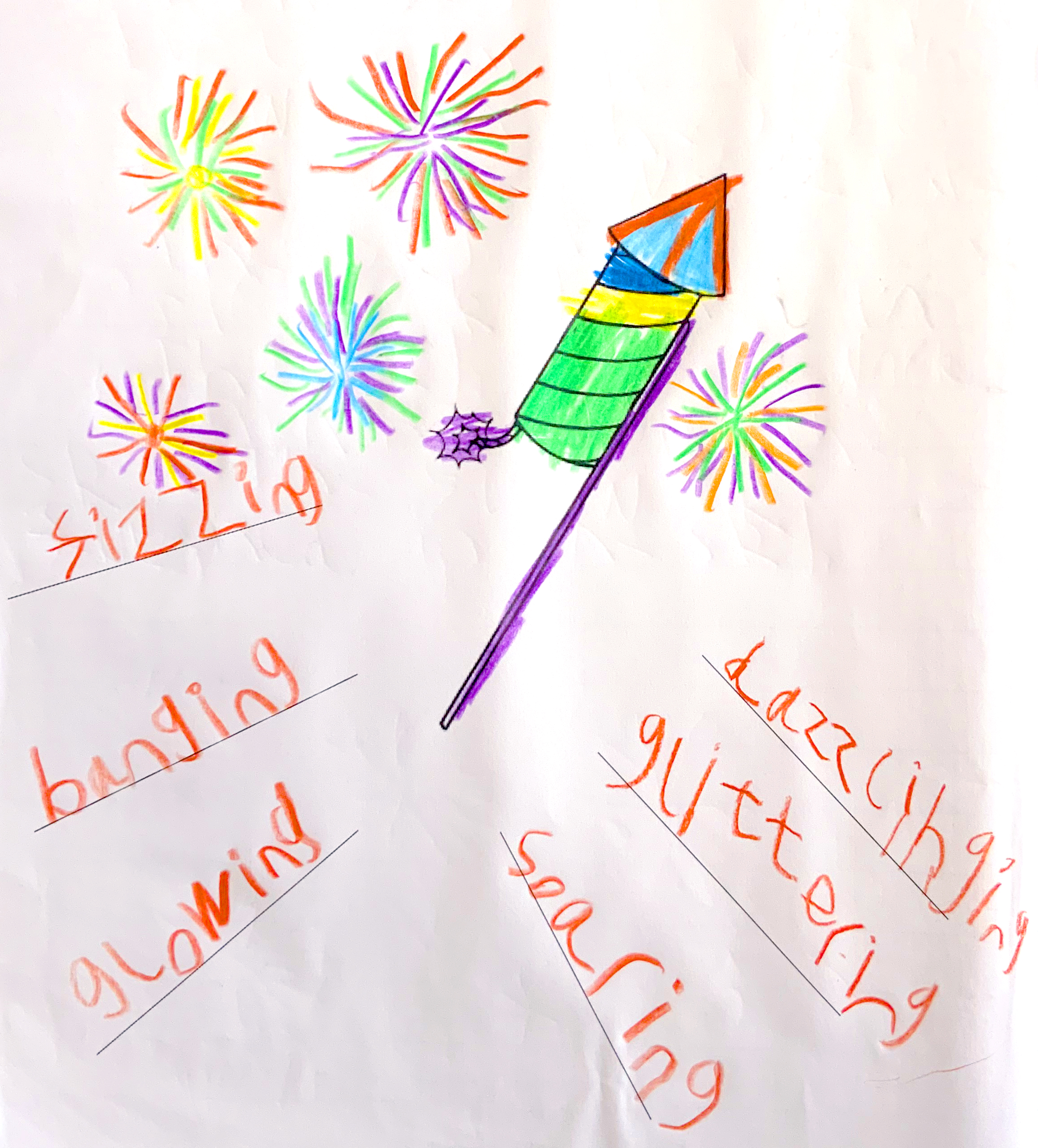
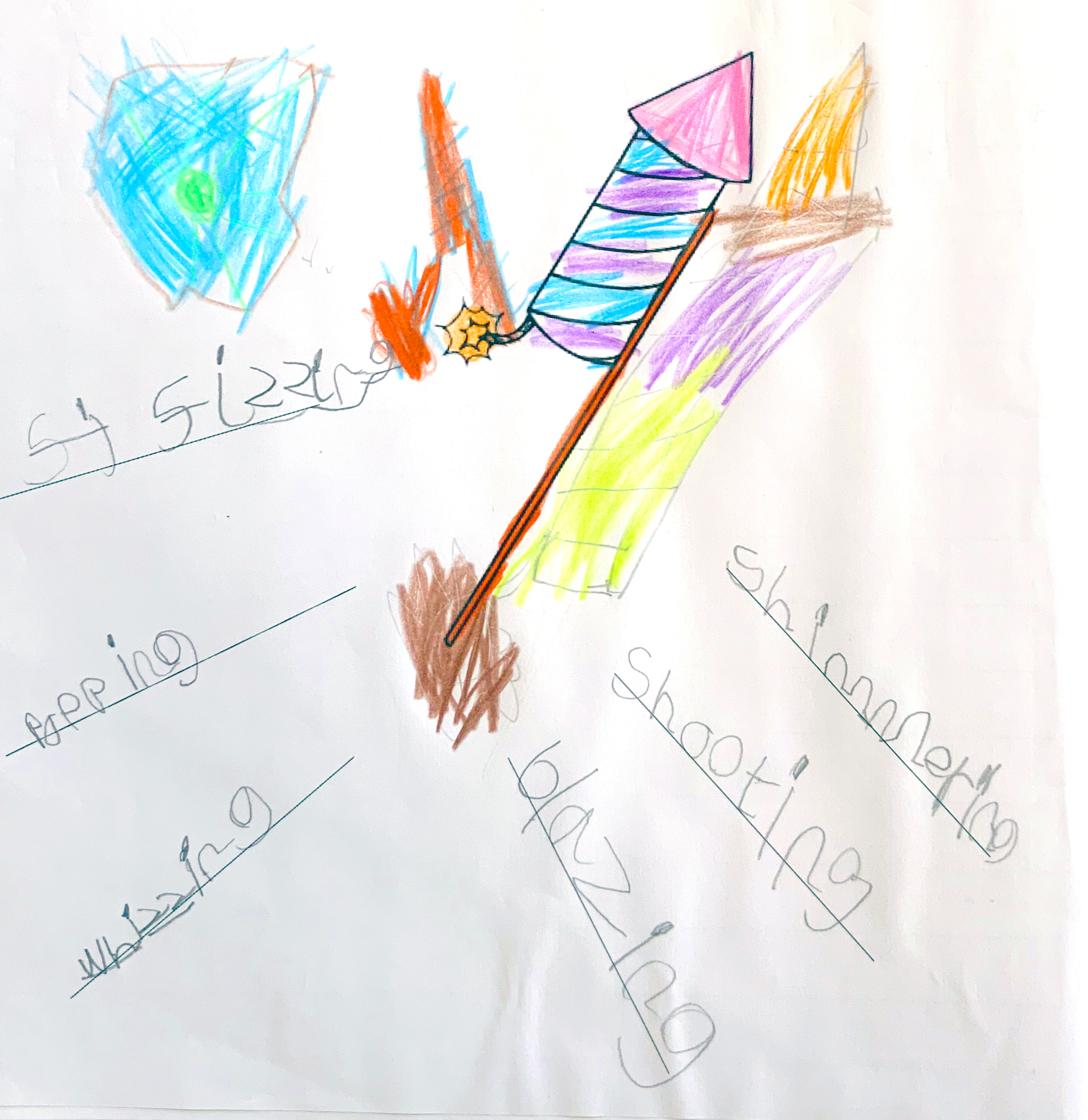
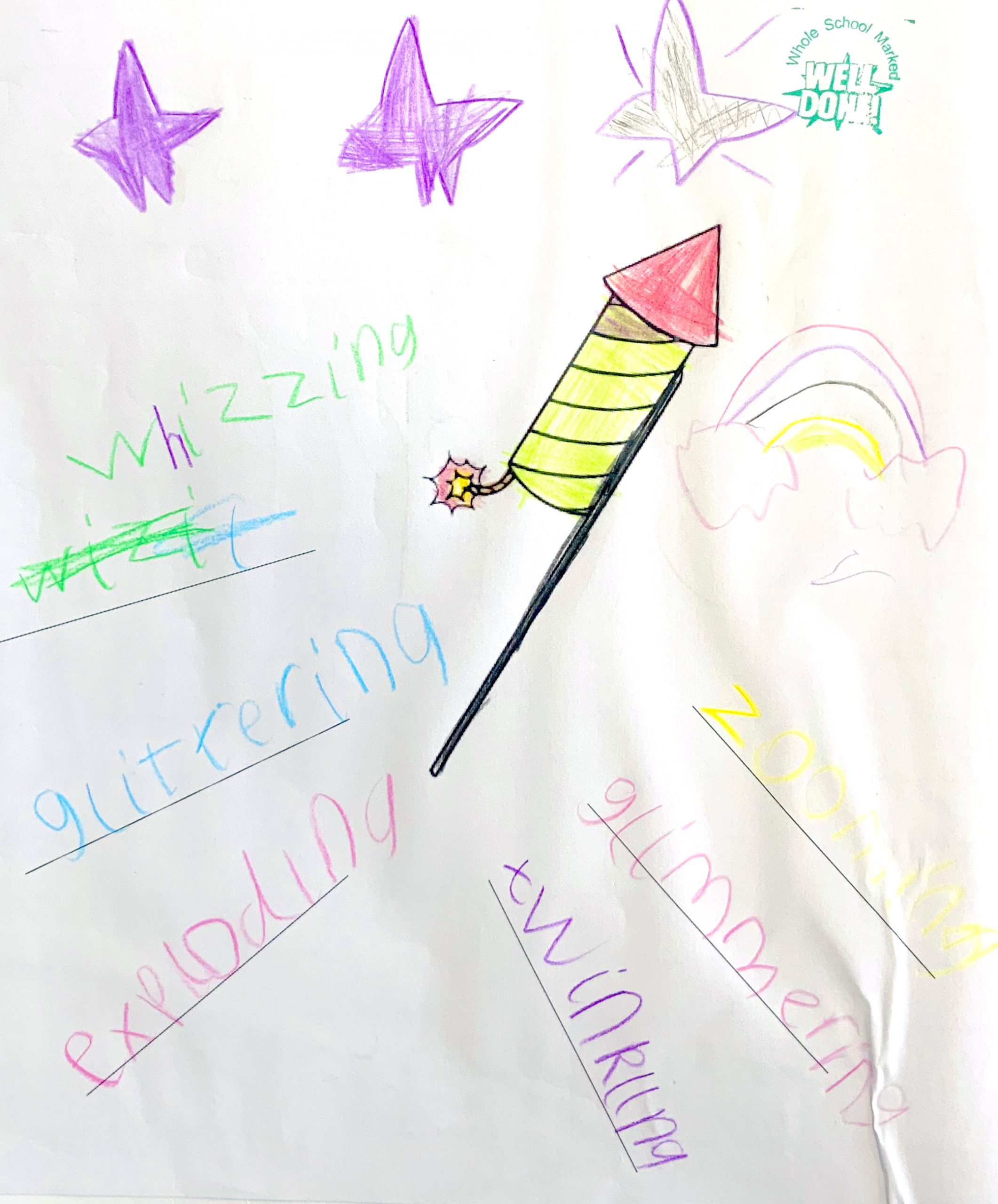
In their English lessons the children were learning about verbs to describe movement and the -ing and -ed suffixes.  They considered which of these words would best describe fireworks and then used them to help with their pattern poetry.

You can see their wonderful verbs and poems by clicking on the pictures below.

Behind the Scenes of Maths Mania in Scratch

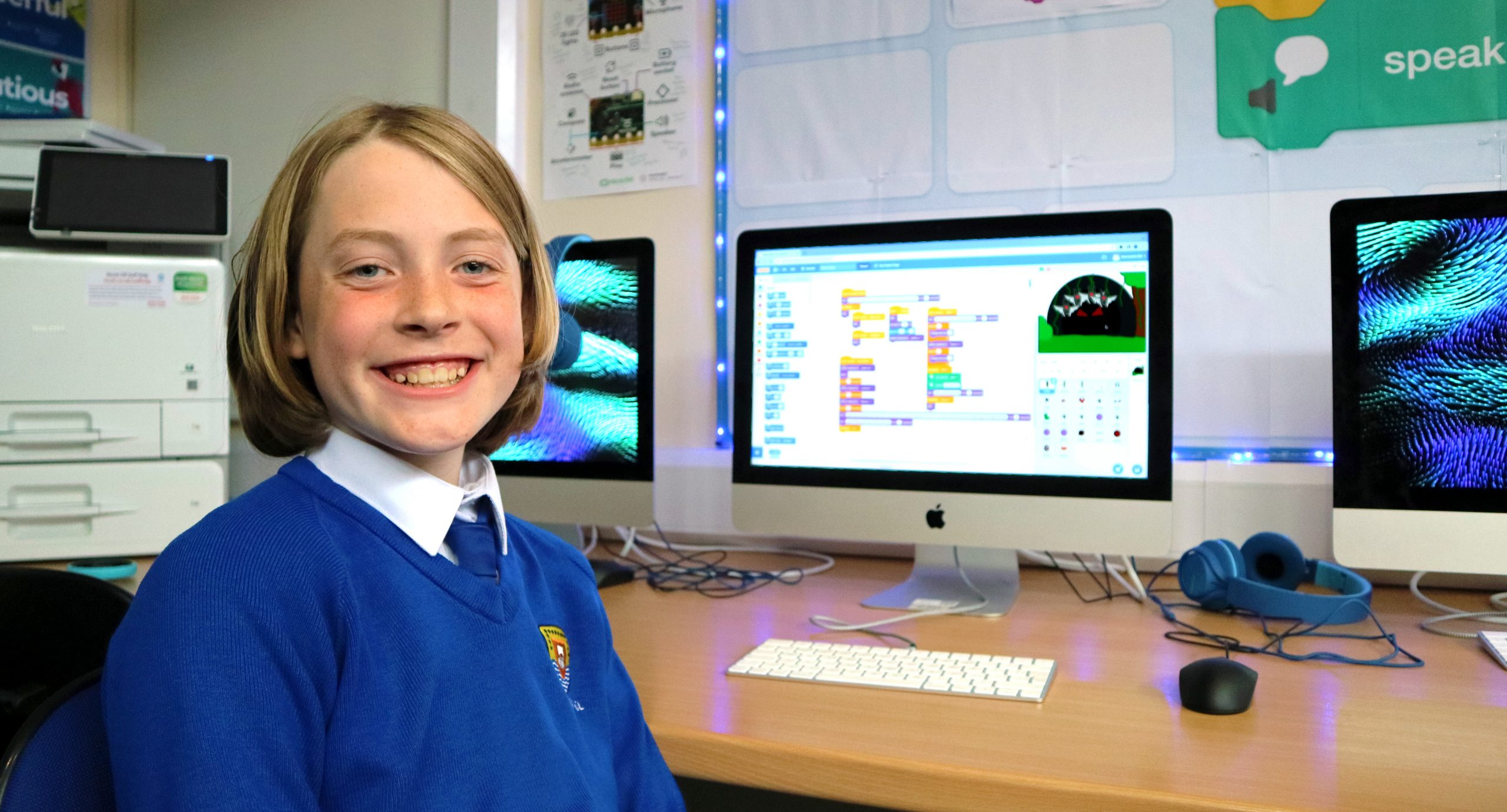
Scratch is a great program that lets us build our own games, animations and tools.  Using brightly coloured blocks of code we can control individual objects (called Sprites) as well as being able to combine multiple elements into more complex programs.  However my favourite thing about Scratch is that you can make just about anything you like if you use your imagination.

That’s exactly what happened last week when I heard this…

“Mr Woolcock, can I show you this game I’ve been making at home?”

Below is a video of that particular game, complete with play-by-play commentary!

I can’t overstate how much creativity, problem solving and complex logical thinking are involved in bringing a project like this to life – it’s absolutely ace.

If you’d like to have a play of this game (or the prequel – Grammar Castle) you can use the buttons below.

Coding Underwater Adventure Games in Scratch

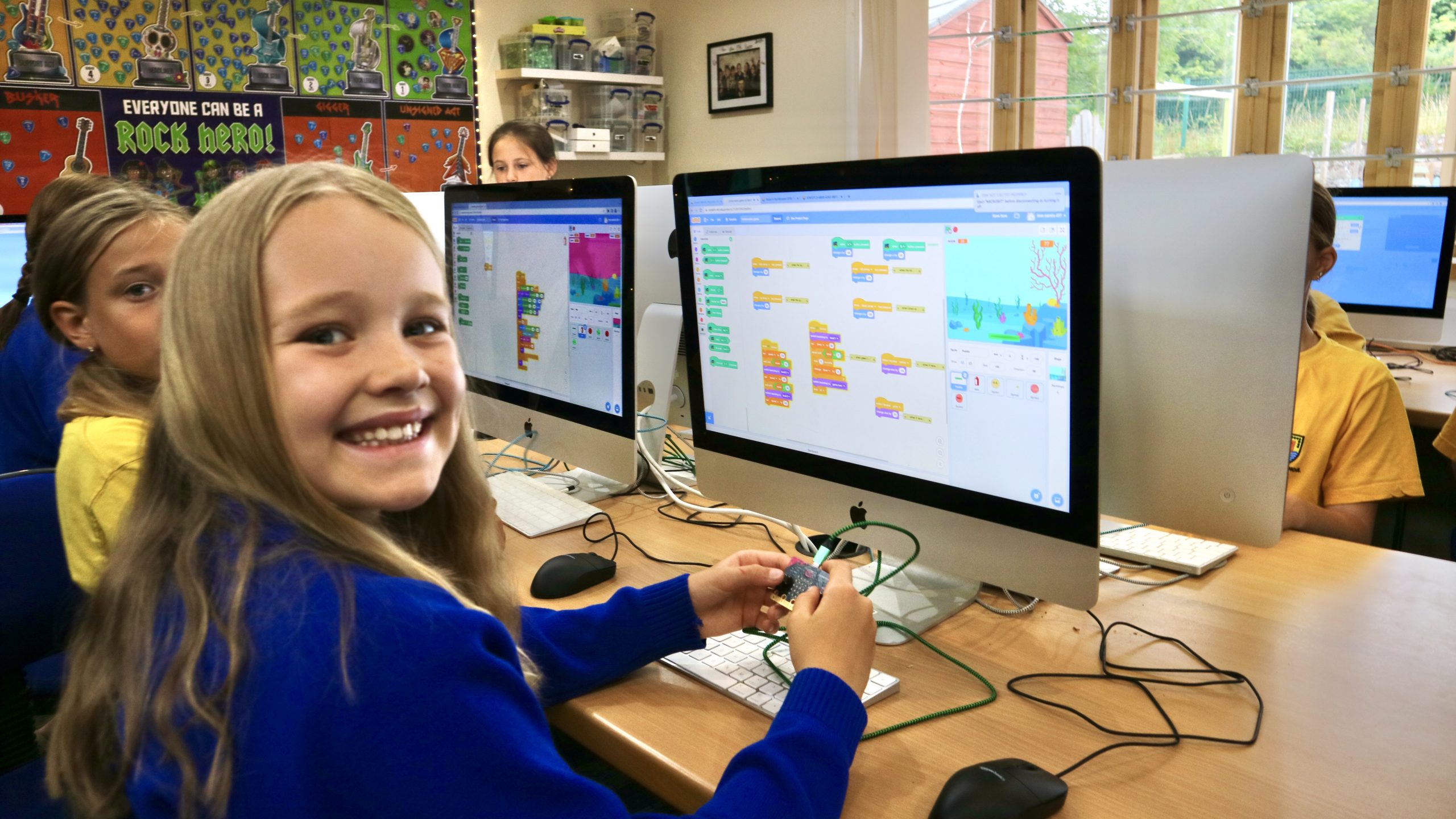
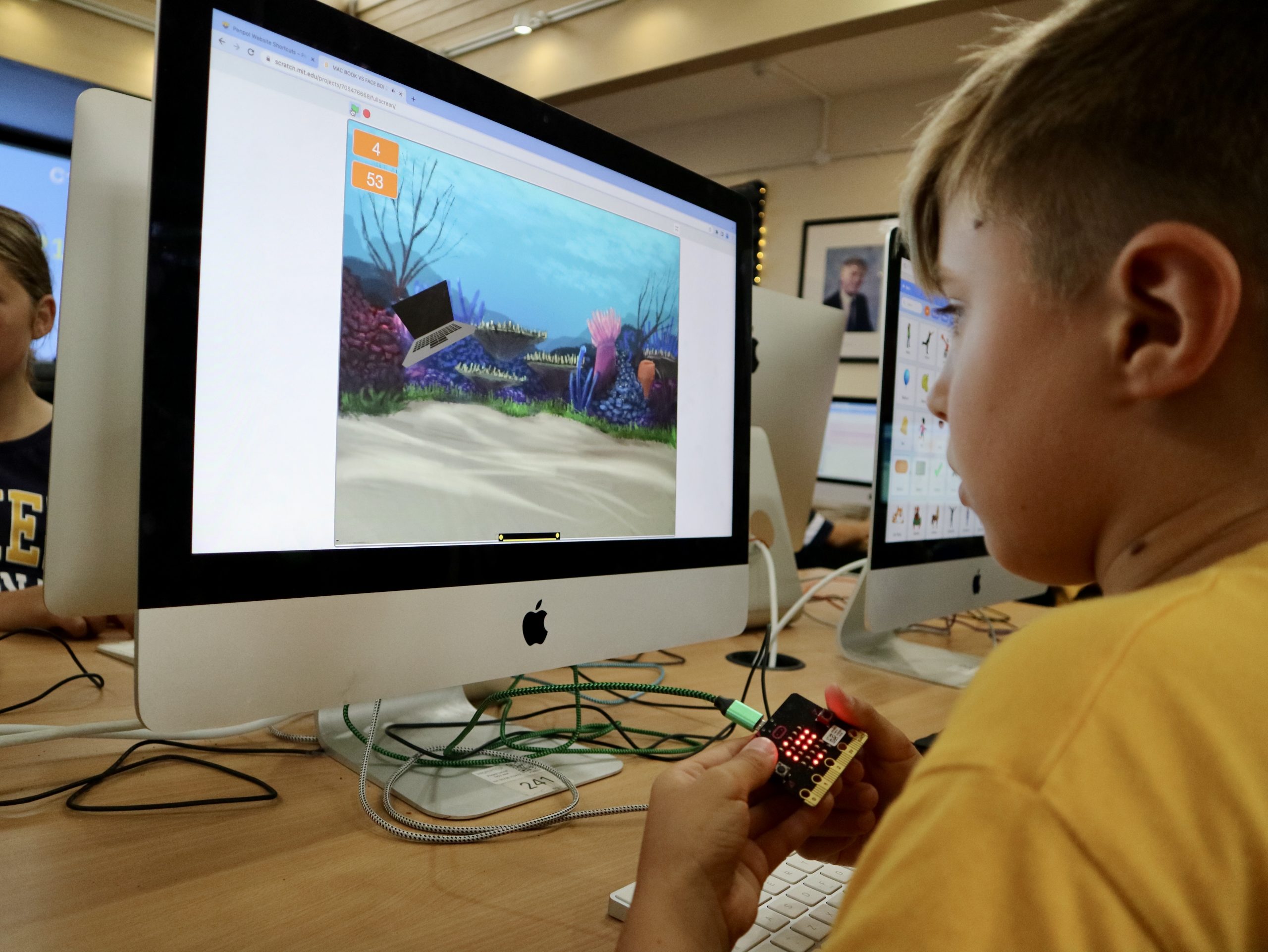
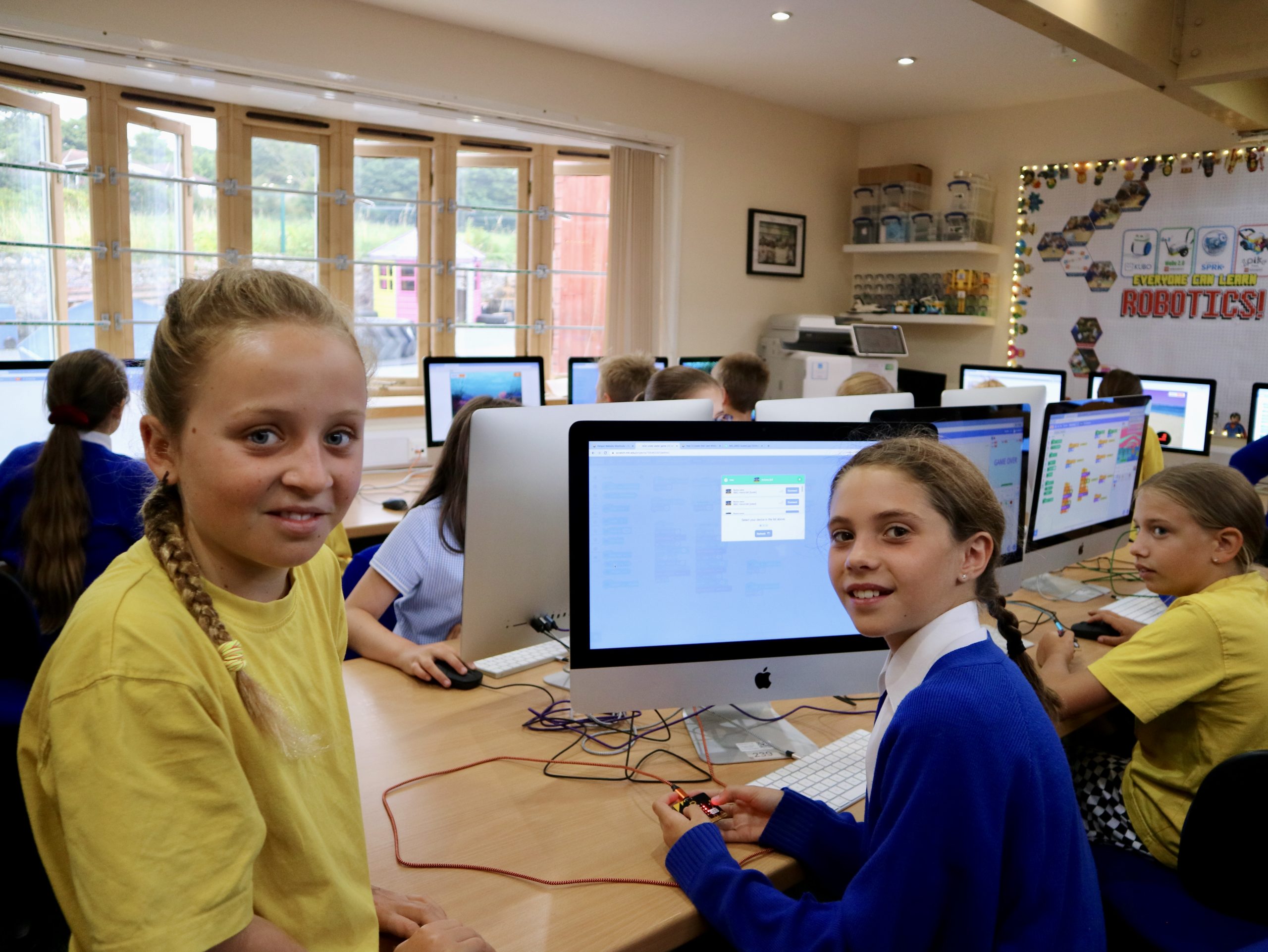
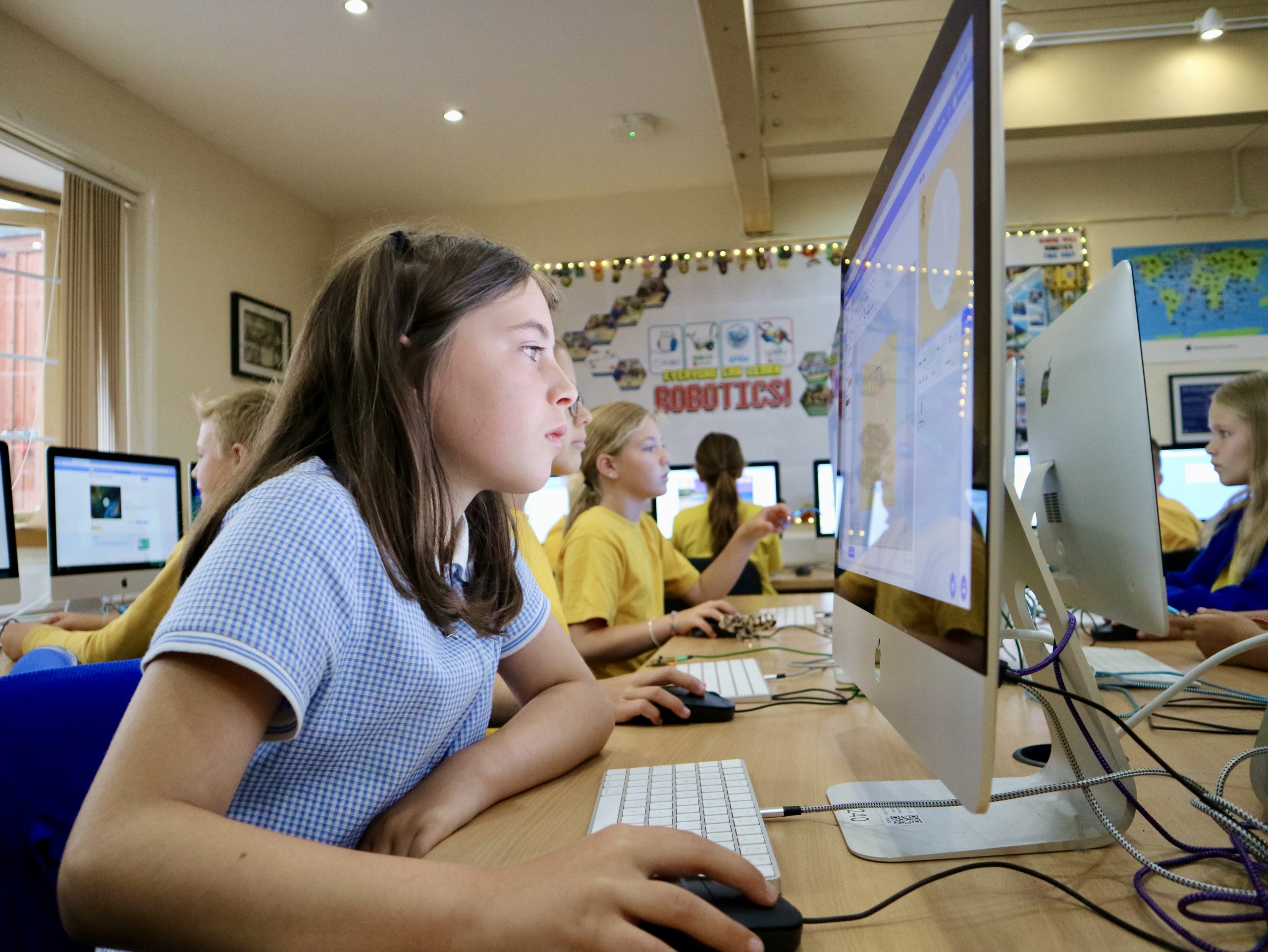
Our Year 5 students have been exploring Scratch this term and learning lots about coding along the way.  From small beginnings, the children have quickly developed a really exciting and creative understanding of just what’s possible in Scratch.

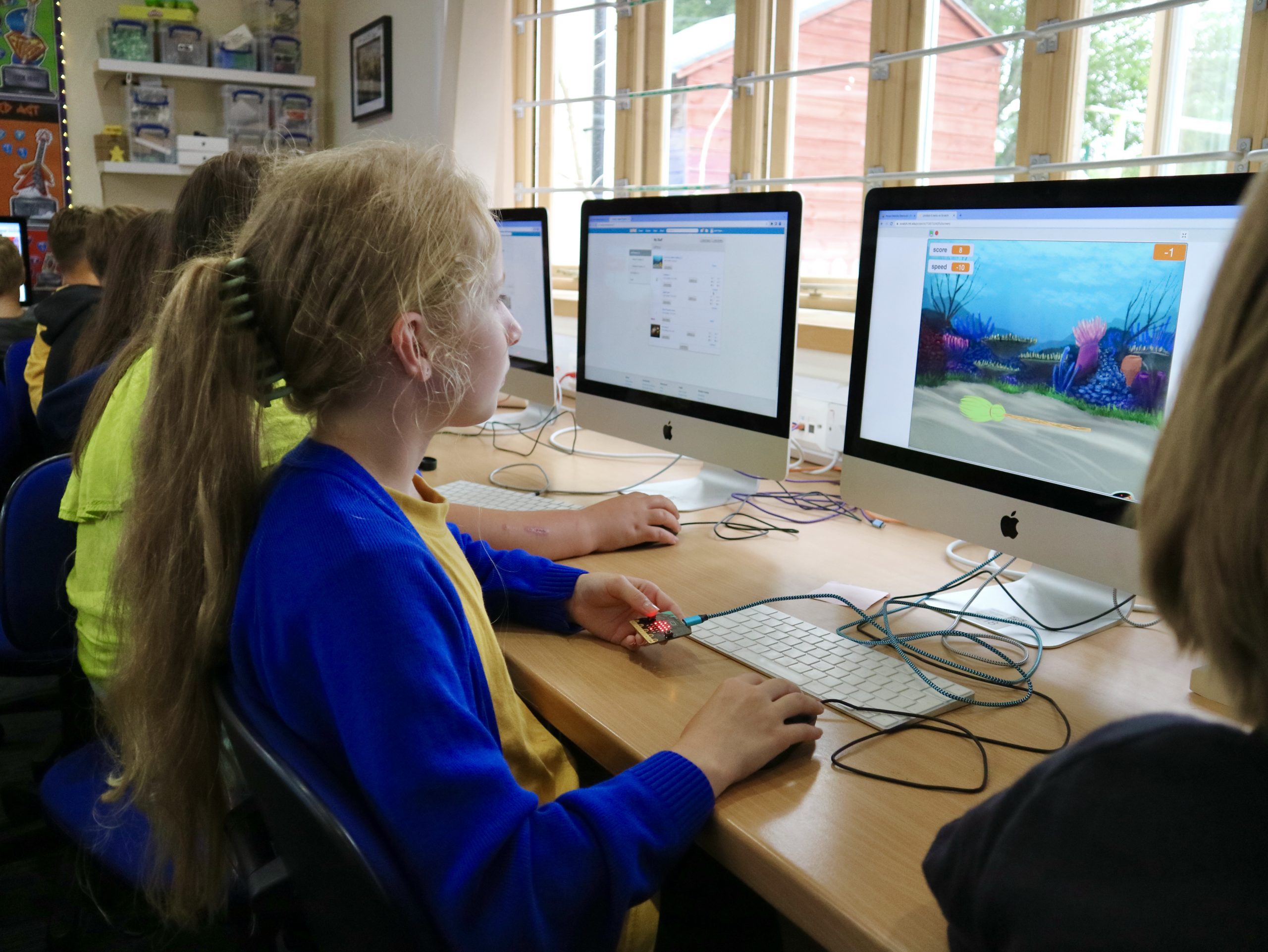
This learning has all come together in the last few weeks with a massive game building project, based on their class topic of a ‘Conservation Conversation‘.  This project started out as a simple ‘falling objects’ type game where they were trying to collect pollution before it hit the bottom of the ocean.  However this quickly developed into something far more interesting thanks to some incredible ideas from the children.  First they wanted to make the game more random, with objects falling at different times in different places.  Then several of them explored the idea of ‘power ups’ that would make the game easier or harder.  The natural next step was to add a variable to hold a Score and after that we decided it would be fun to add a time limit variable to add to the pressure!

But they didn’t stop there – the children then developed even more elements in their games.  Time limited boosters, sneaky tricks to get extra points, objects that immediately ended the game when caught.  The list was endless!

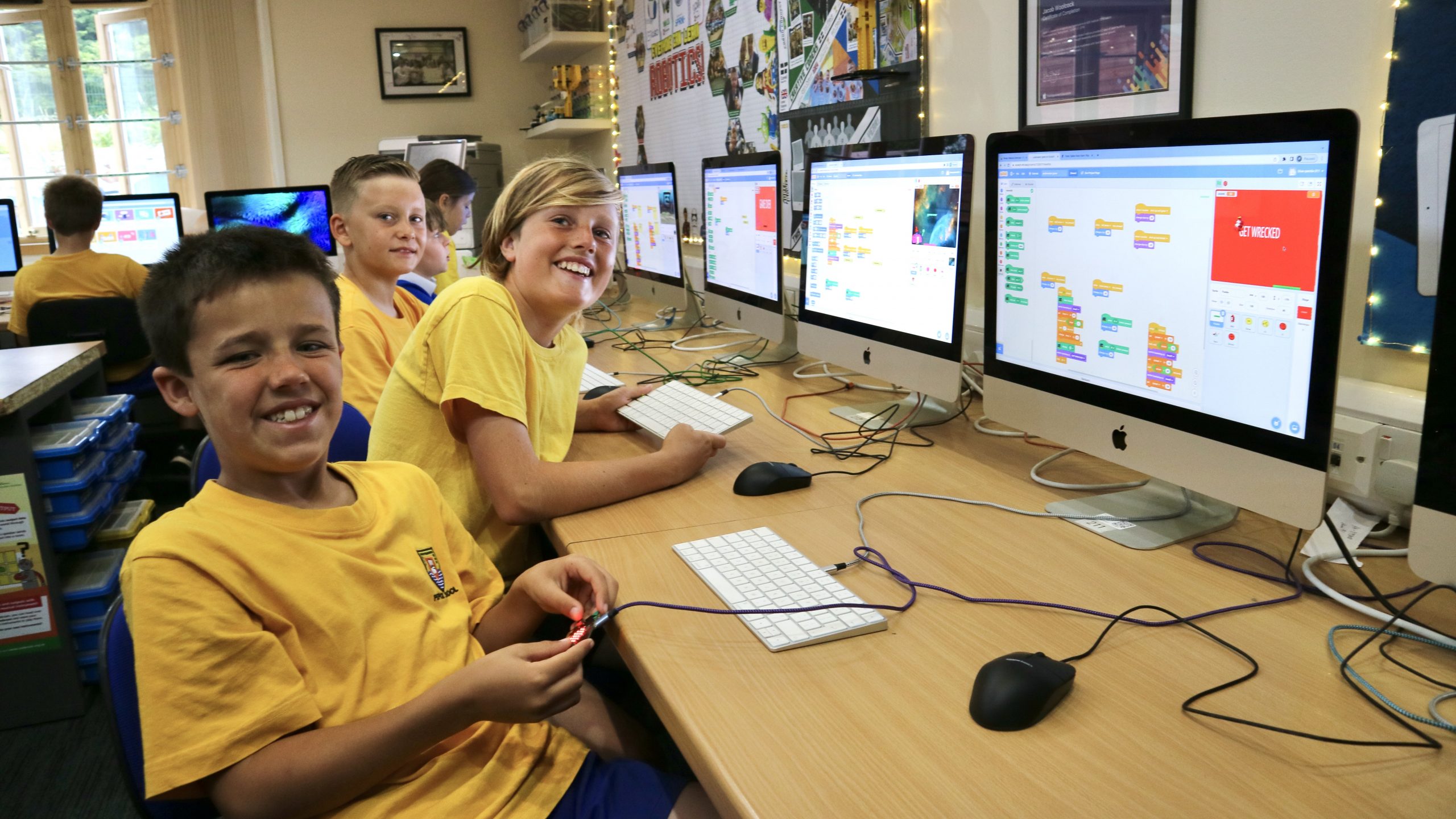
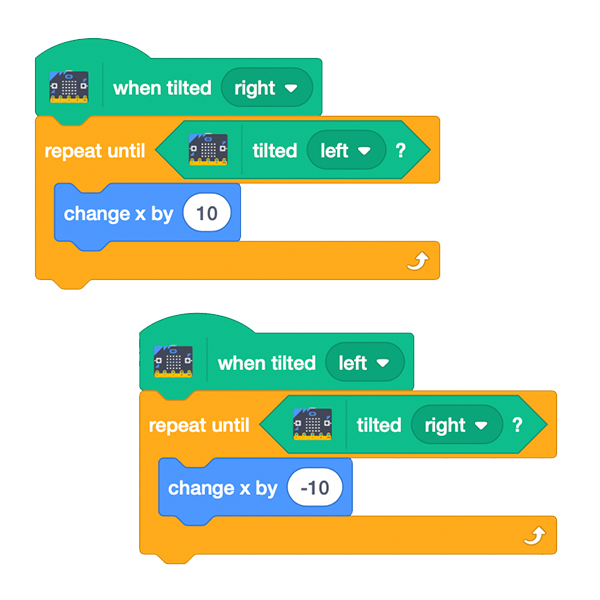
Finally we all came together and explored how a micro:bit could be used as a game controller for these games.  We used buttons as an input, before Rio came up with some quite brilliant code to use the motion sensor too!

This has been a hugely fun project and the children have been problem solving, debugging and creating new code with incredible skill and precision.  They’ve even got into the habit of labelling their code as they go to make it easy to pick up and edit in the future!
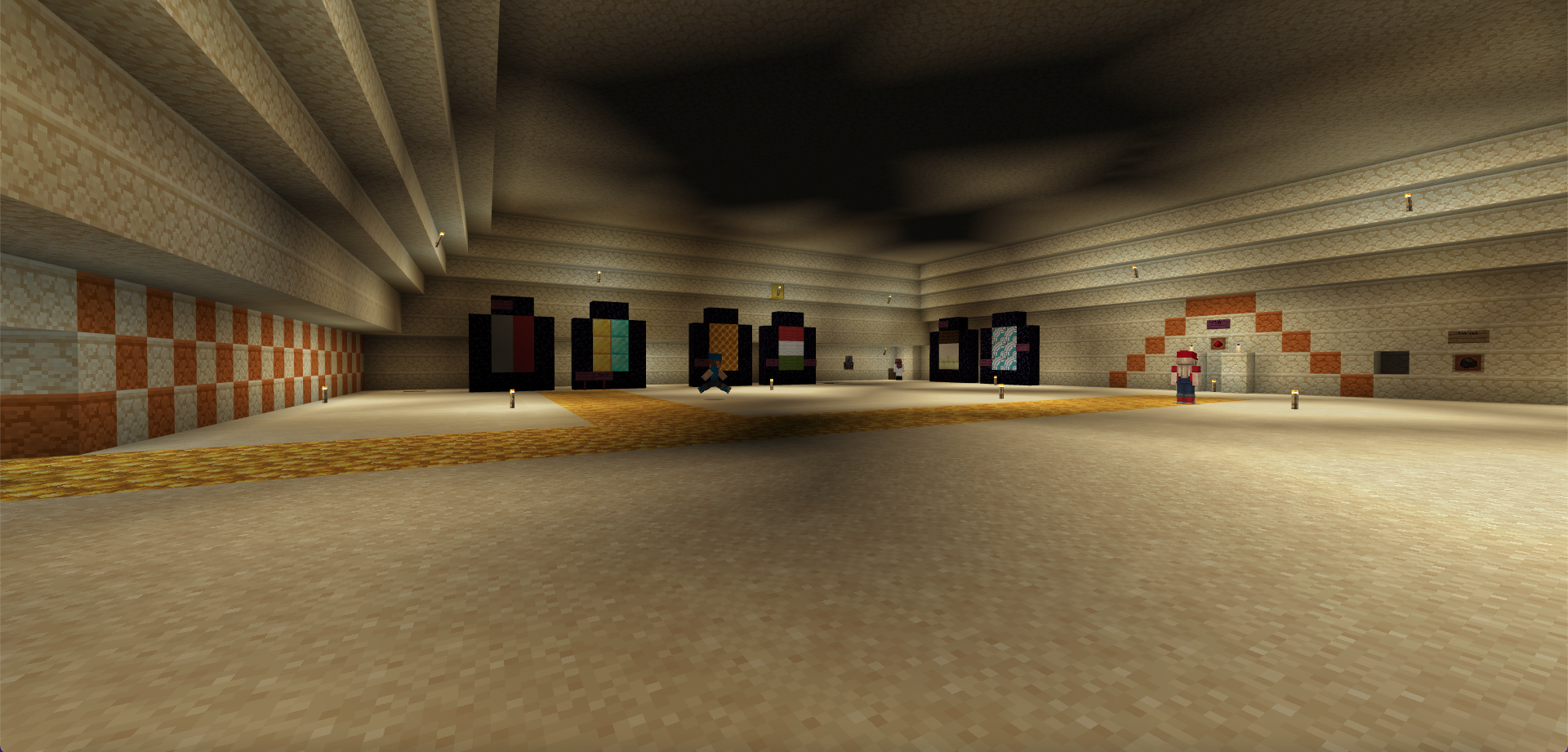
Below you can see some of the code they’ve been constructing, as well as some of their games for you to play and enjoy!
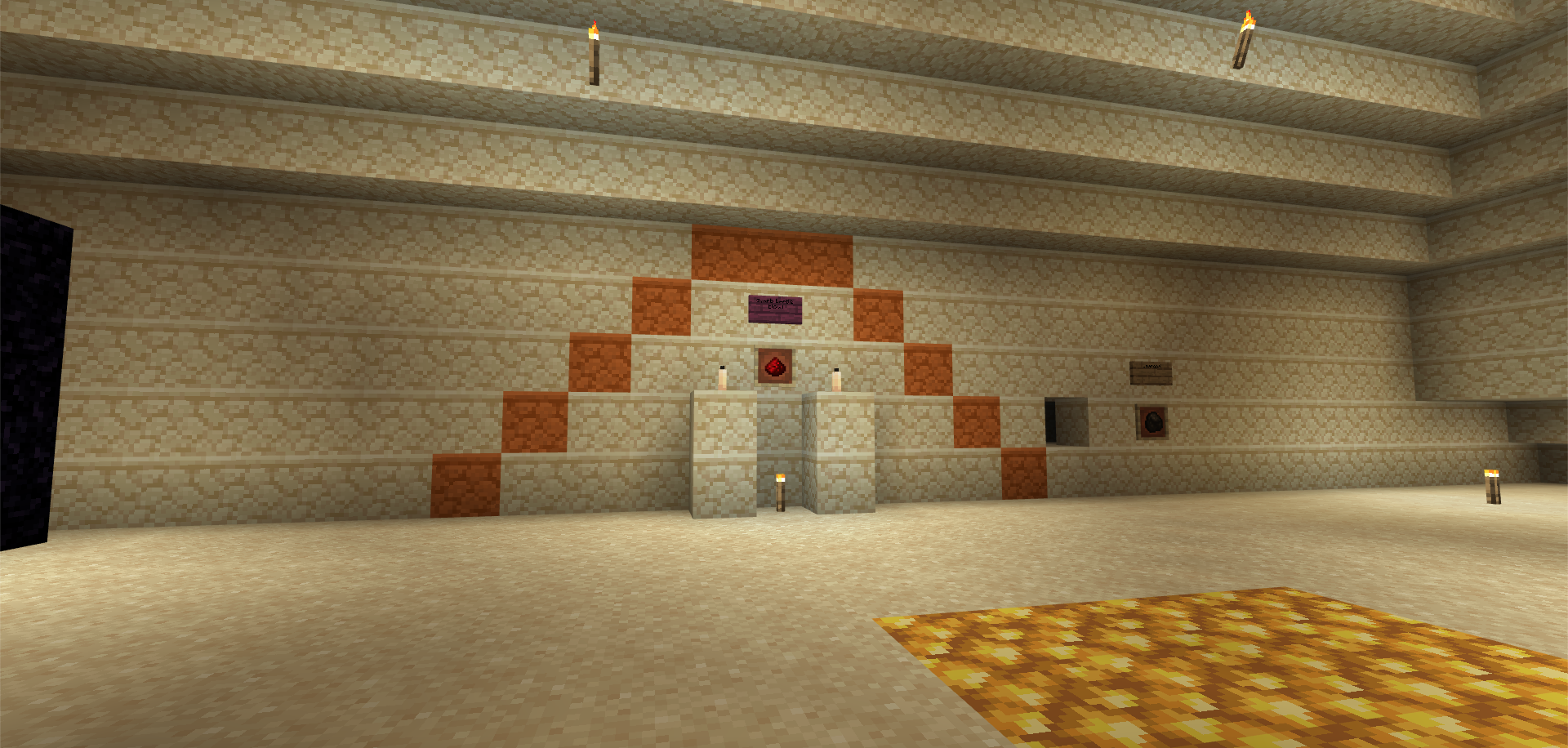
For this game you need to use the Arrow Keys to move the paddle along the bottom of the screen.

Catch the pollution but beware of bad power-ups!

Press the Green Flag to start.

"It was really fun, I loved making the games with Mr Woolcock. It was hard work, but fun because we kept adding more to make our games more fun. There was a time when we tried to get the micro:bits to move and I just couldn’t get the right pieces of code to make it move properly, when I figured it out I was so excited that I just kept playing the game for ages!"
Oliver
"It was fun with the micro:bits because it was so cool watching it come to life and play the game with our own controllers. I also liked testing each others games out on Scratch because it was a great way to get more ideas for our own games."
Imogen
Cool Code in these Games

Randomising Game Elements

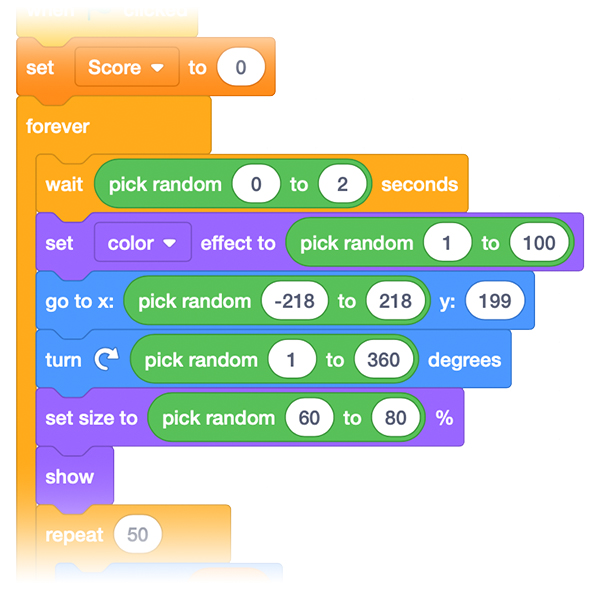
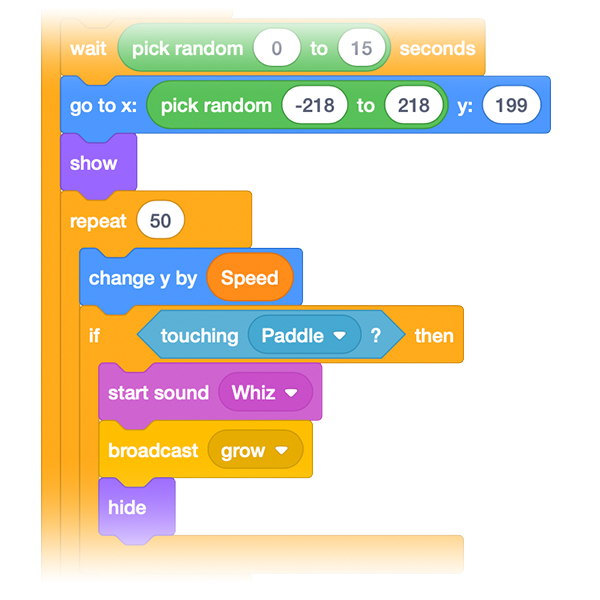
We quickly discovered that the games would be a lot more fun if we didn't know where or when objects would be falling from. The children explore Random blocks to create rules for the game to follow, but rules which would create an unpredictable outcome.

Variables: Timer, Score and More

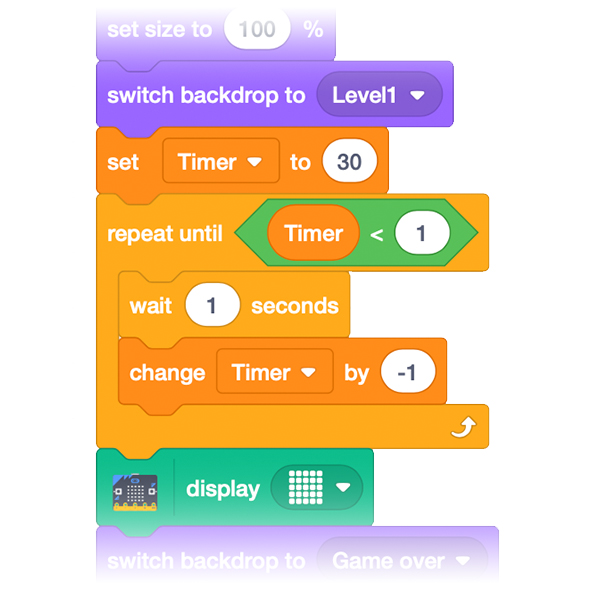
Adding a Score and Timer was a great chance to spend more time exploring Variables. These clever bits of code can change their value at any time, making them perfect for adding five points or taking away a second on the timer. Some children even used the Score variable to trigger new levels starting!

Boosters

As well as pollution falling into the ocean, the children wanted to add other objects which would affect the gameplay in one way or another. Cue objects that add or remove time from the timer, ones which give you bonus points and even ones which make your paddle bigger or smaller. Bonuses, both good and bad, added a whole new dimension to the gameplay.

Micro:Bit Controllers

The last part of the project involved connecting our micro:bits to Scratch over Bluetooth to use them as an external gamepad. The children experimented with using the buttons too move left and right before Rio made a breakthrough (with the code above!) to make the tilt sensor work flawlessly. The micro:bits also came in handy for displaying the score and time remaining.

"I’ve really enjoyed this project, it was challenging but it was totally worth it. Trying to figure out where the bugs in my game were was tricky, but eventually I figured it out by using trial and error which helped because it showed me that my timer wasn’t working properly. When I fixed that the game was perfect!"
Maisie
"My favourite thing was exploring the new blocks which I haven’t used before in Scratch, like the micro:bit blocks to control the game. I made lots of choices in my game to make it fun, including where things would go and how quickly they moved!"
Tacita
"My favourite part of making our games was designing the code - especially working with the variables like the timer and the score. These parts make the game a lot more fun because they make it really competitive to play - they were challenging to get working but my friend was able how to make it work a little better."
Lylie

For this game you need to use the Arrow Keys to move the paddle along the bottom of the screen.

Catch the pollution but beware of bad power-ups!

Press the Green Flag to start.

"It was amazing because you got to make a game and play it at school! It was challenging because sometimes getting the right code was tricky, but what I did was (when I calmed down!) I had another look for the blocks I needed and I always managed to find it in the end."
Alex
"My favourite bit of the project was doing the challenges in the code where Mr Woolcock would give us a starting point and it was up to us to make the game elements work."
Caitlyn

Class 11

View all of the games made by
Class 11 on the Scratch Website.

Class 12

View all of the games made by
Class 12 on the Scratch Website.

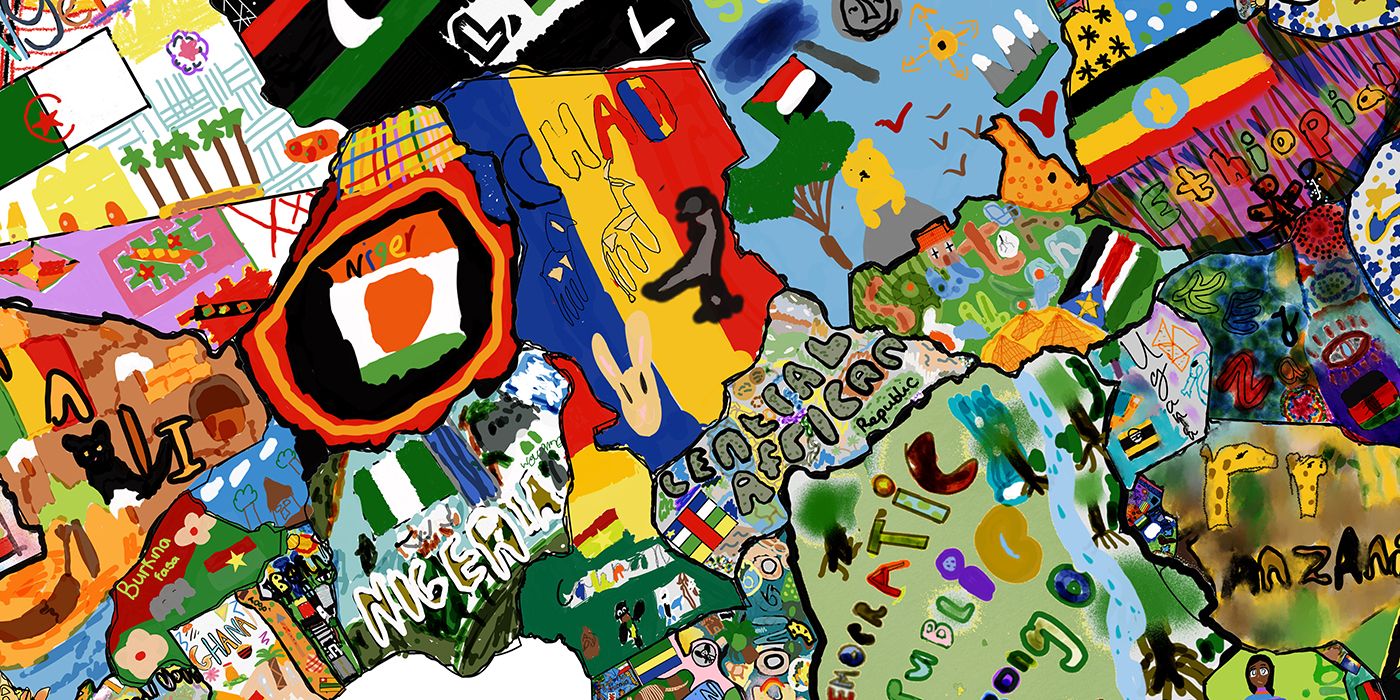
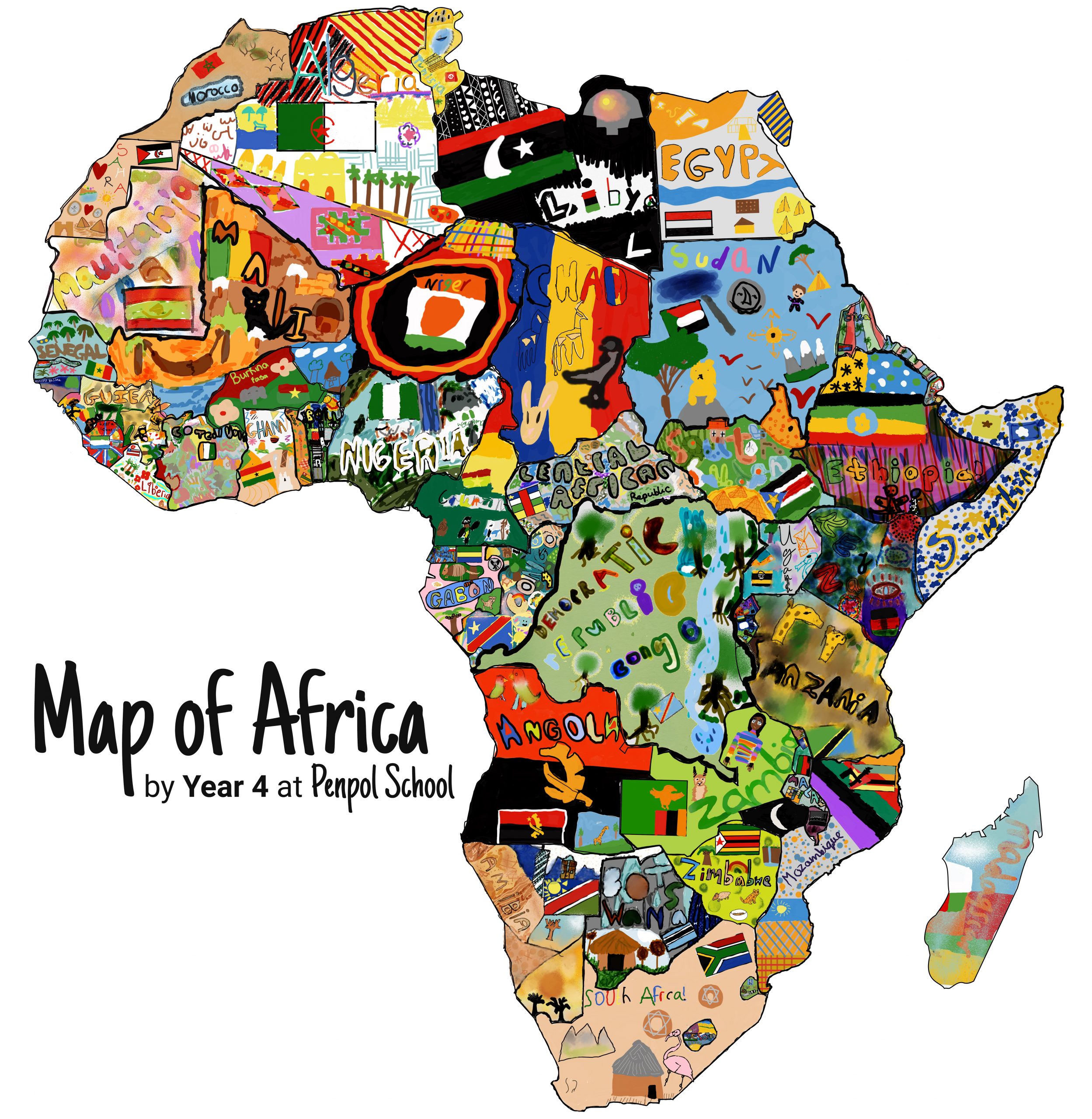
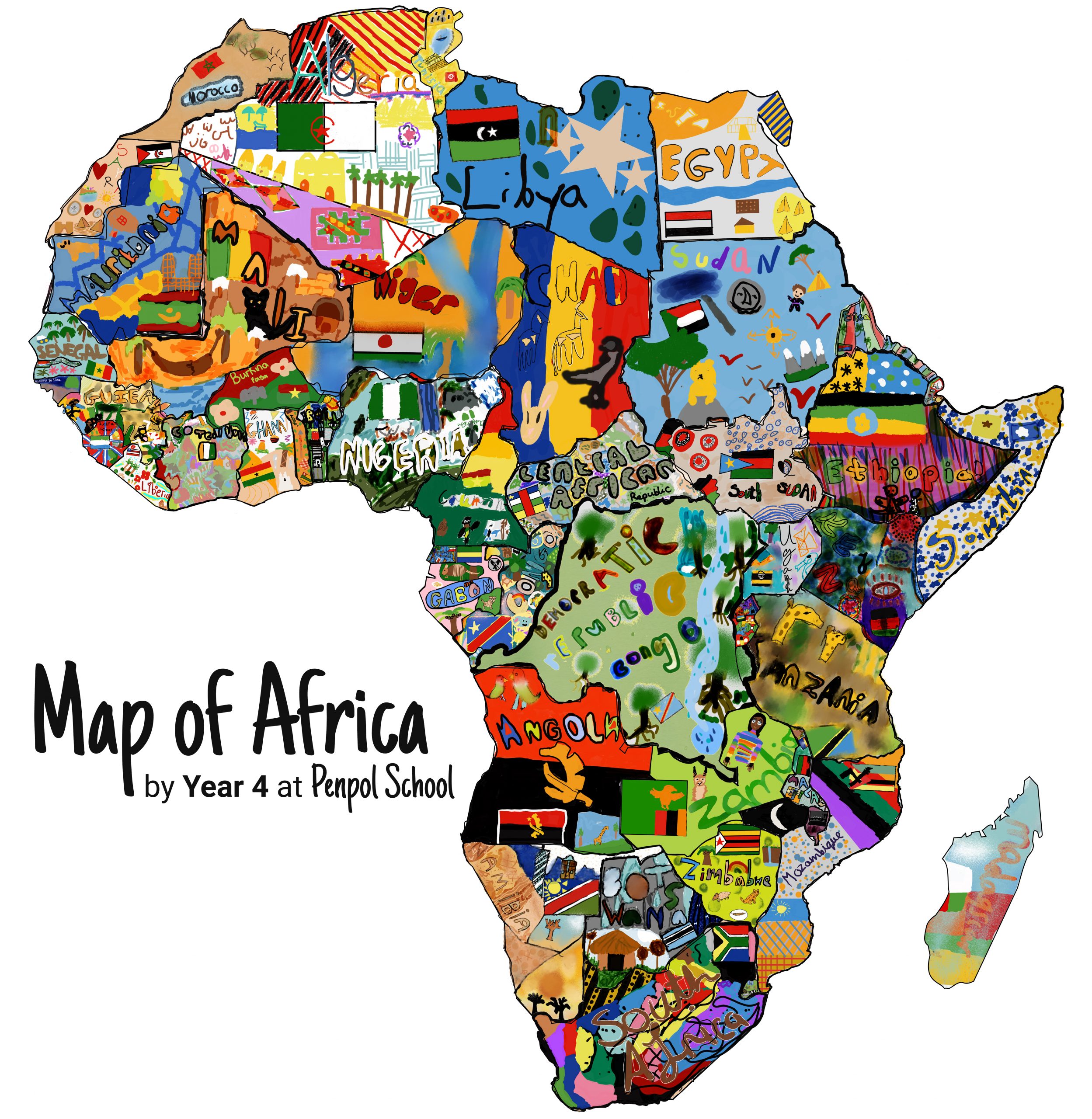
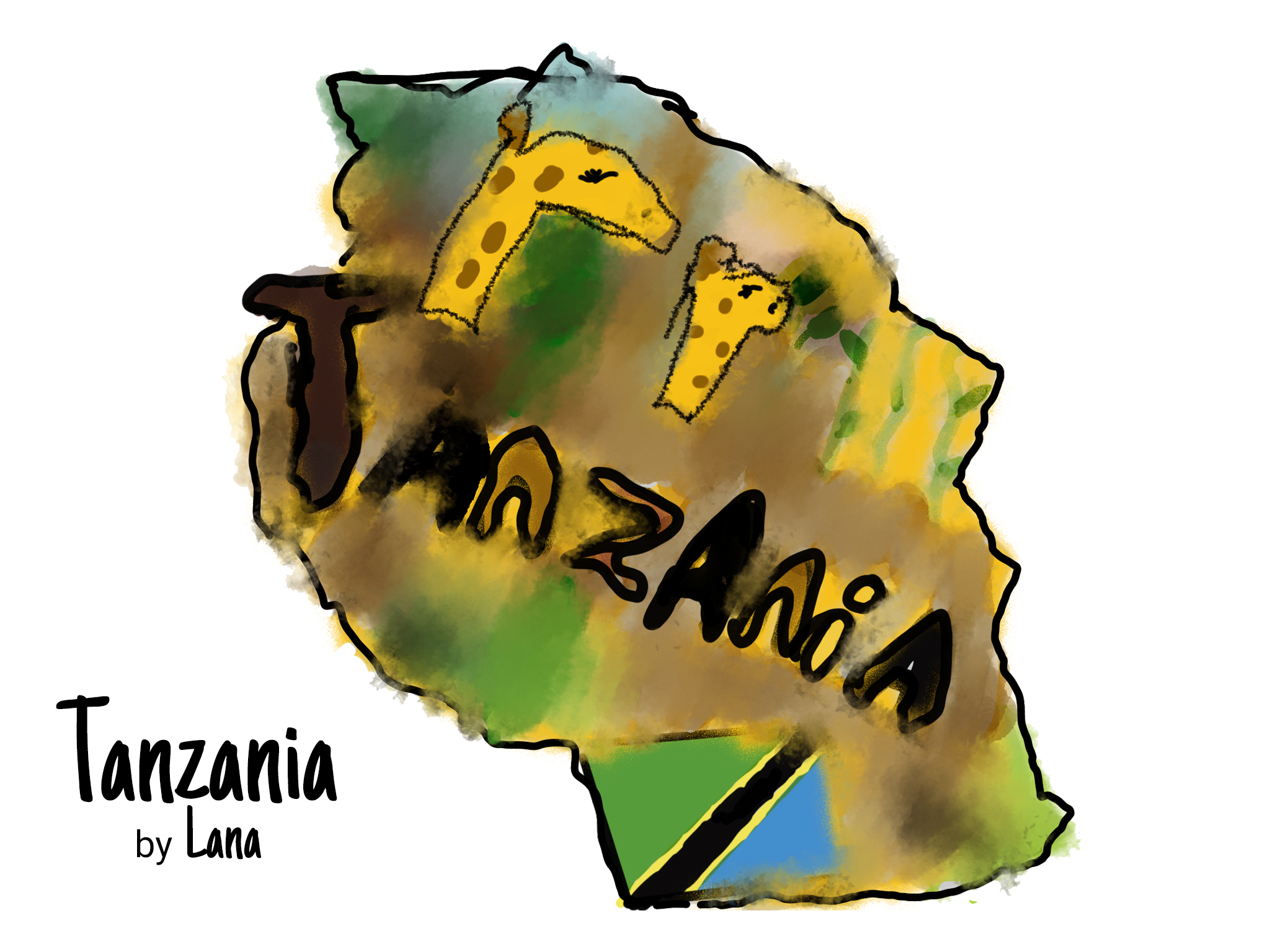
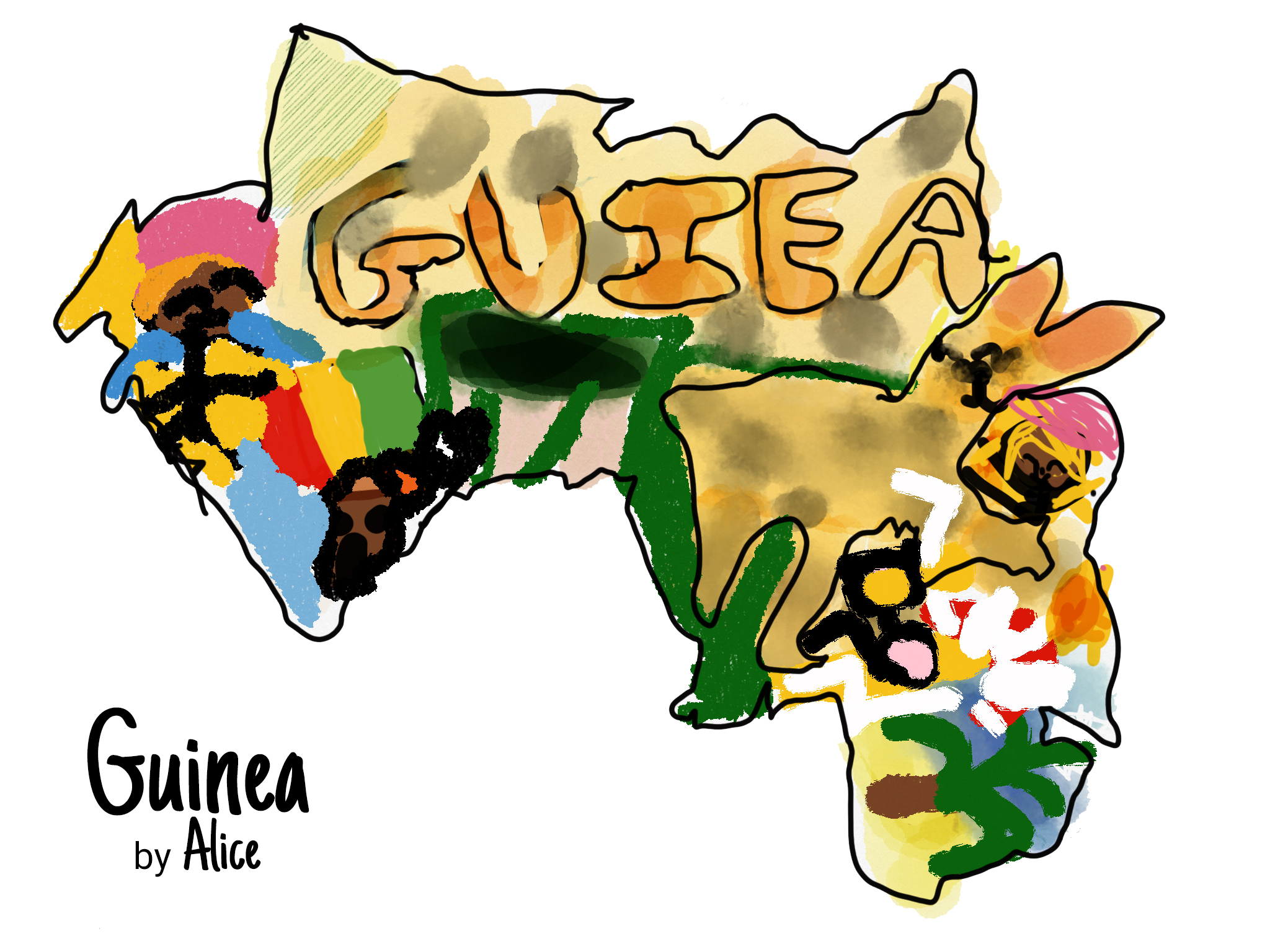
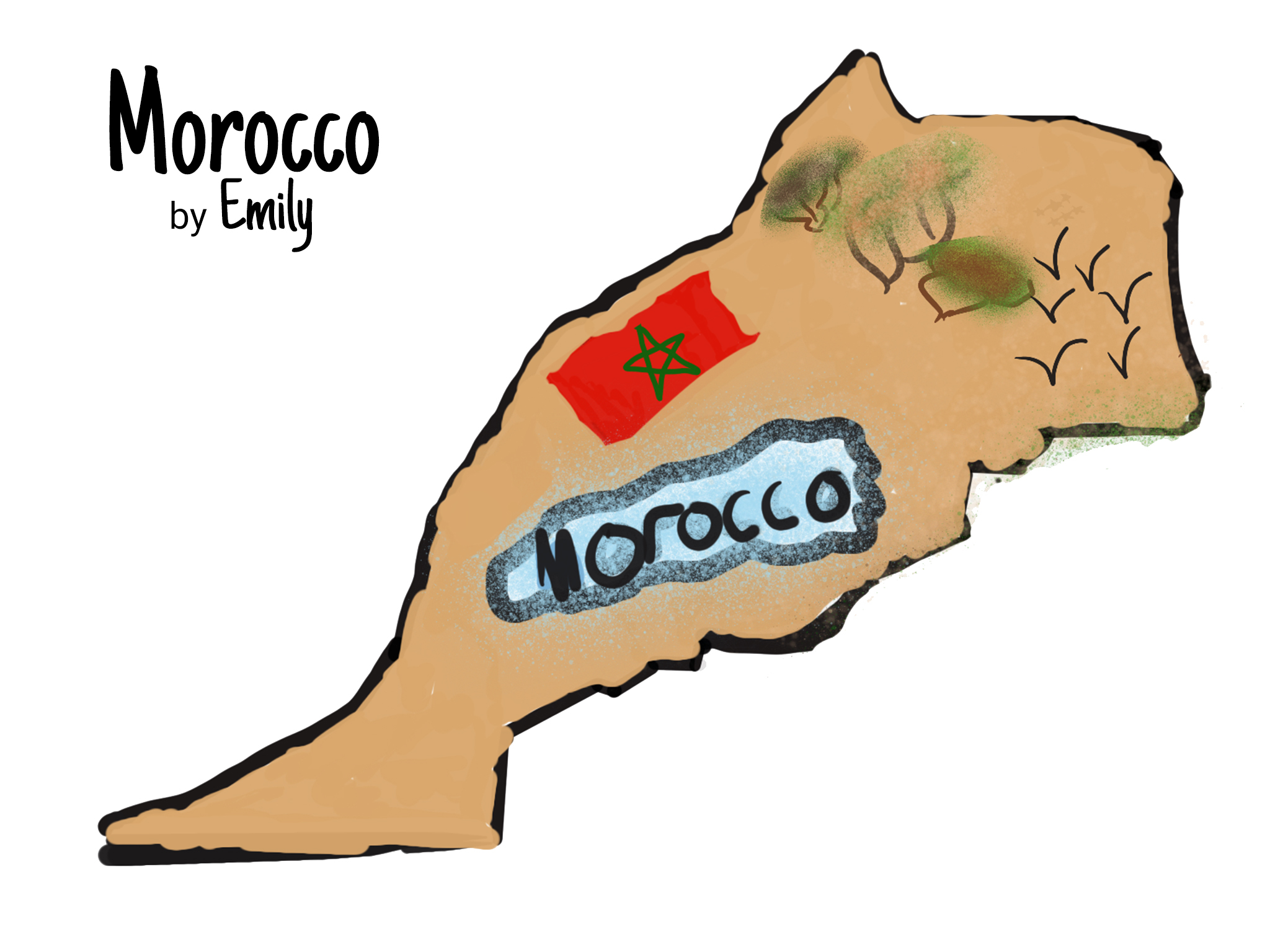
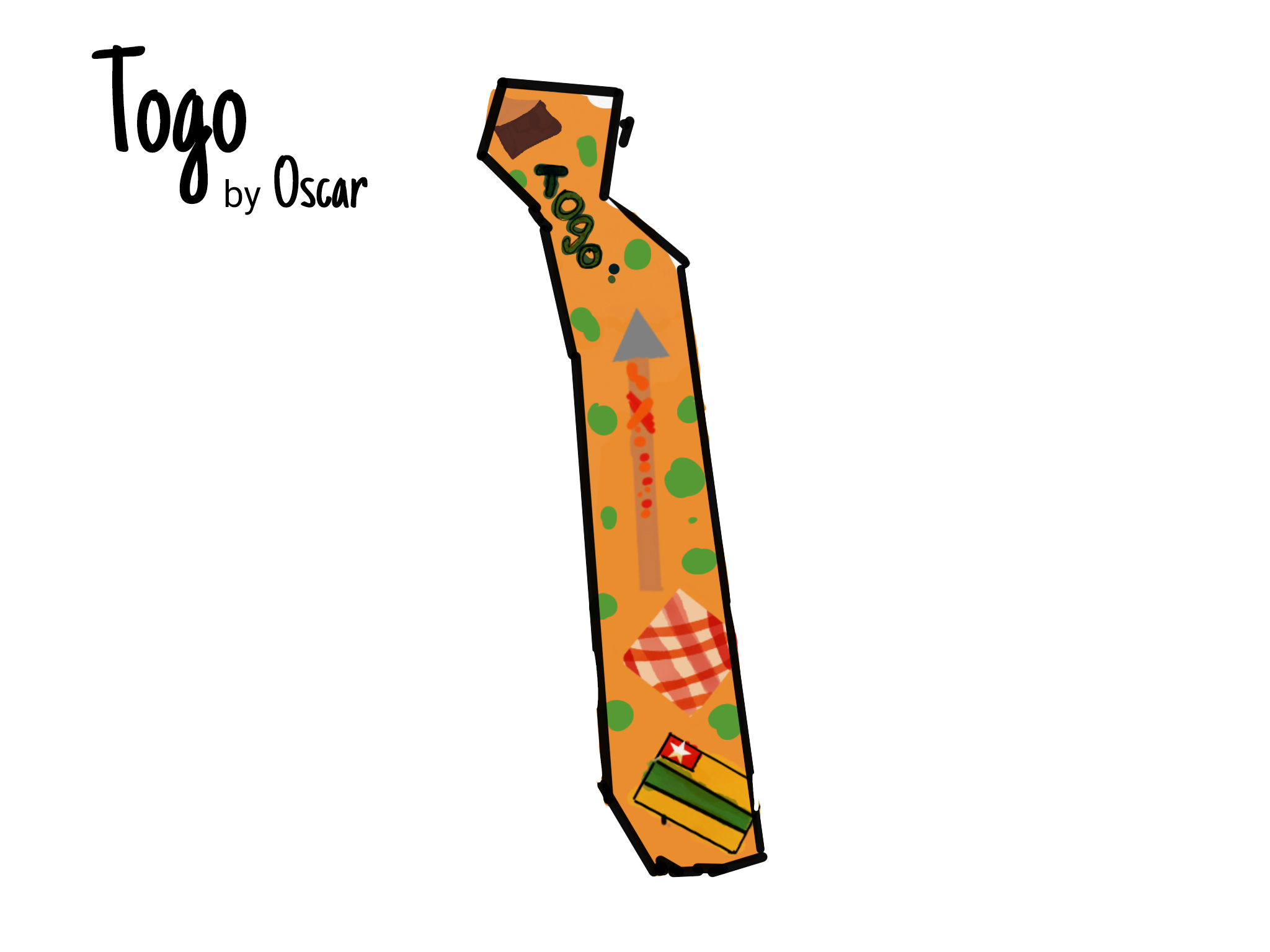
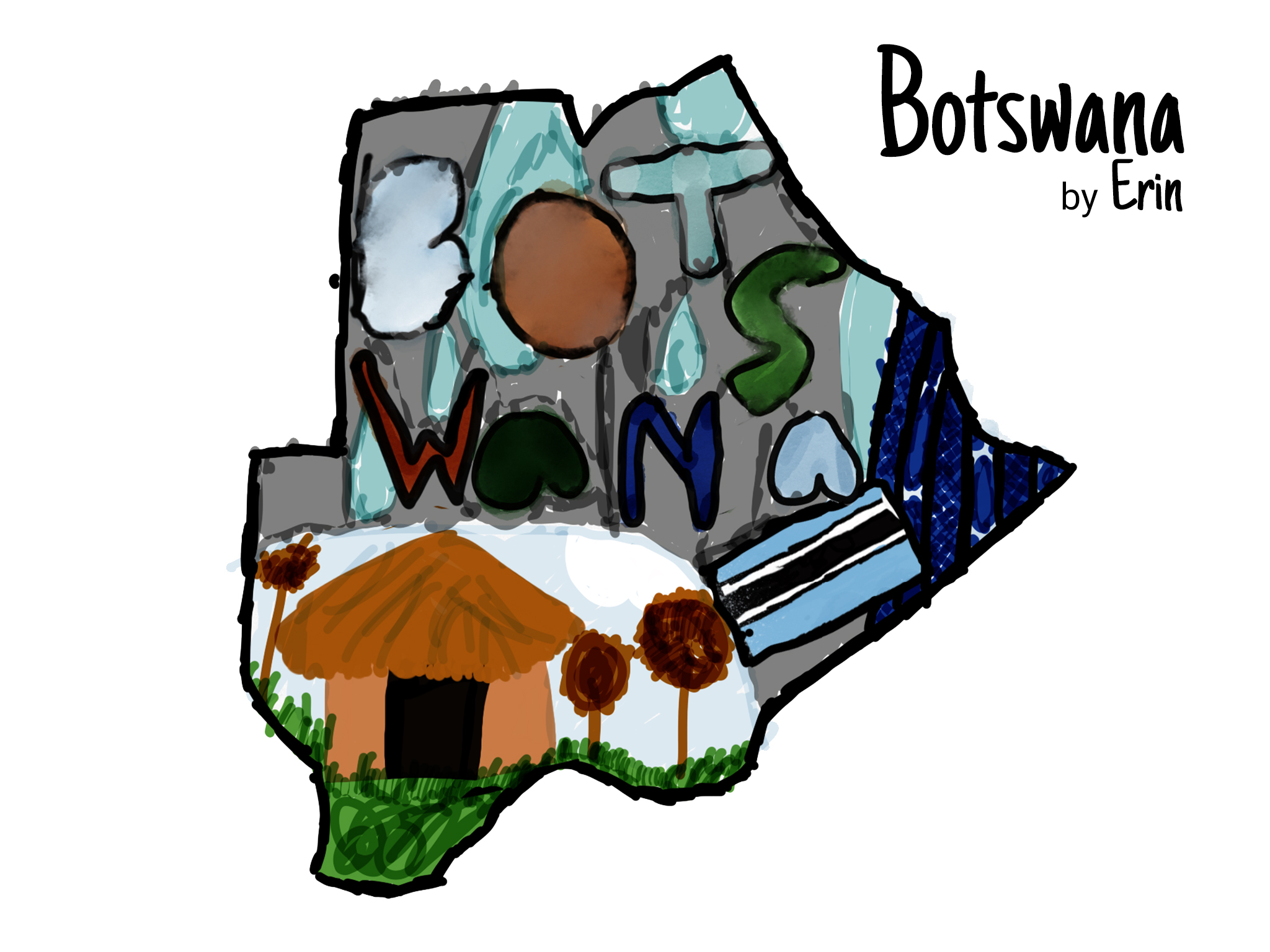
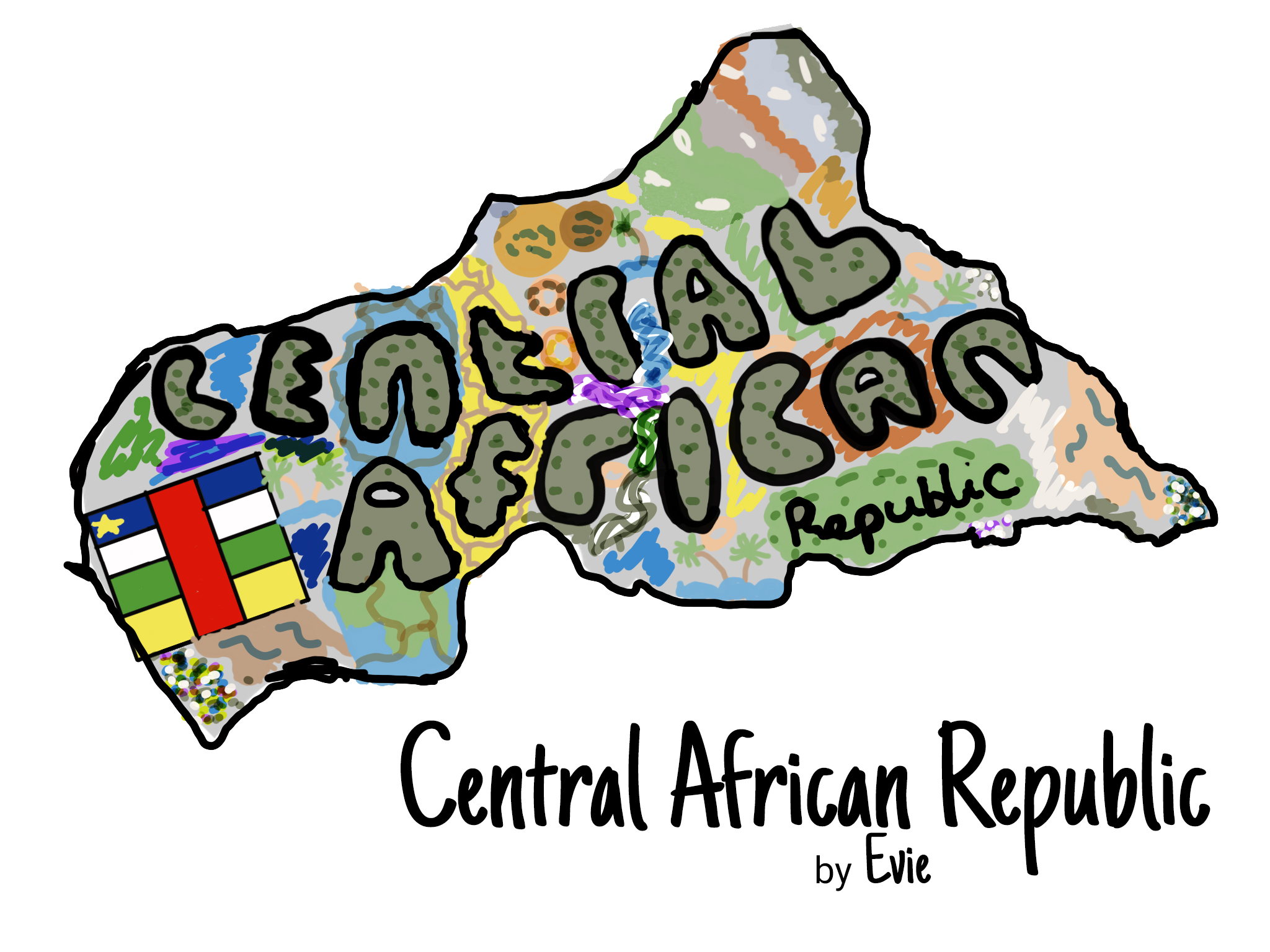
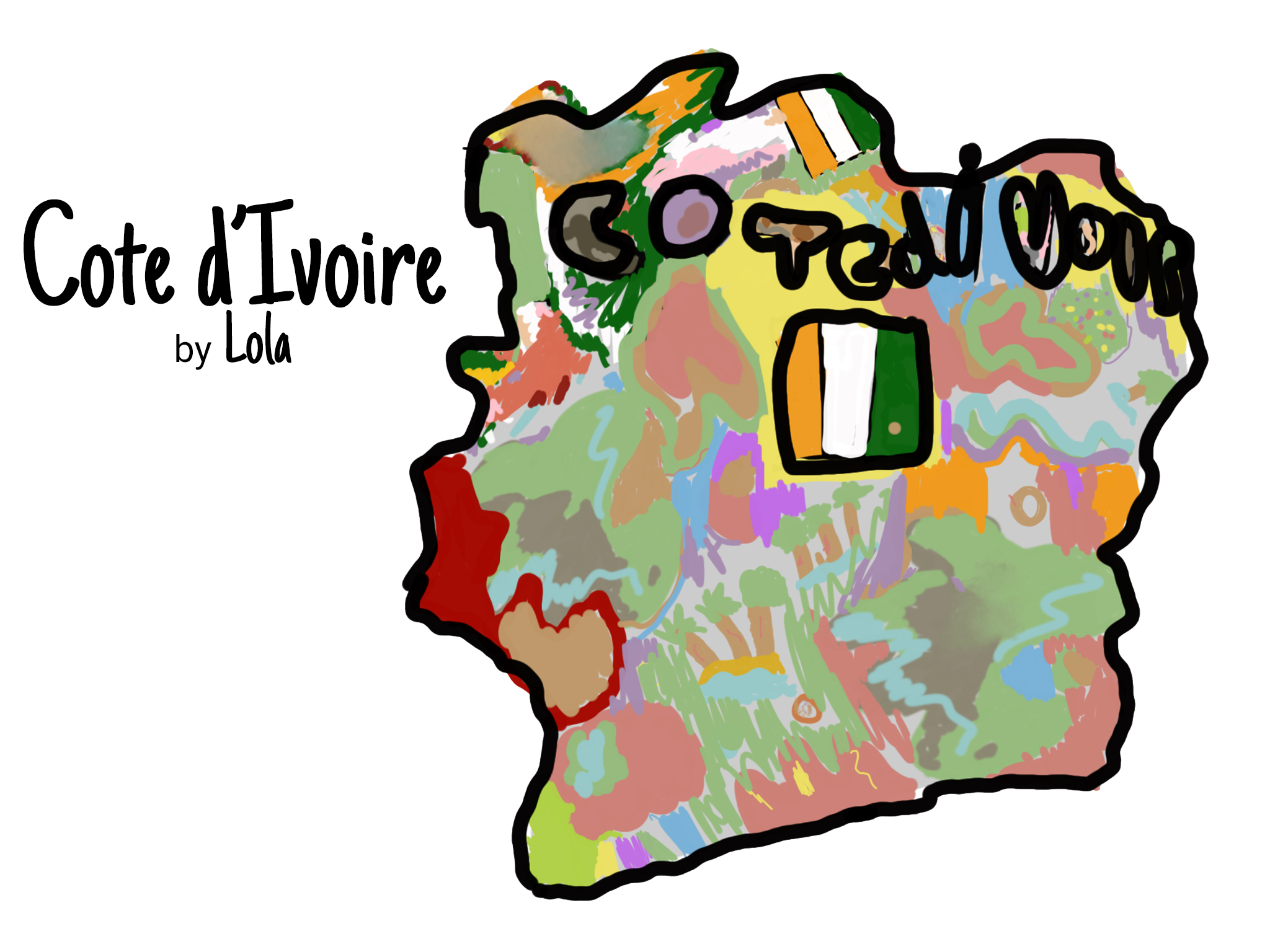
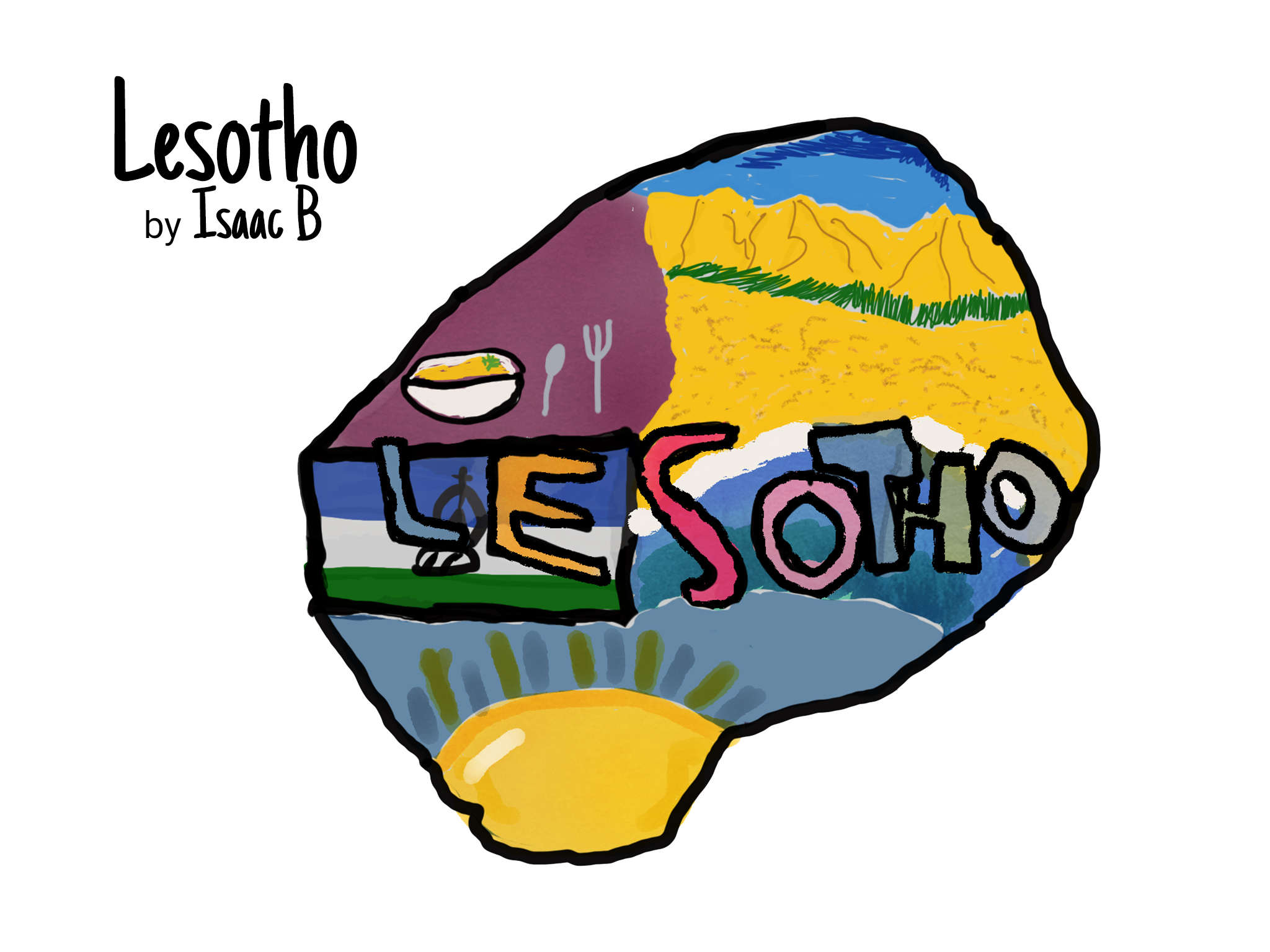
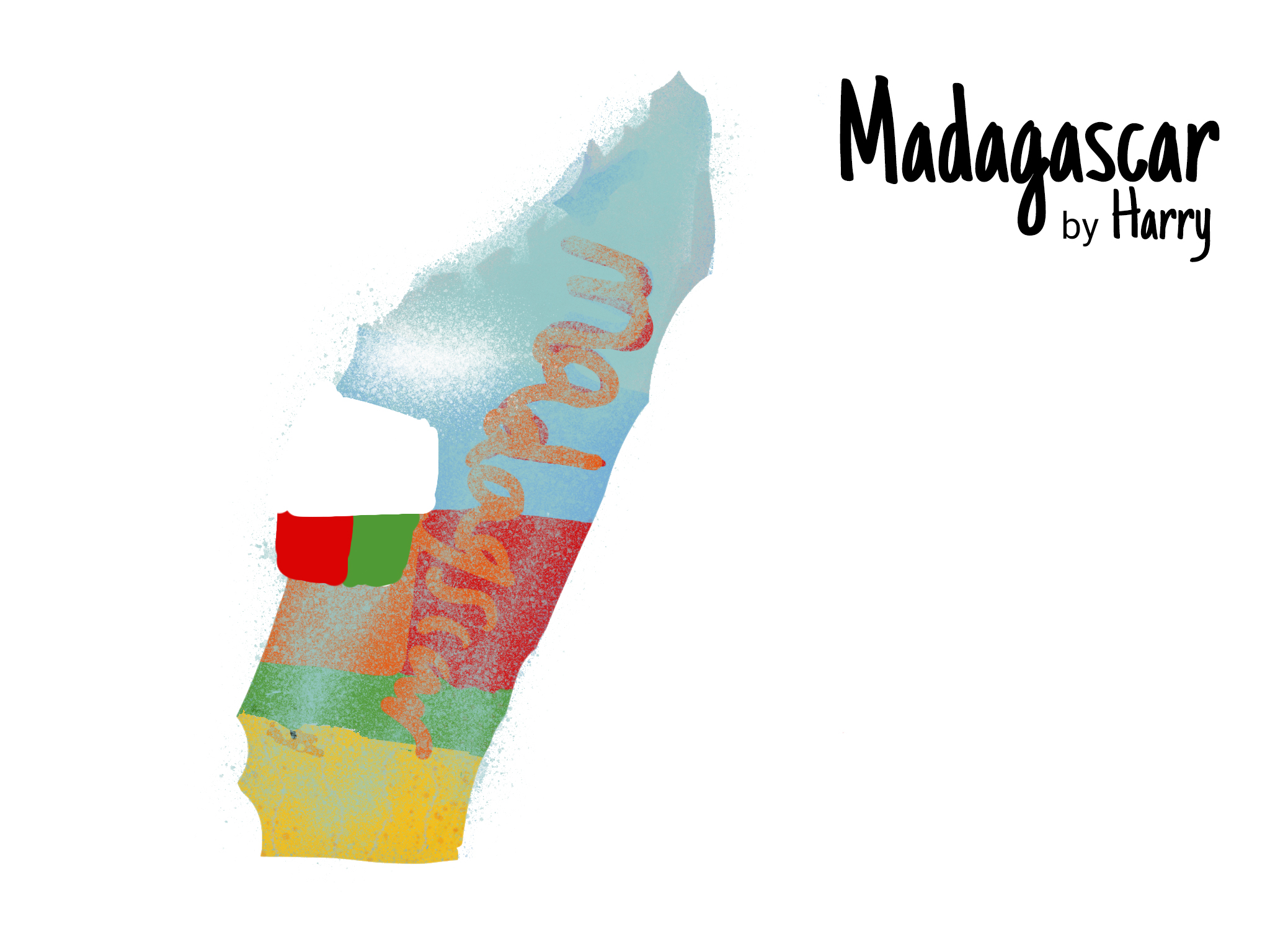
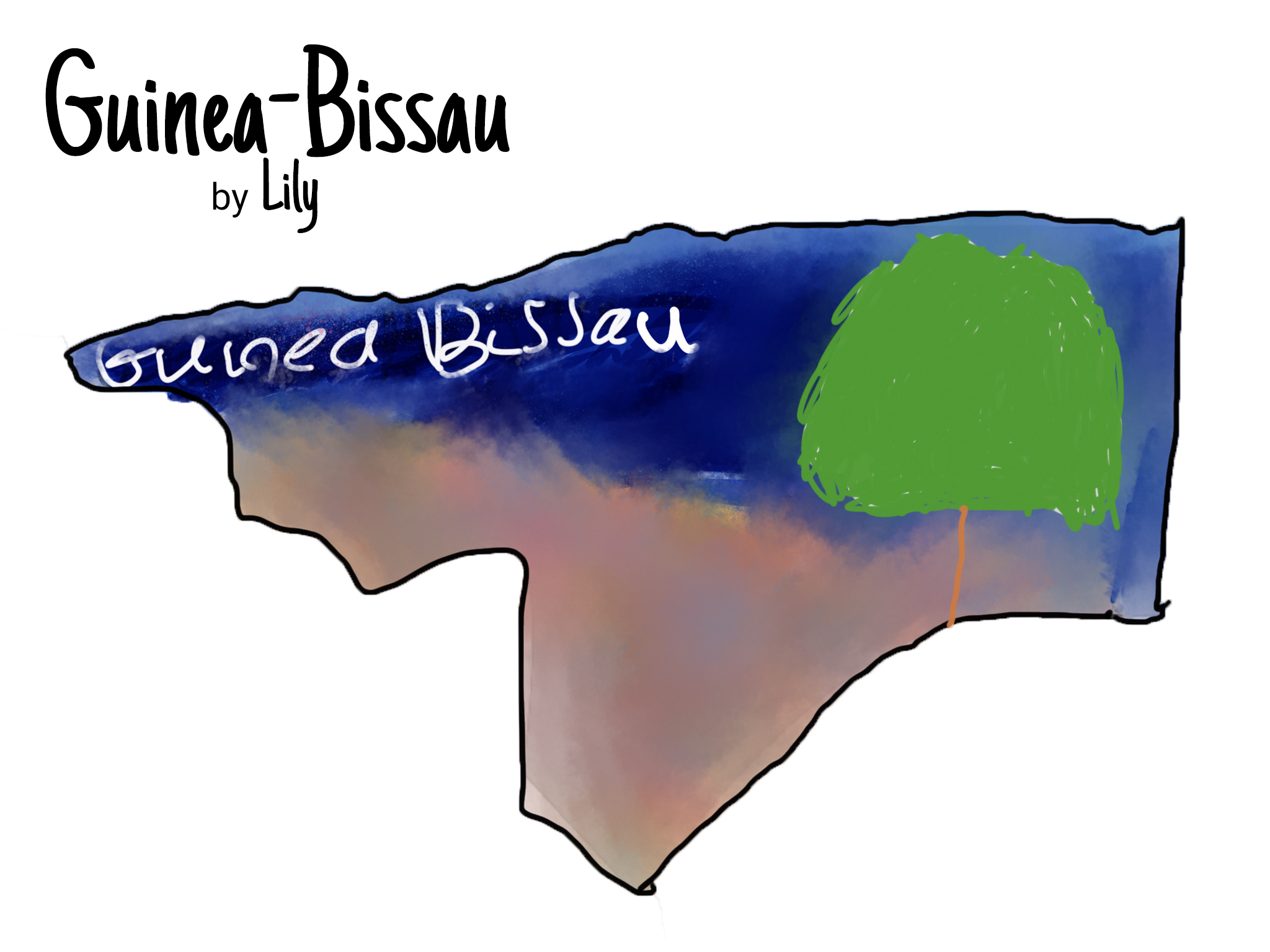
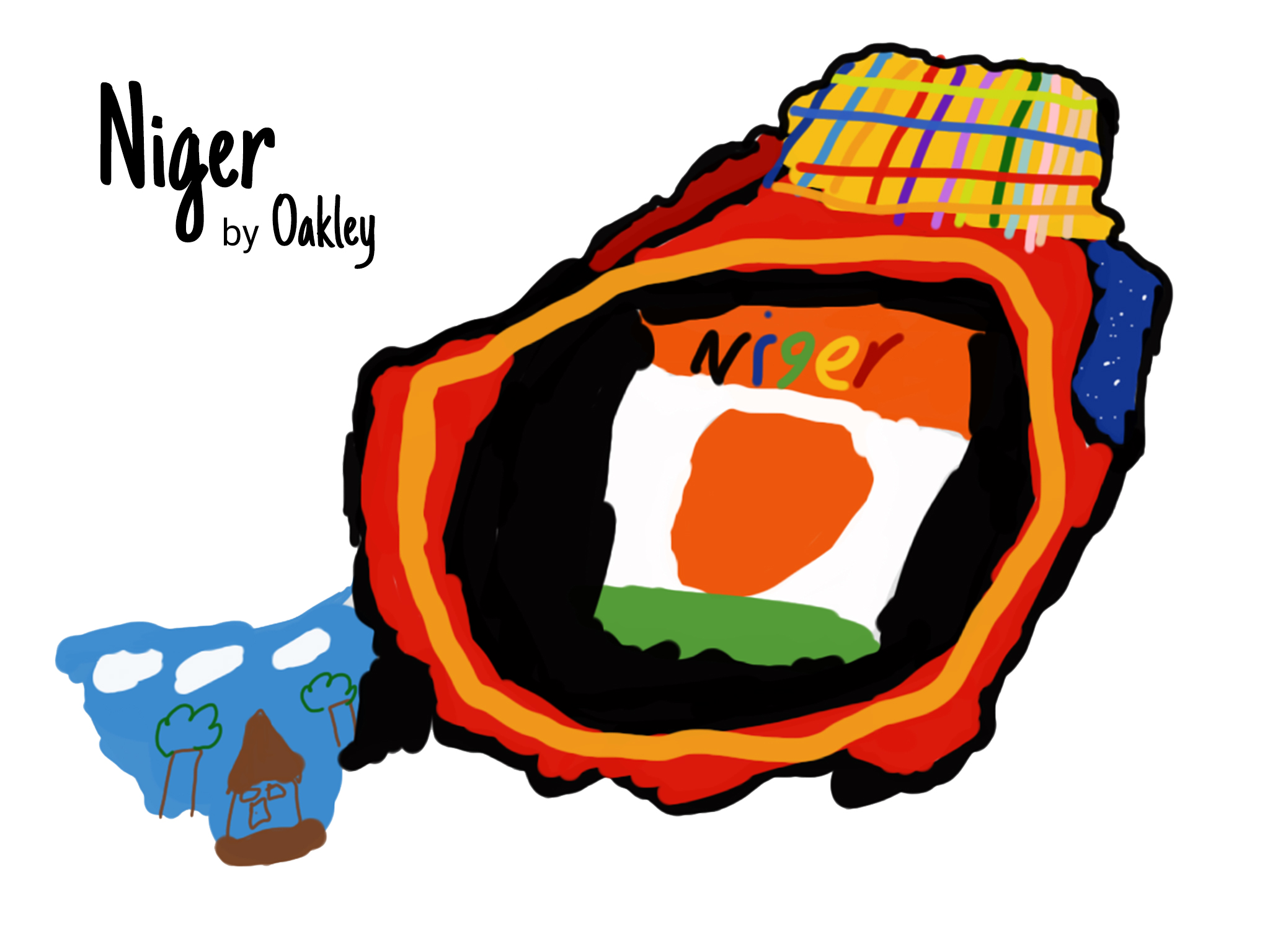
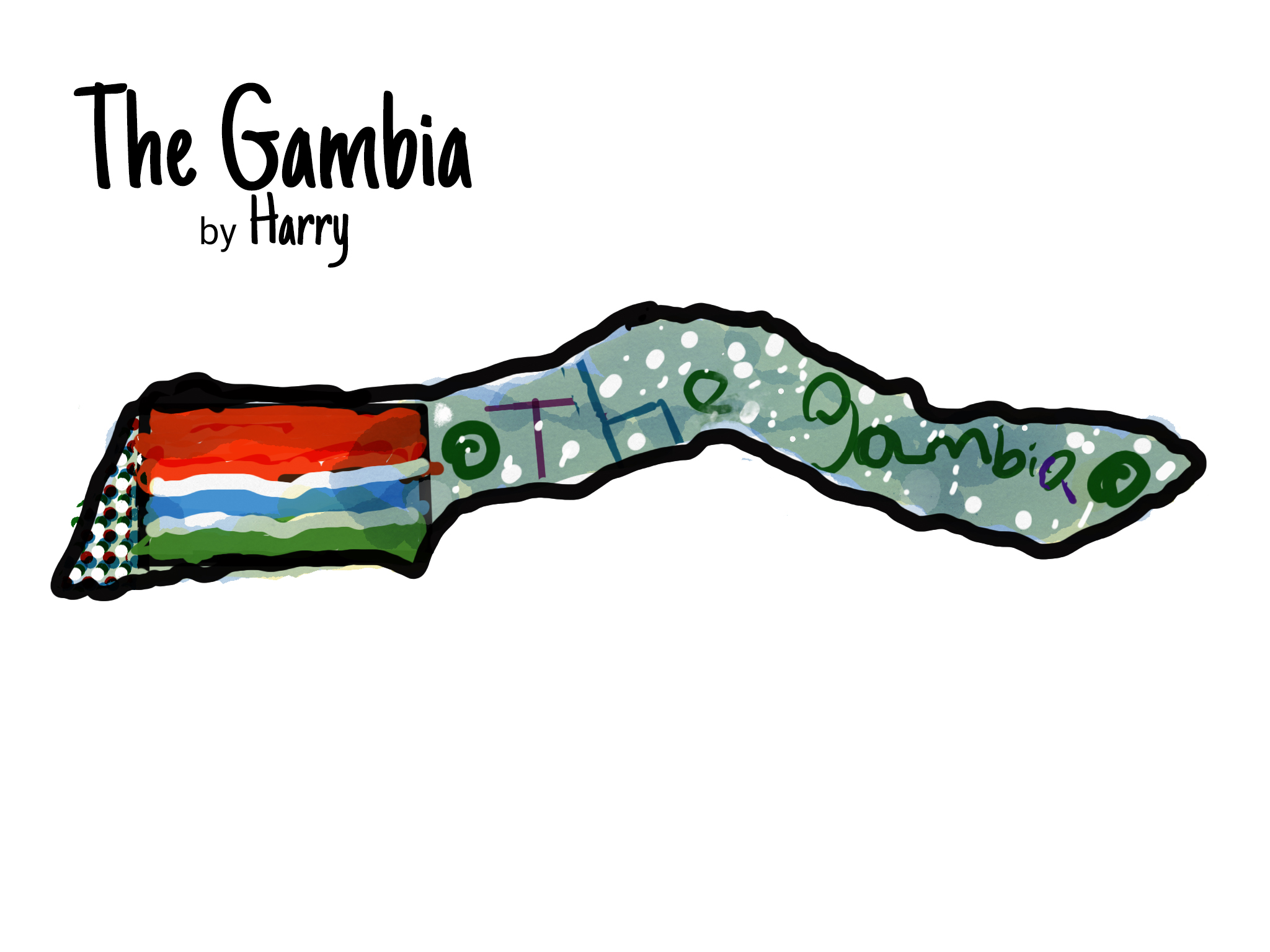
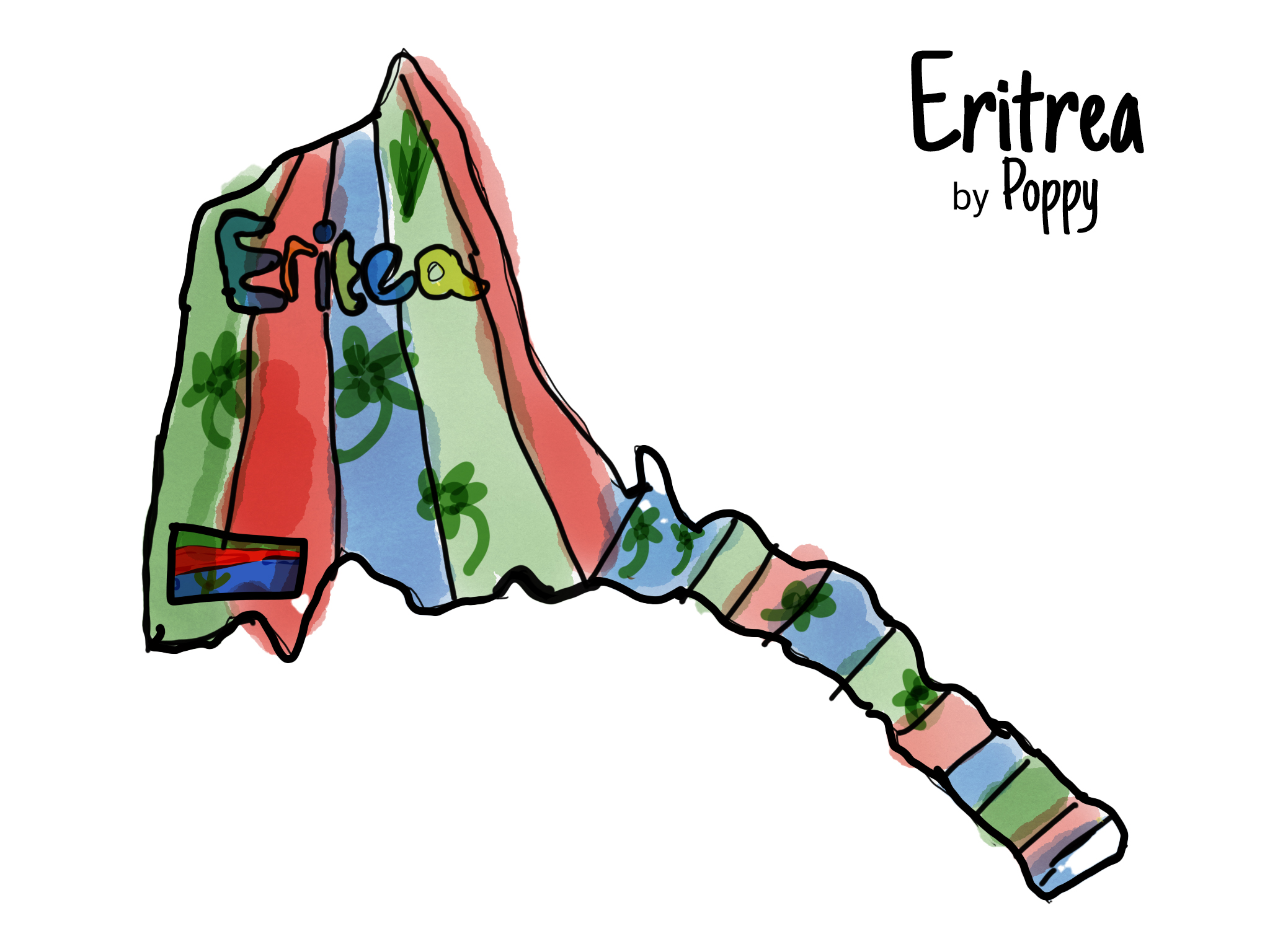
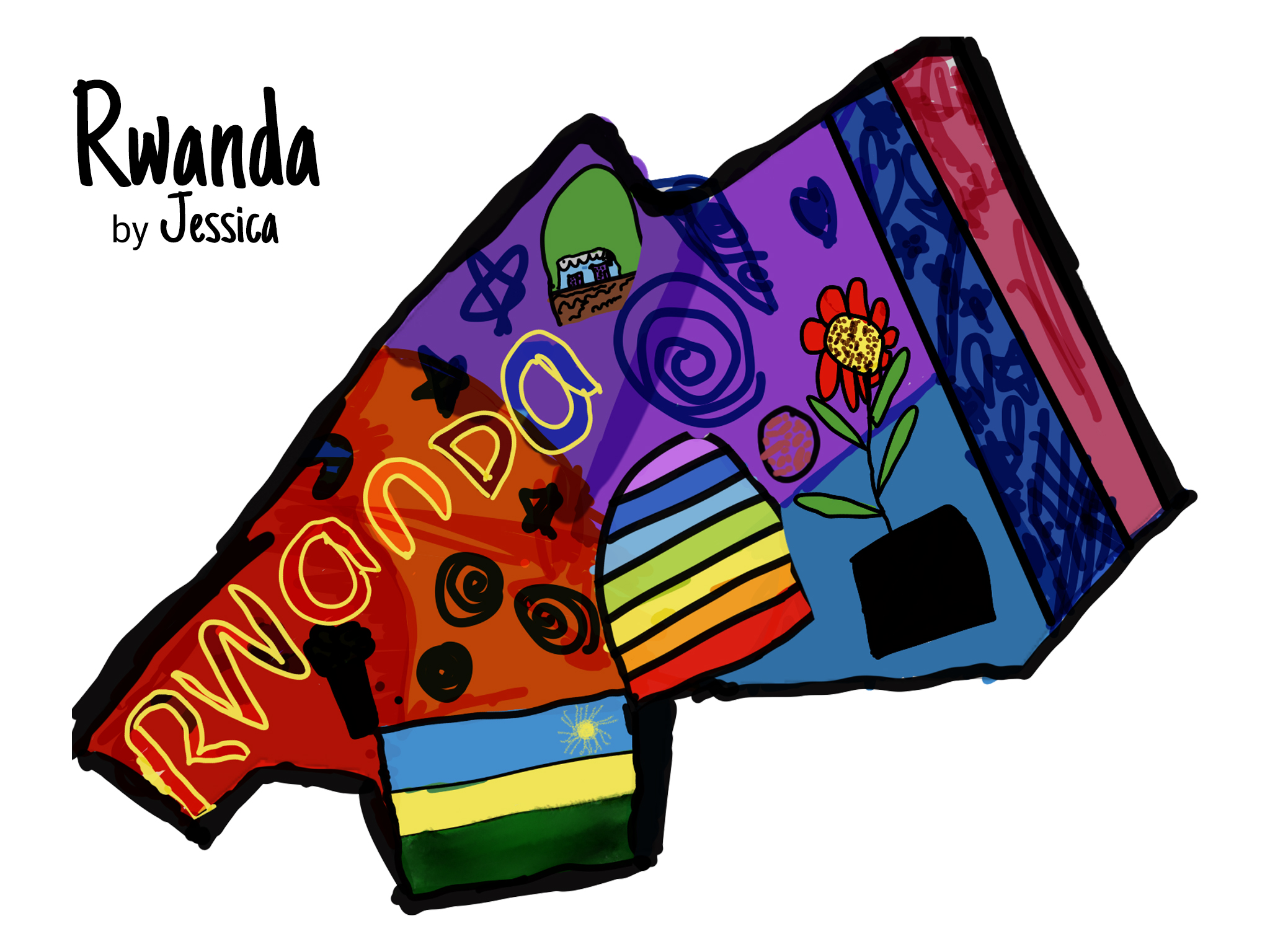
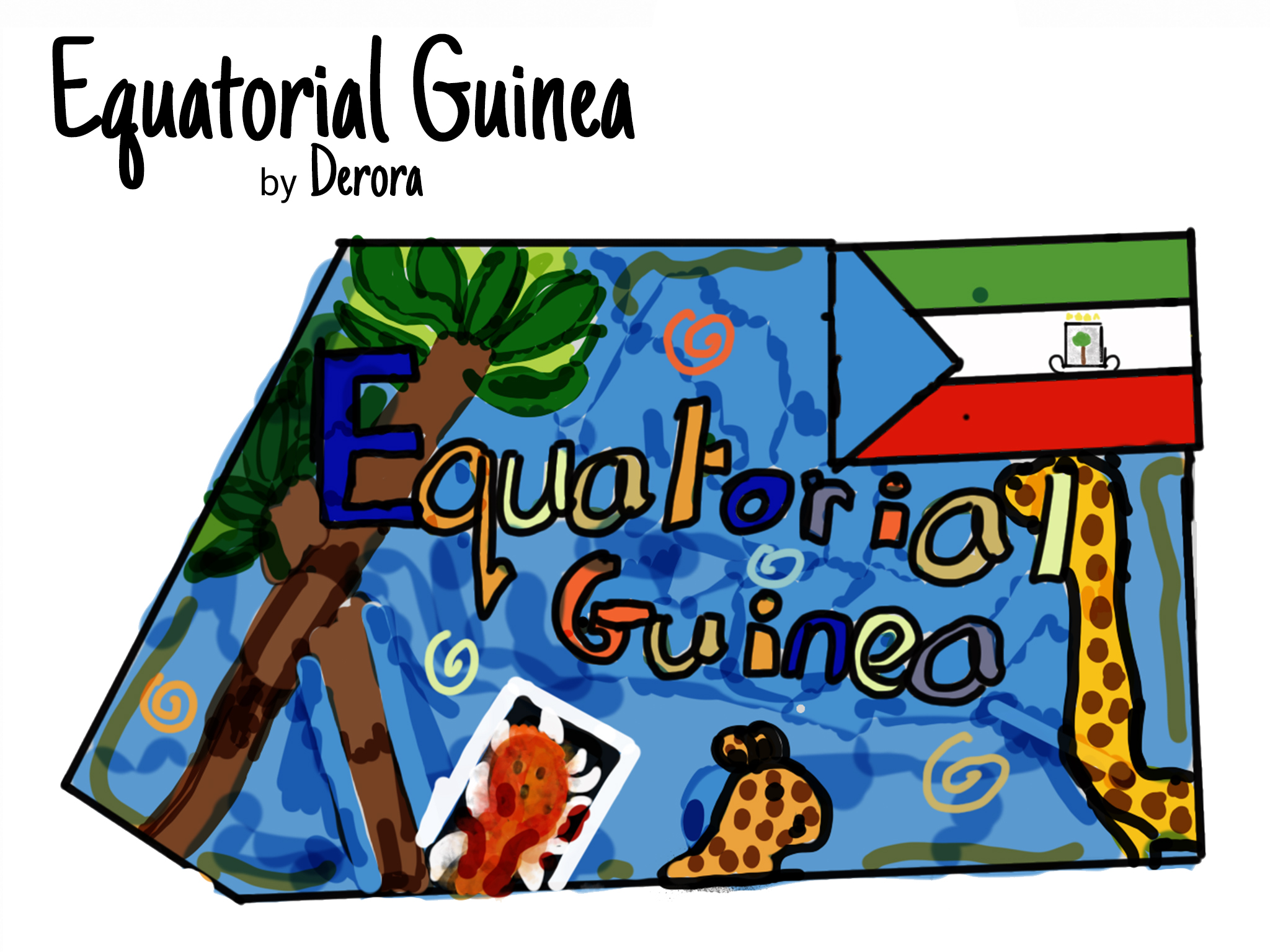
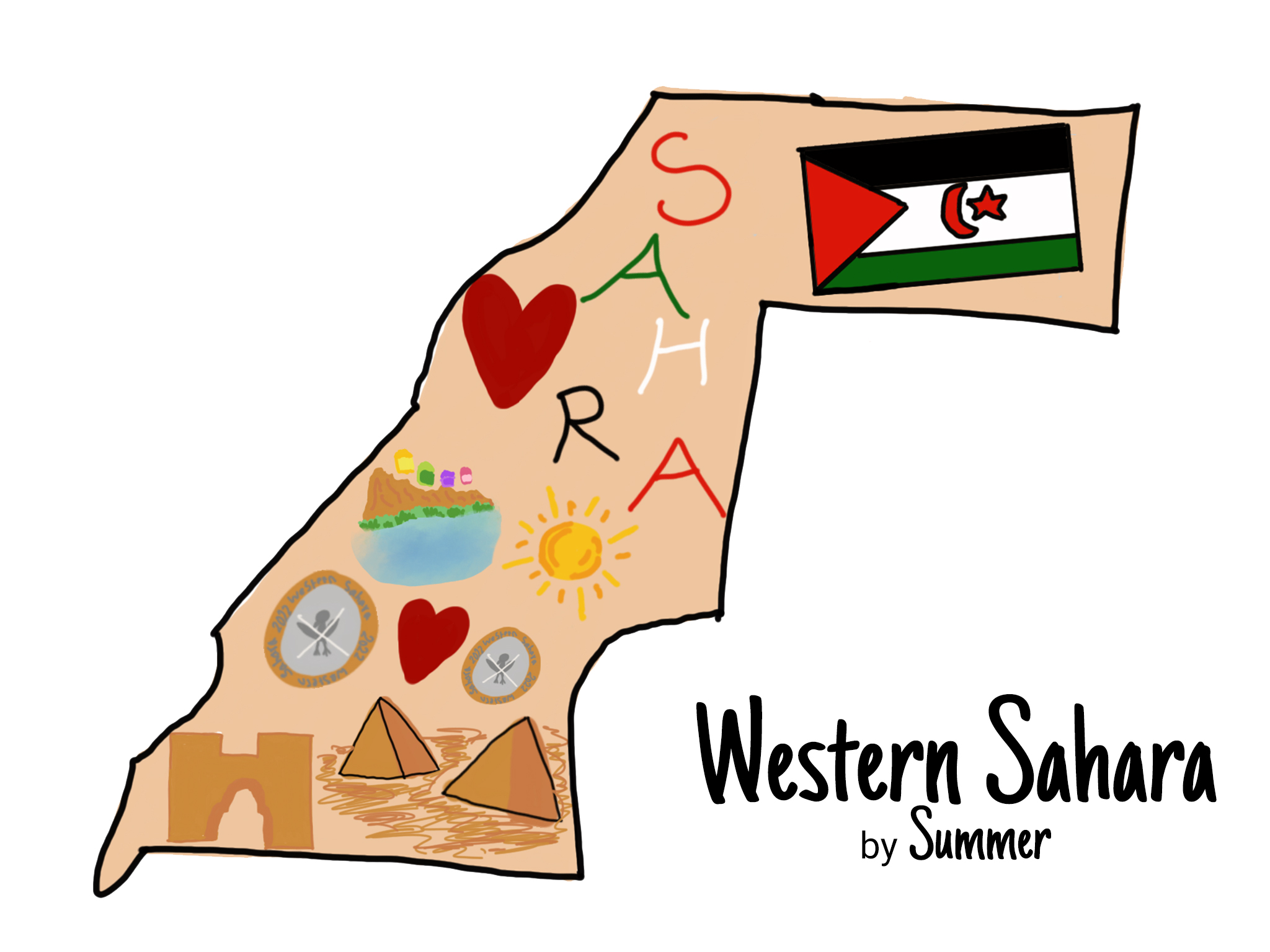
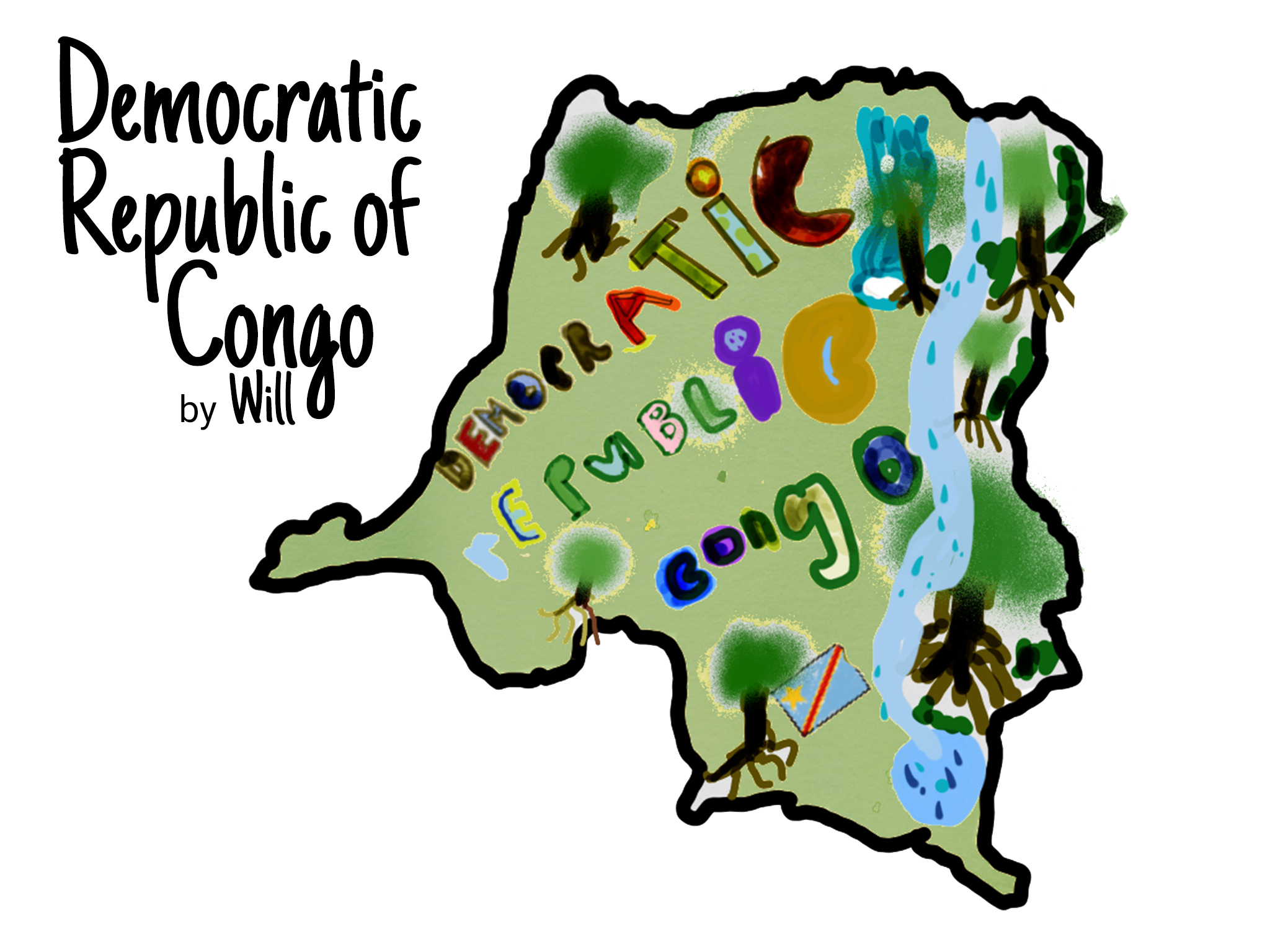
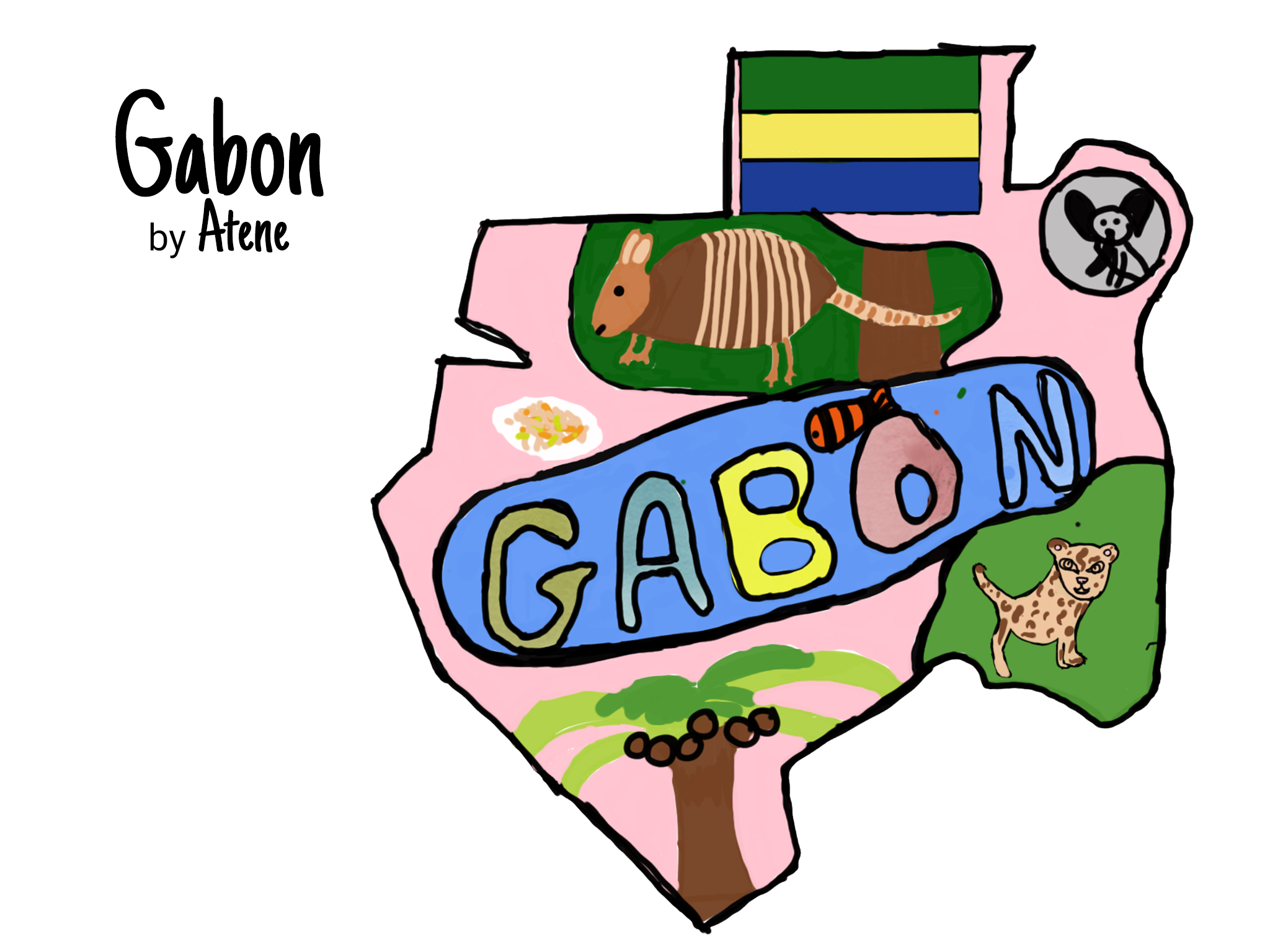
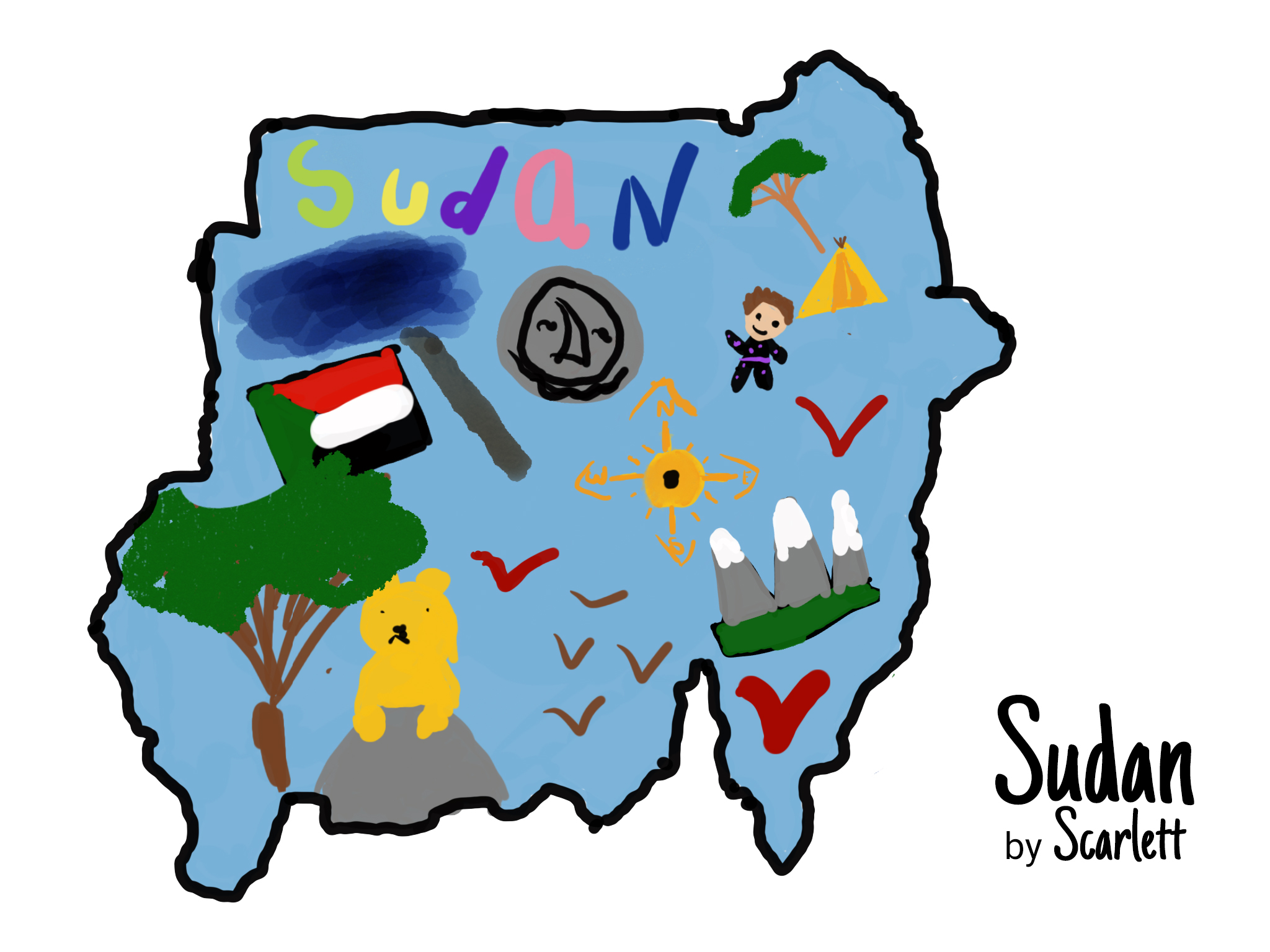
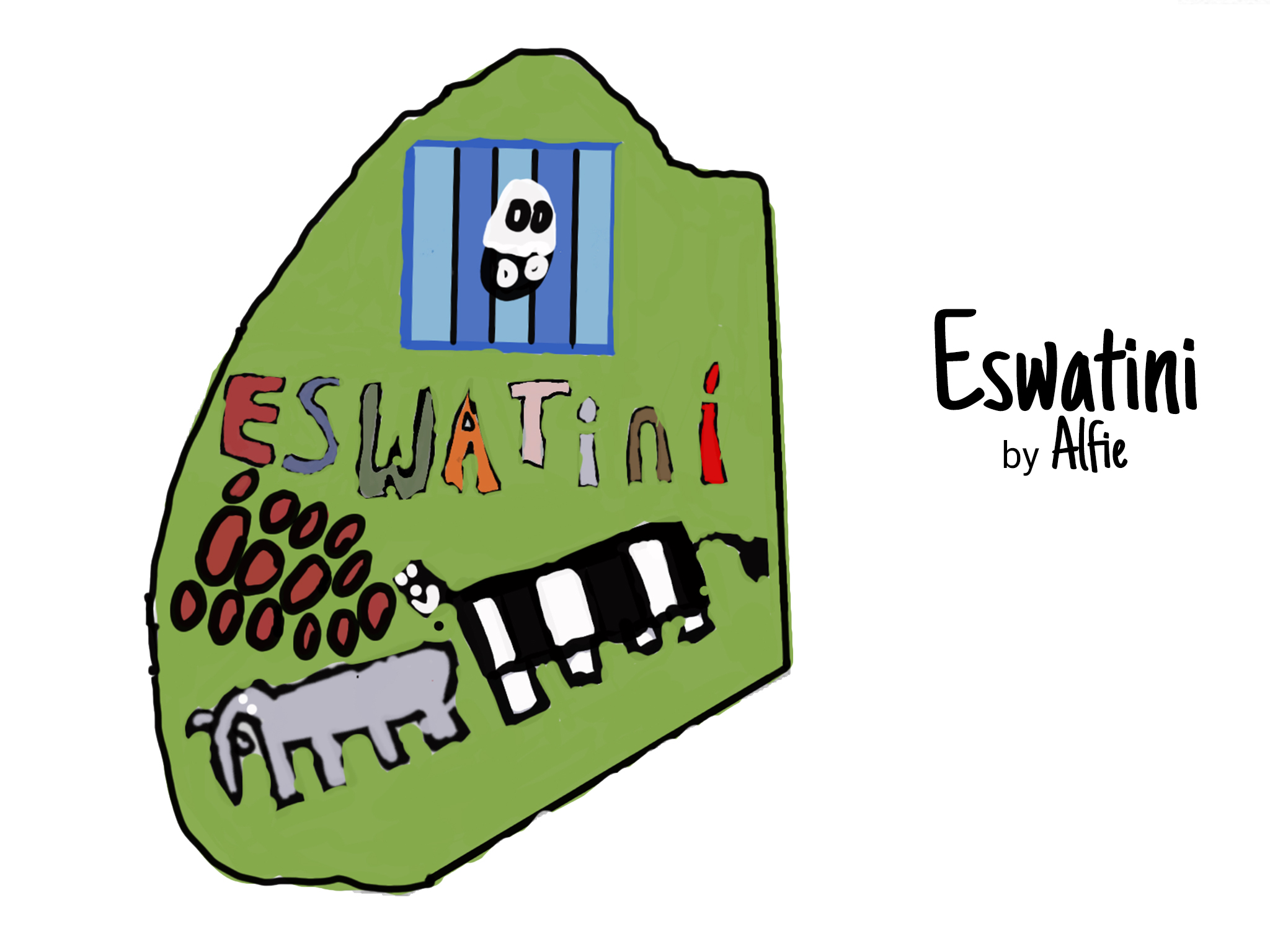
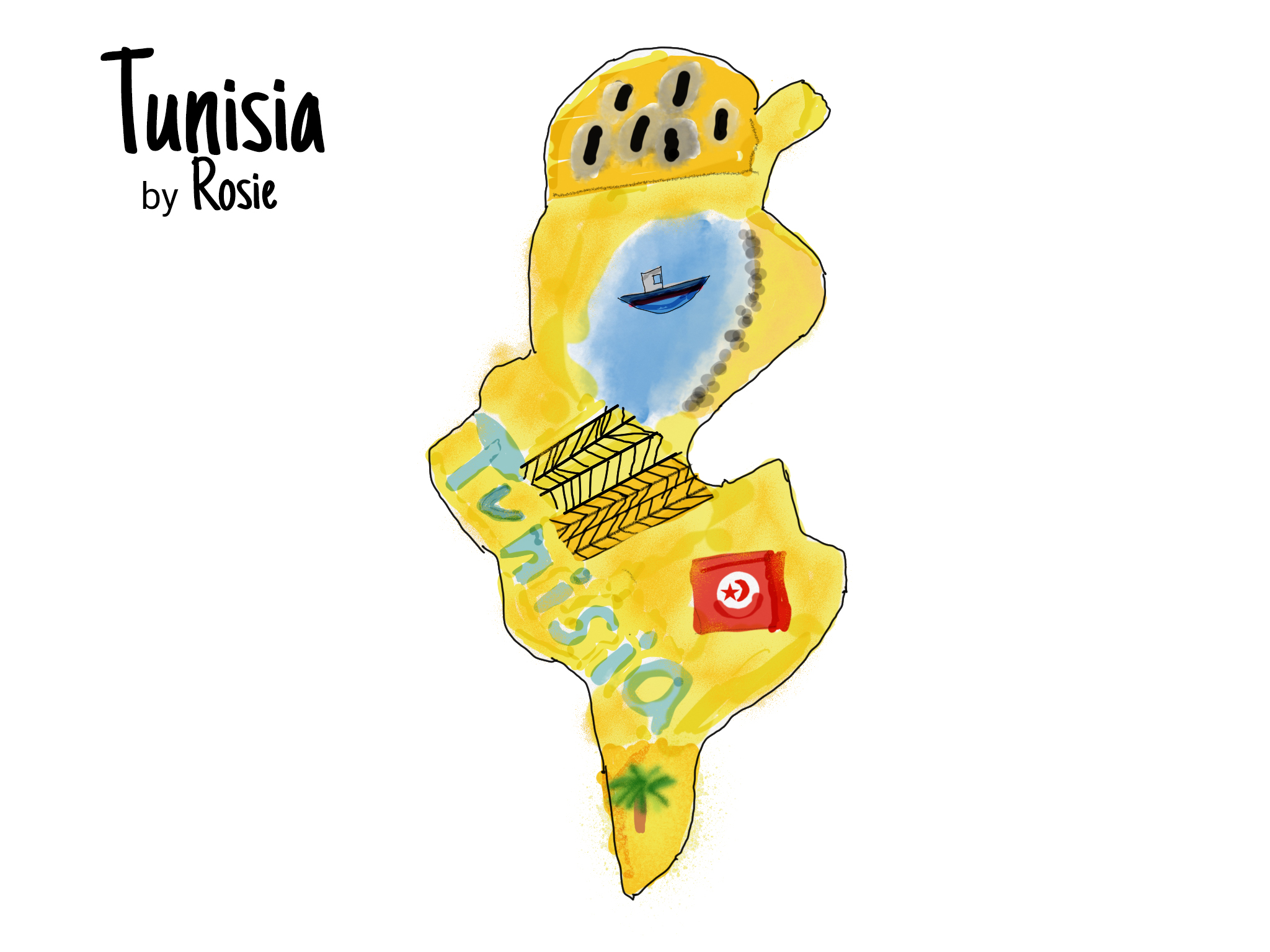
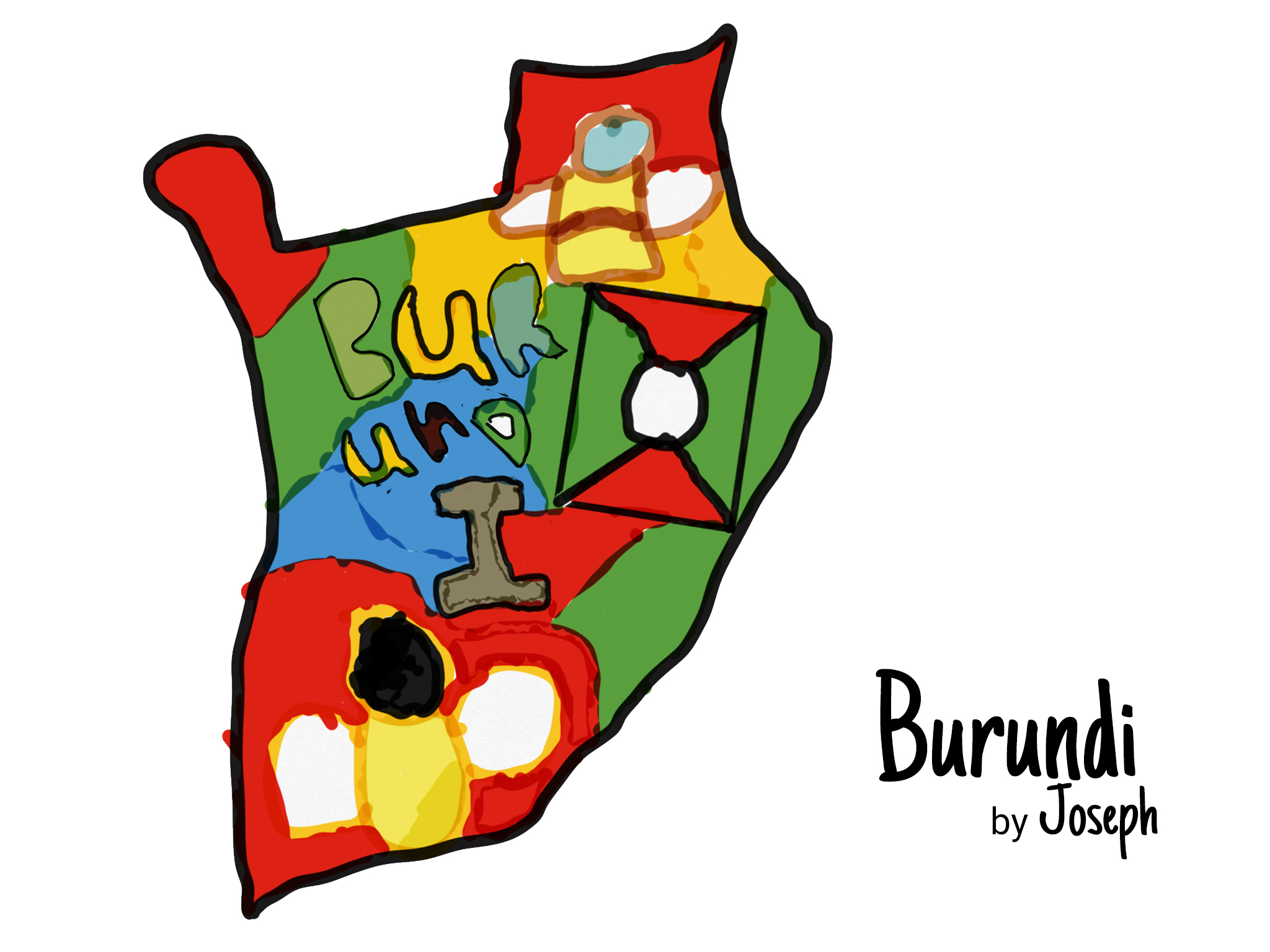
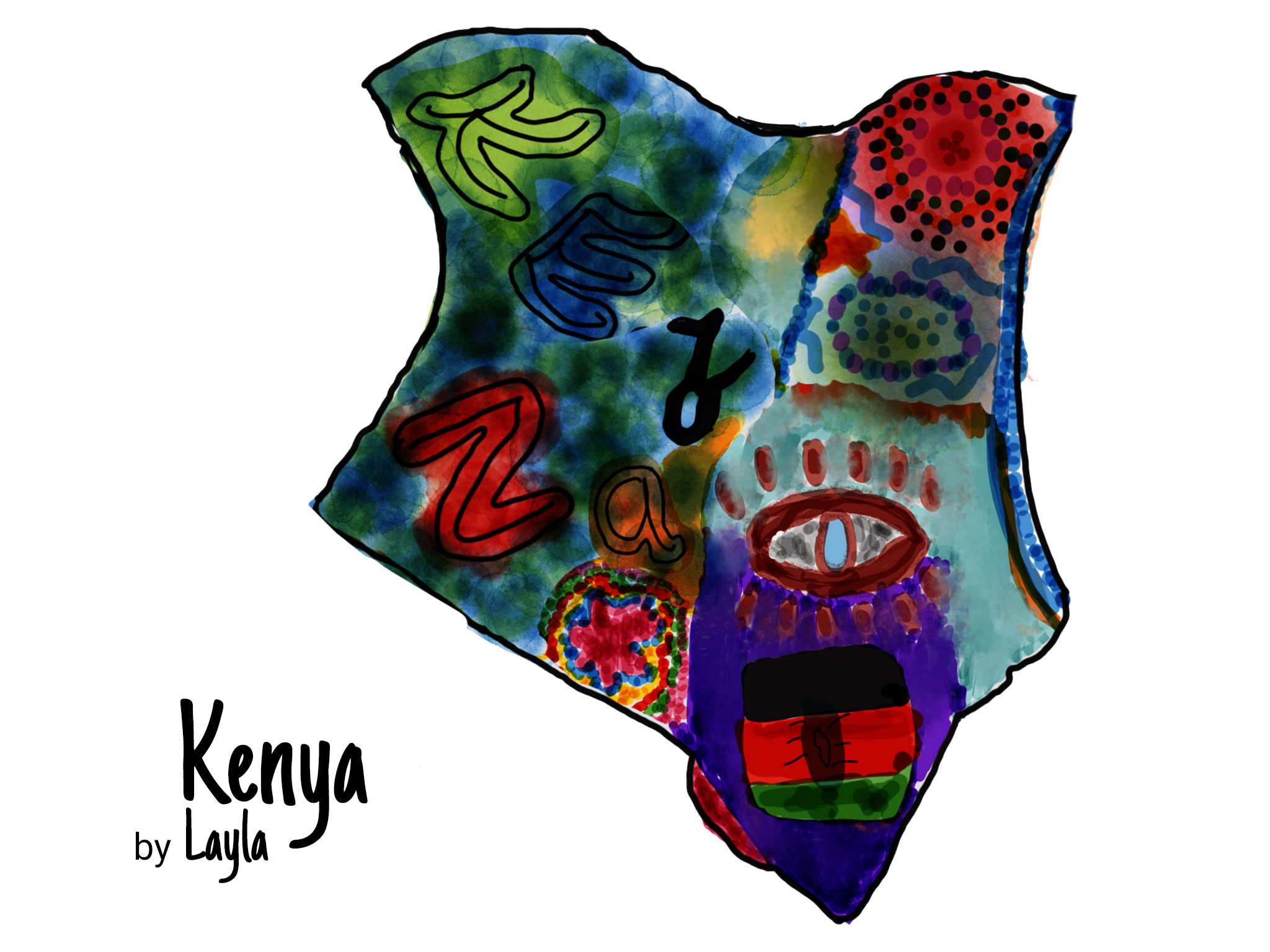
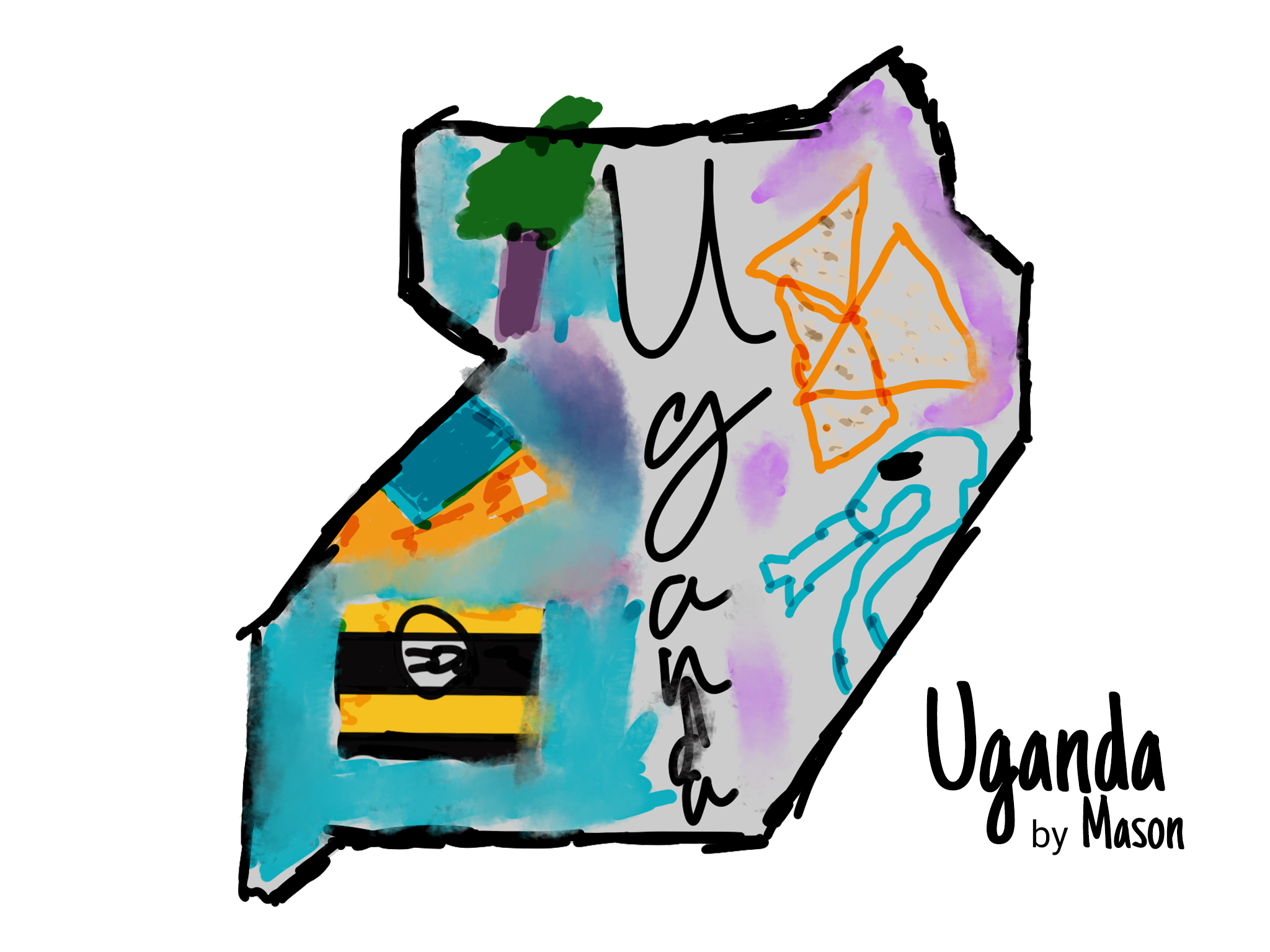
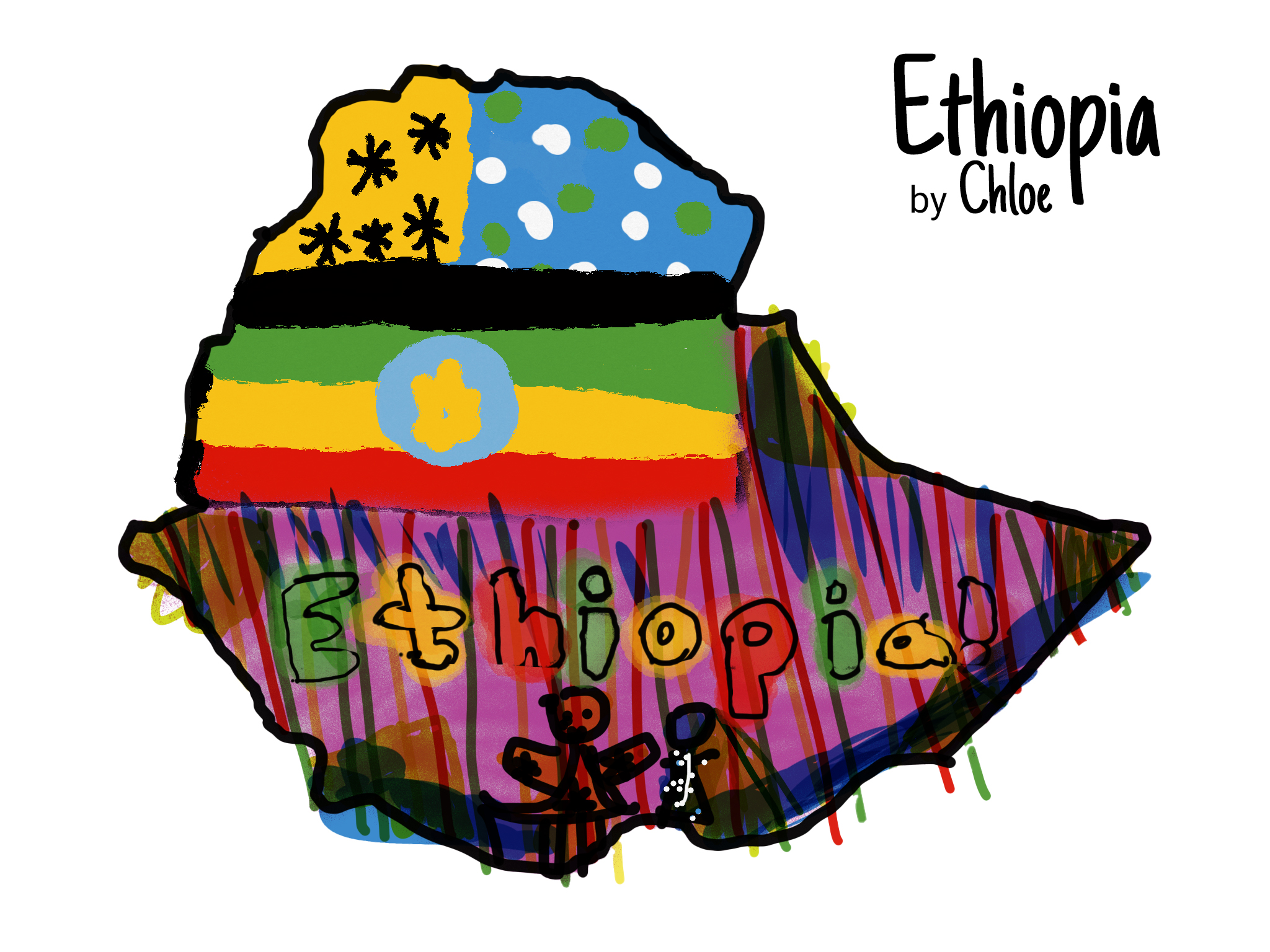
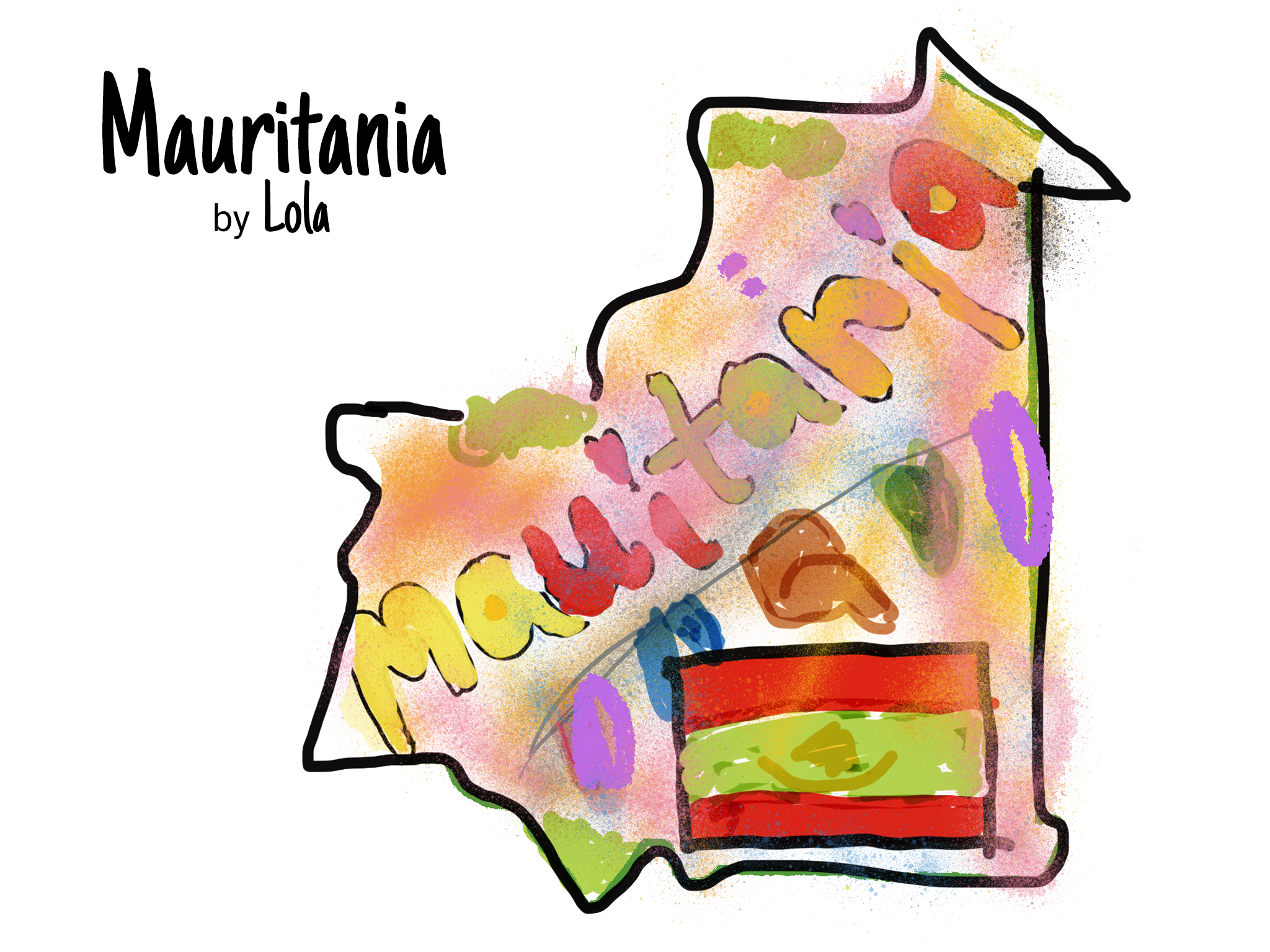
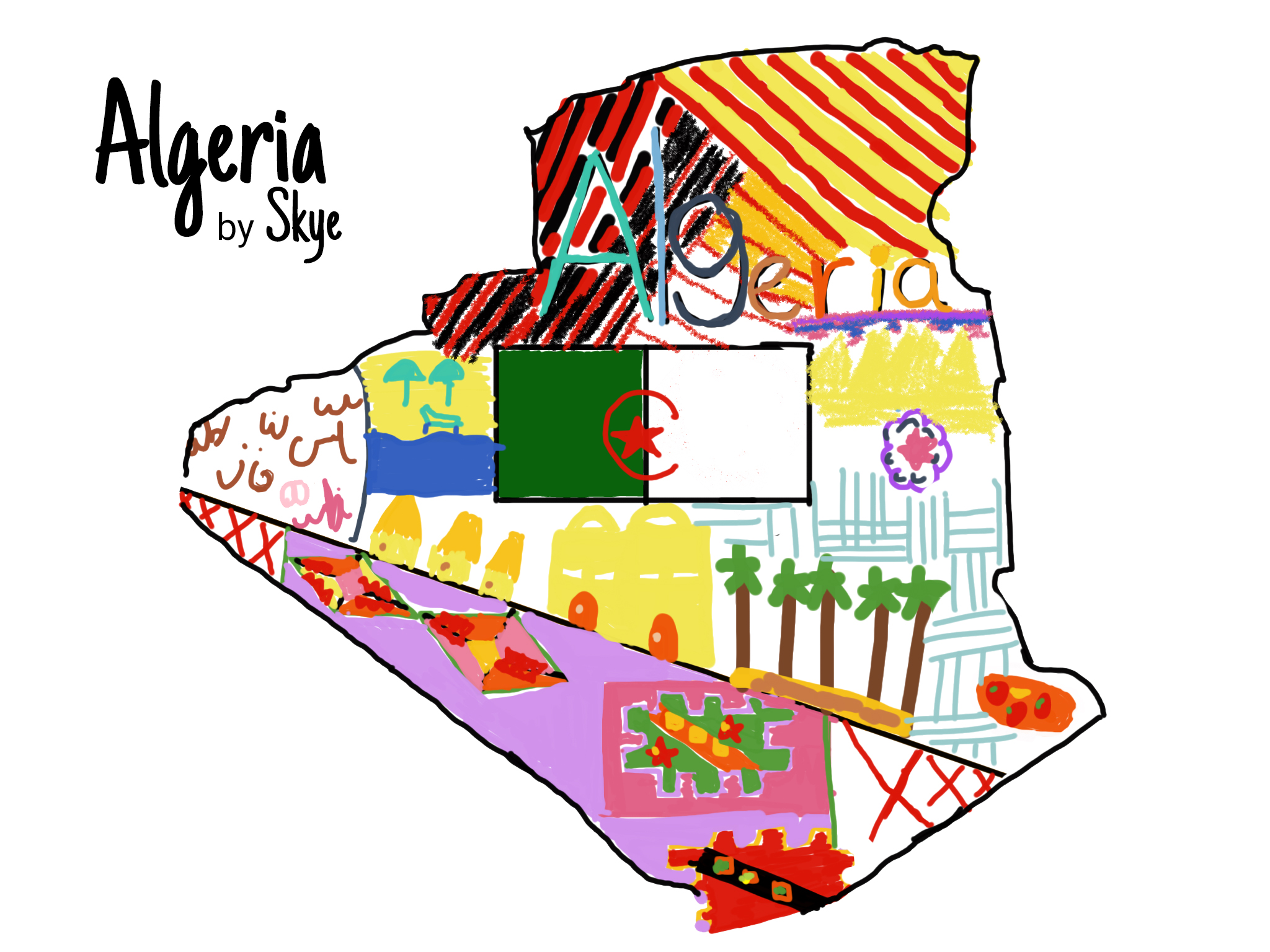
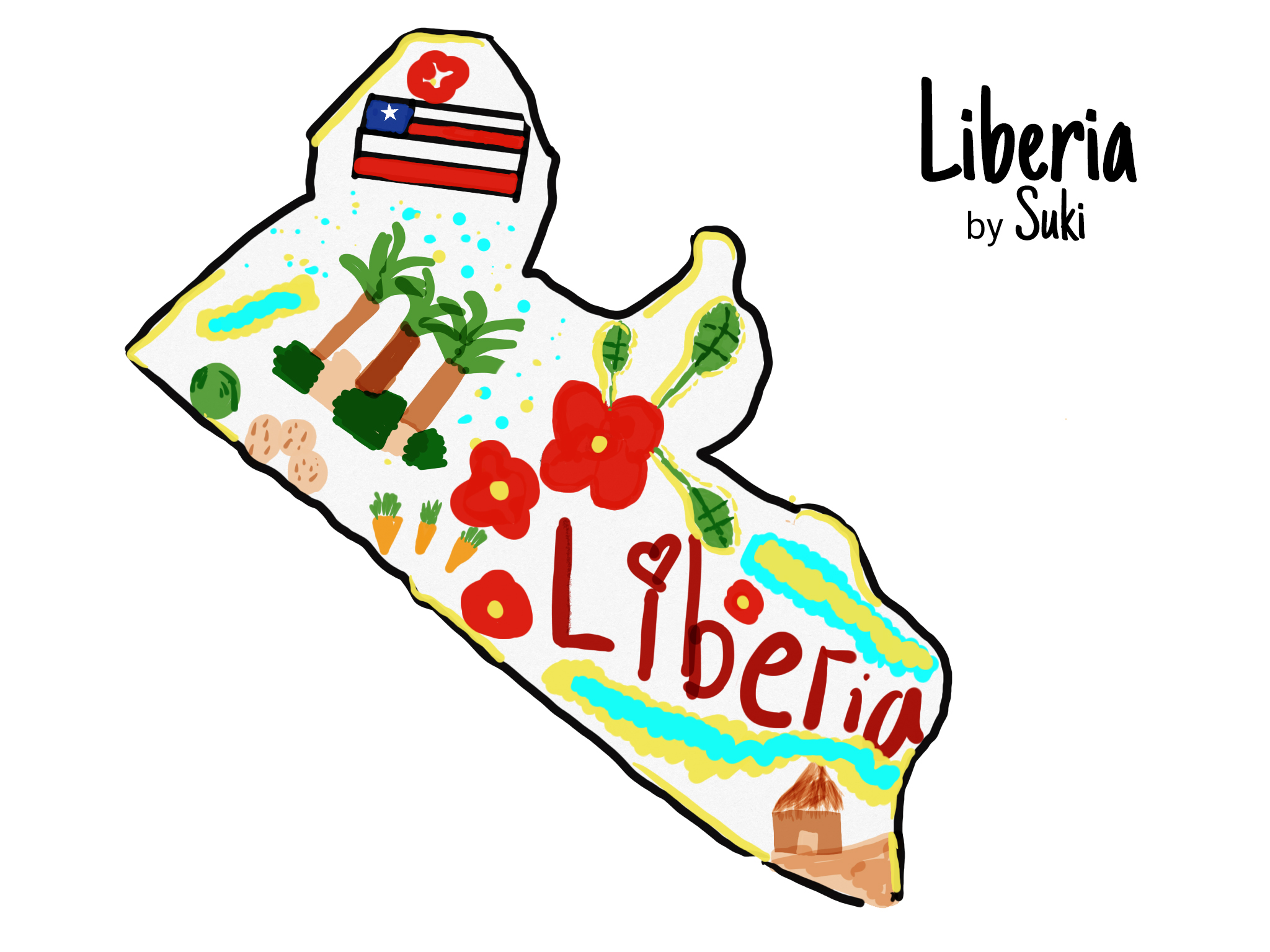
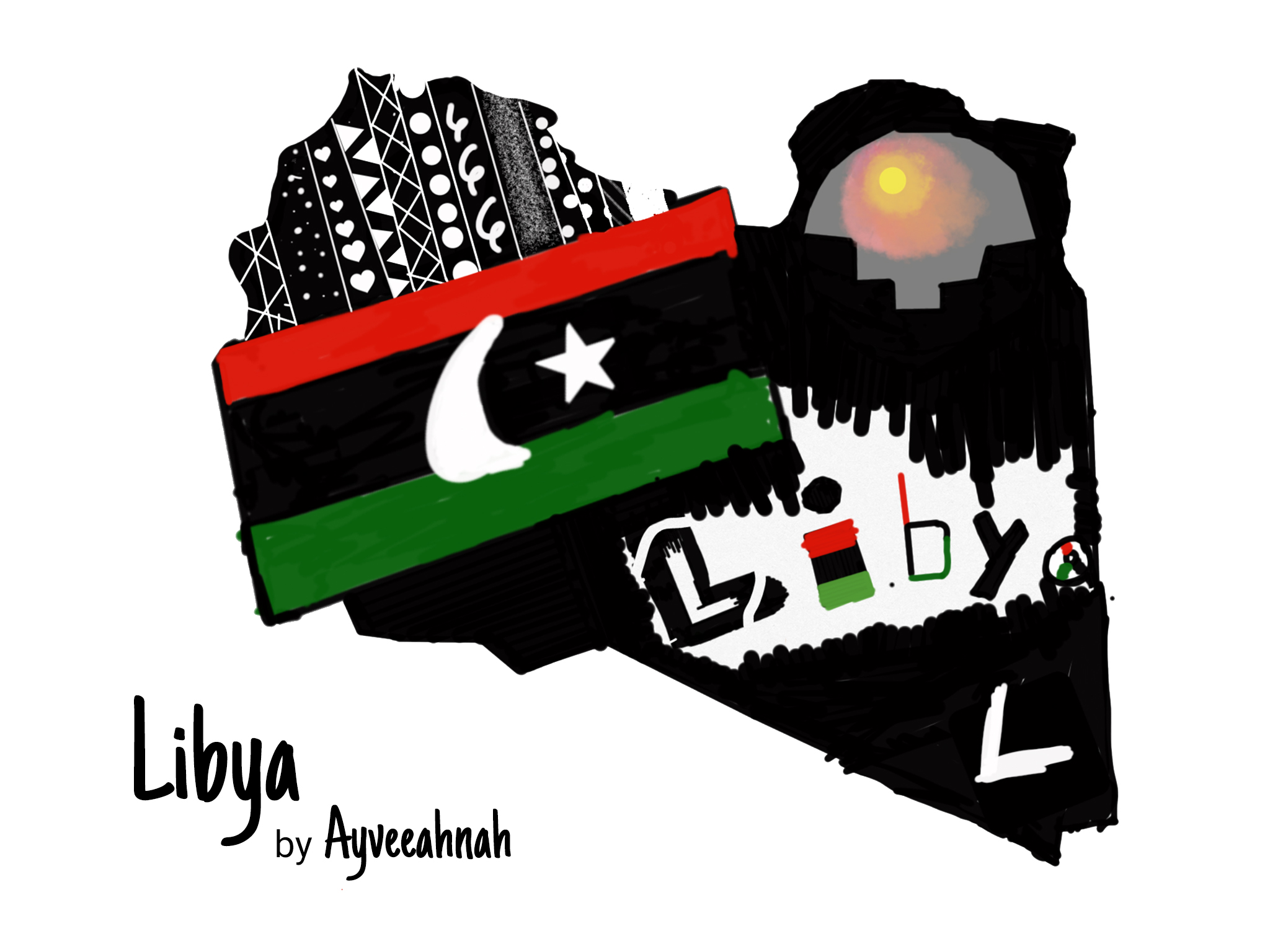
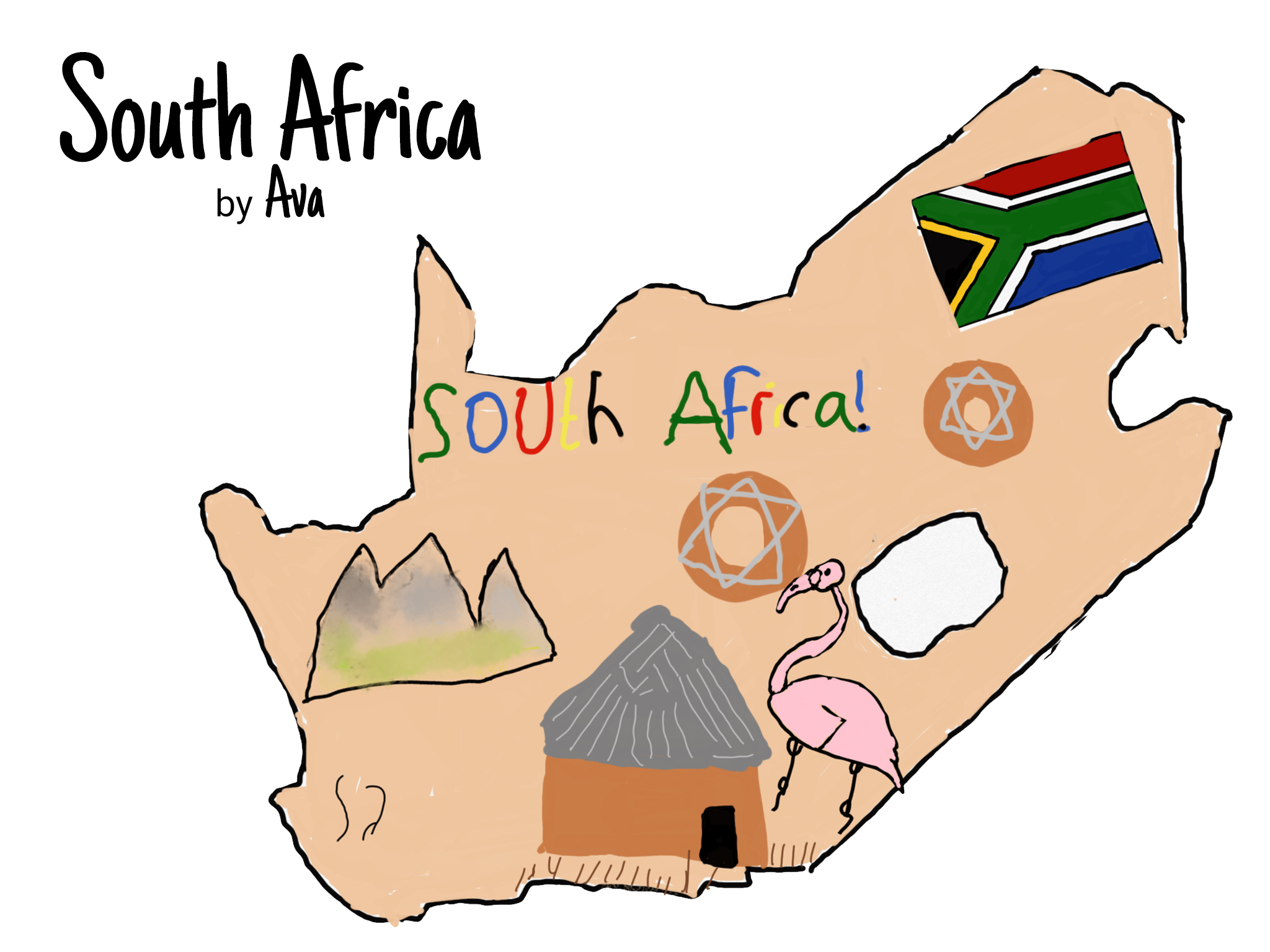
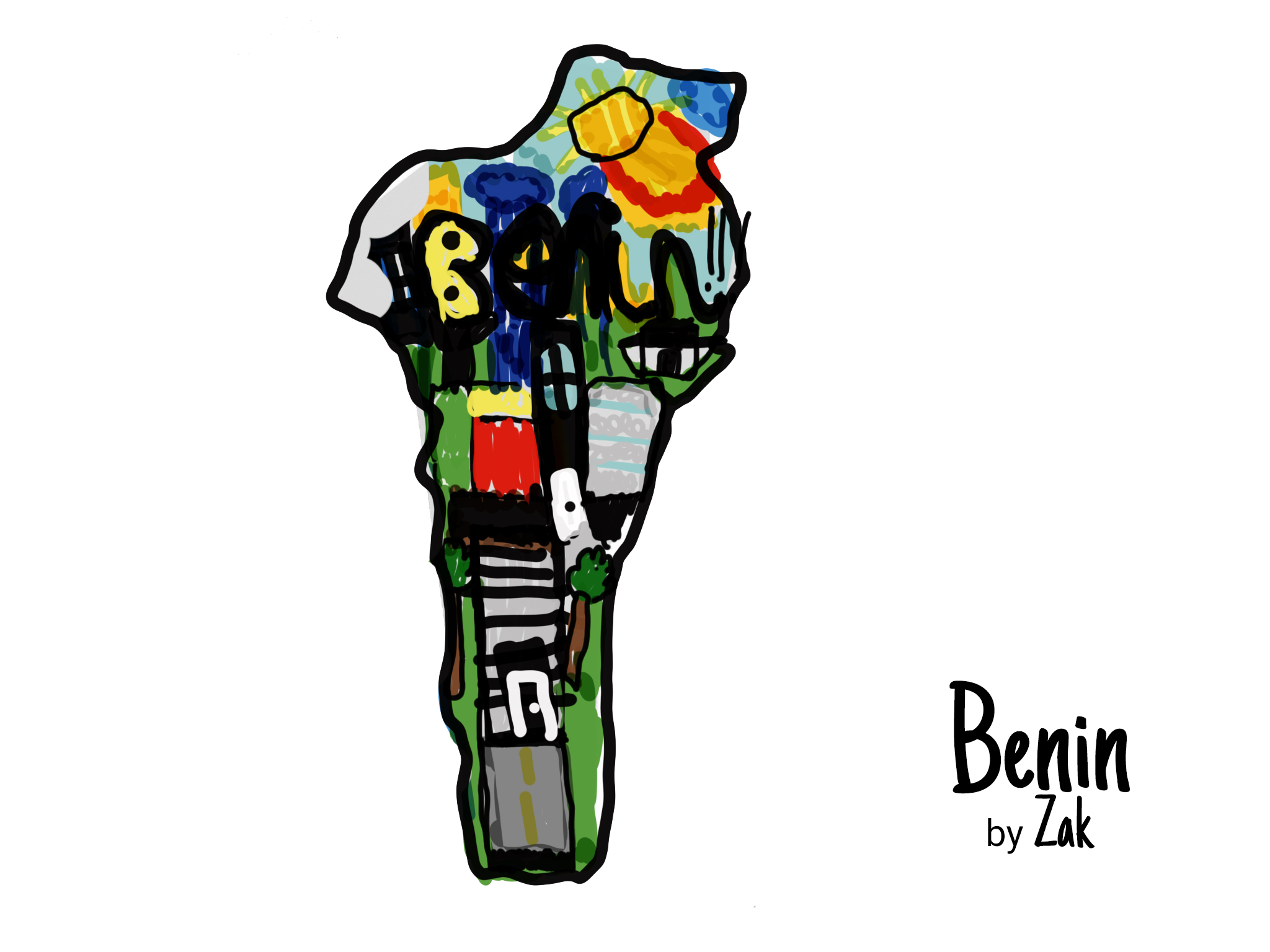
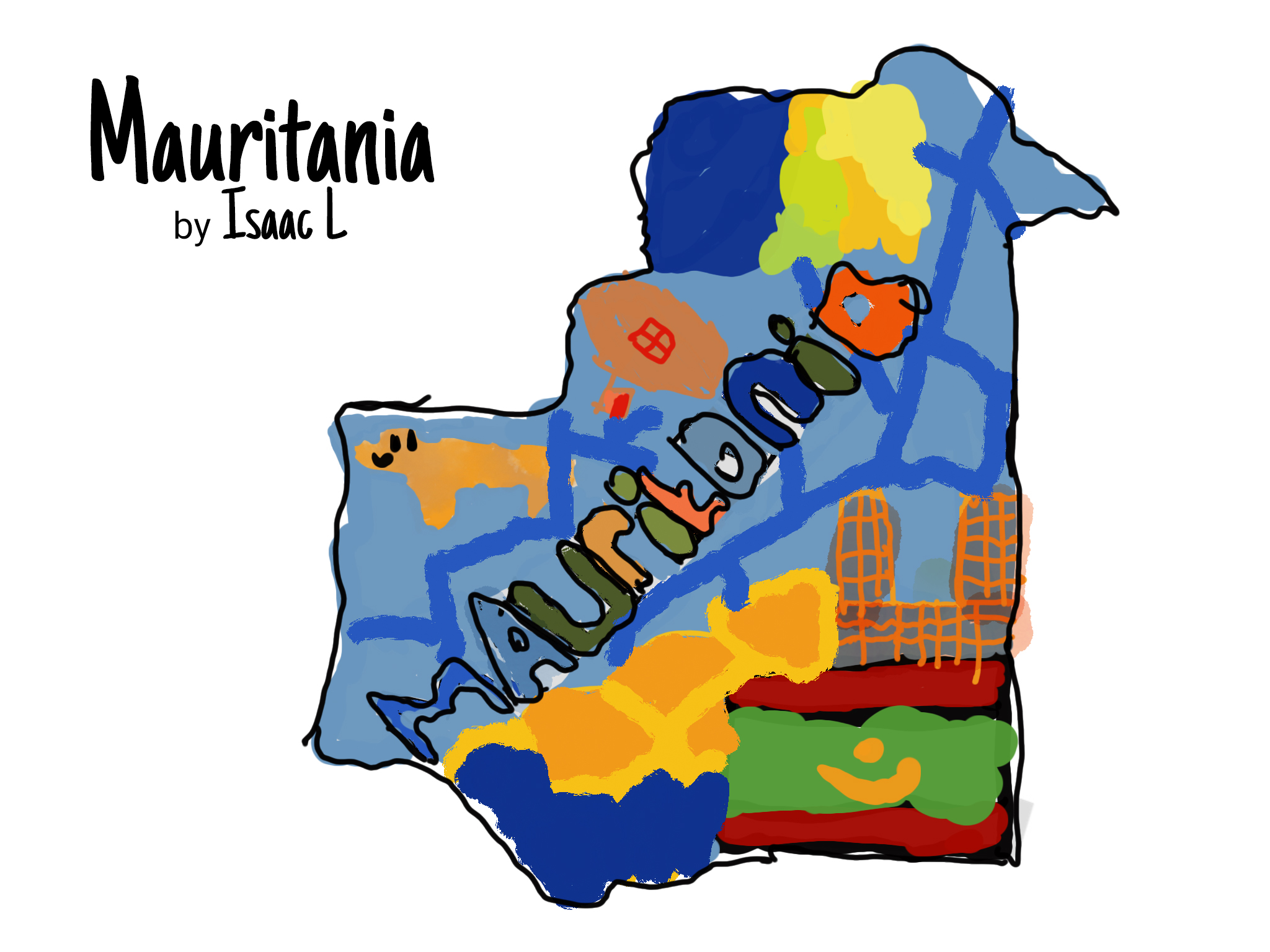
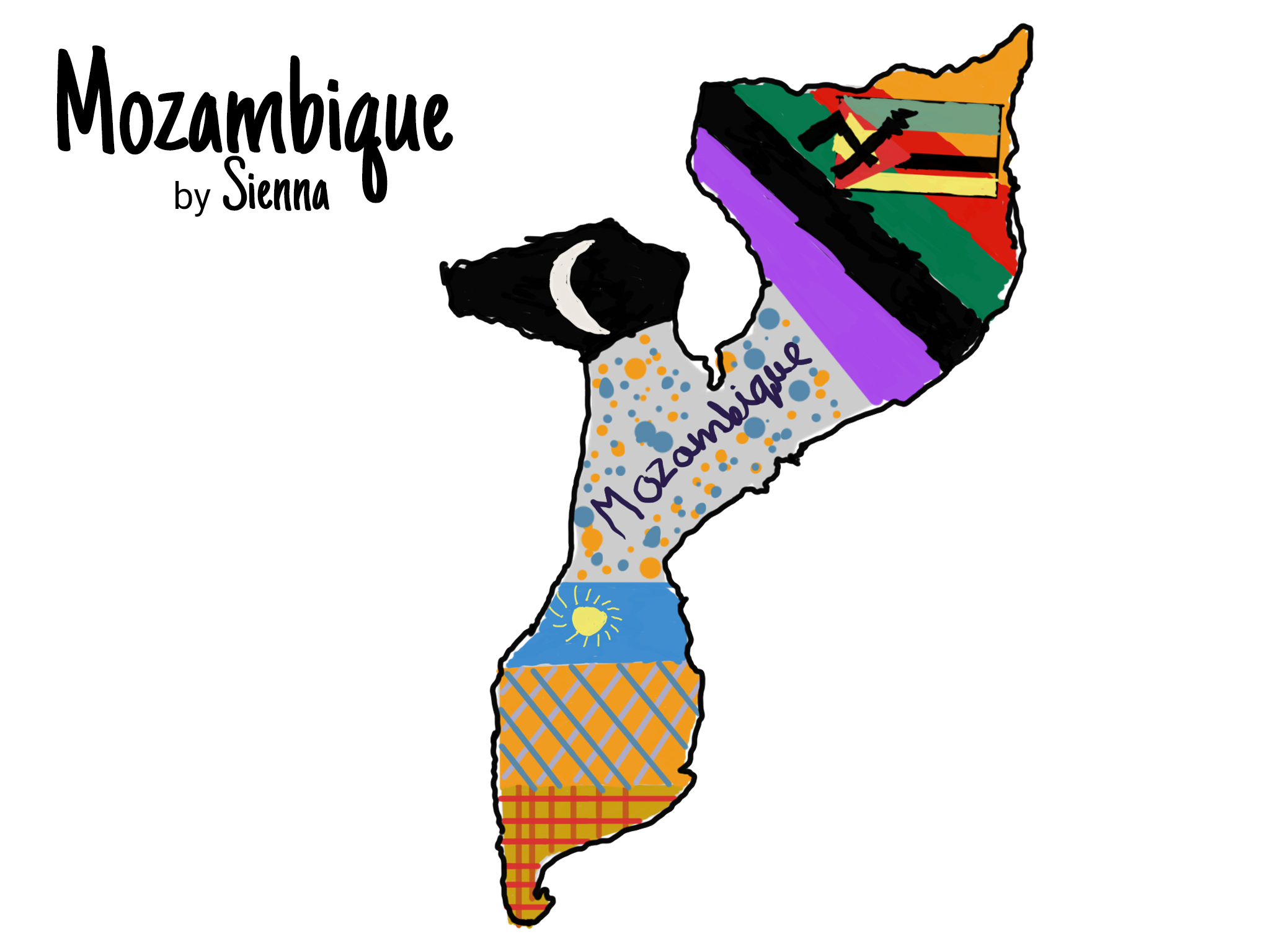
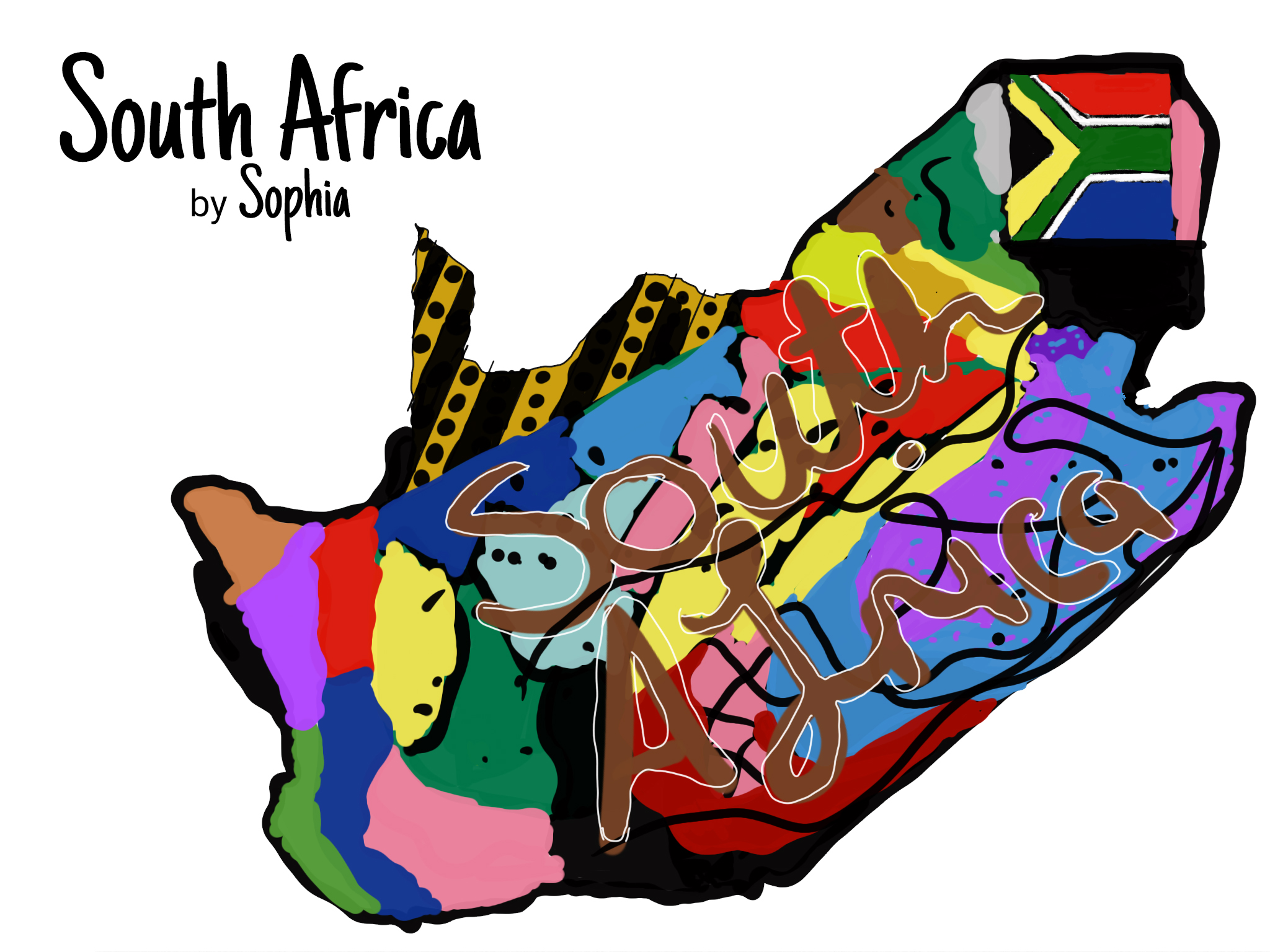
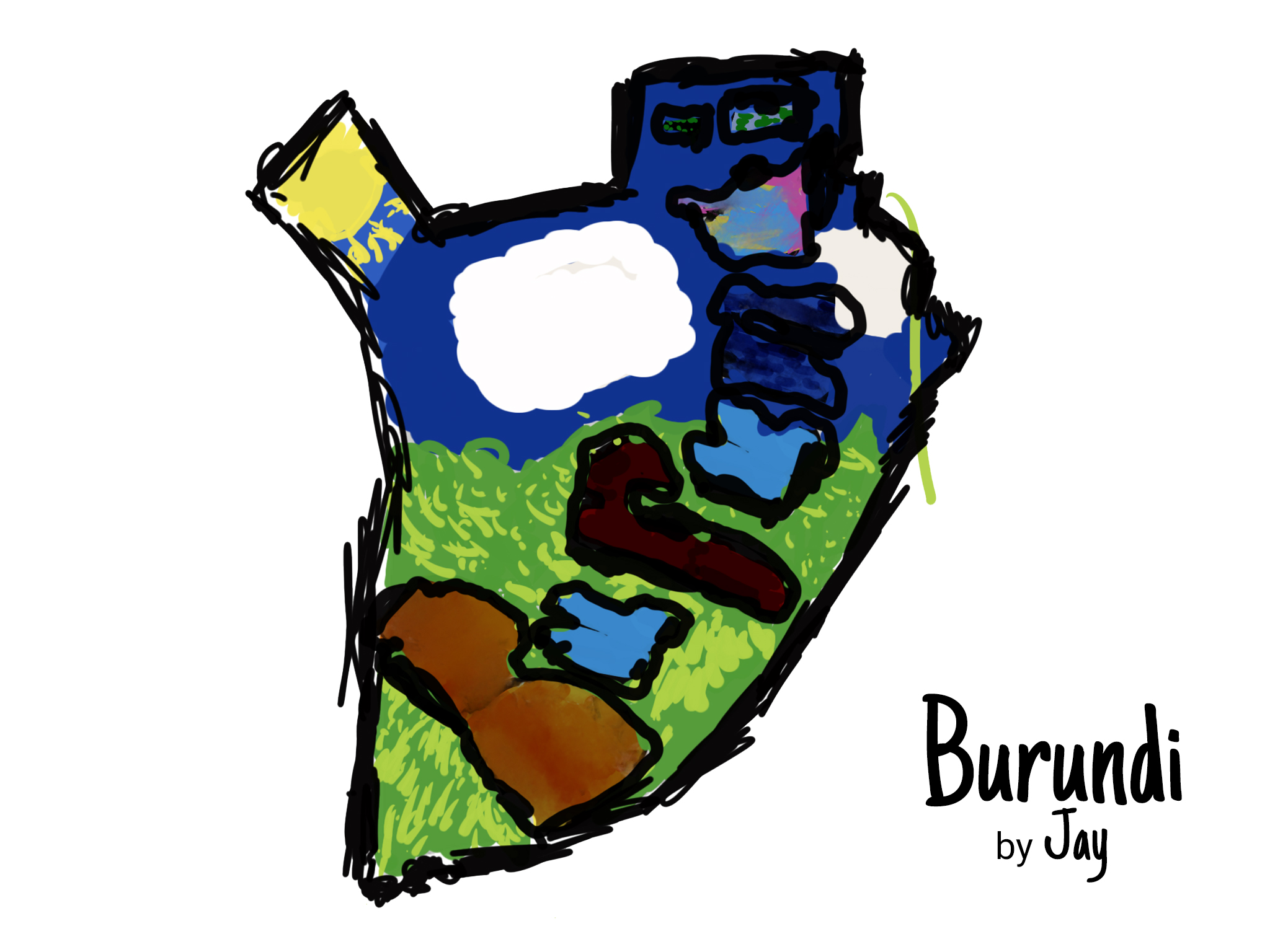
Year 4 create their own Map of Africa

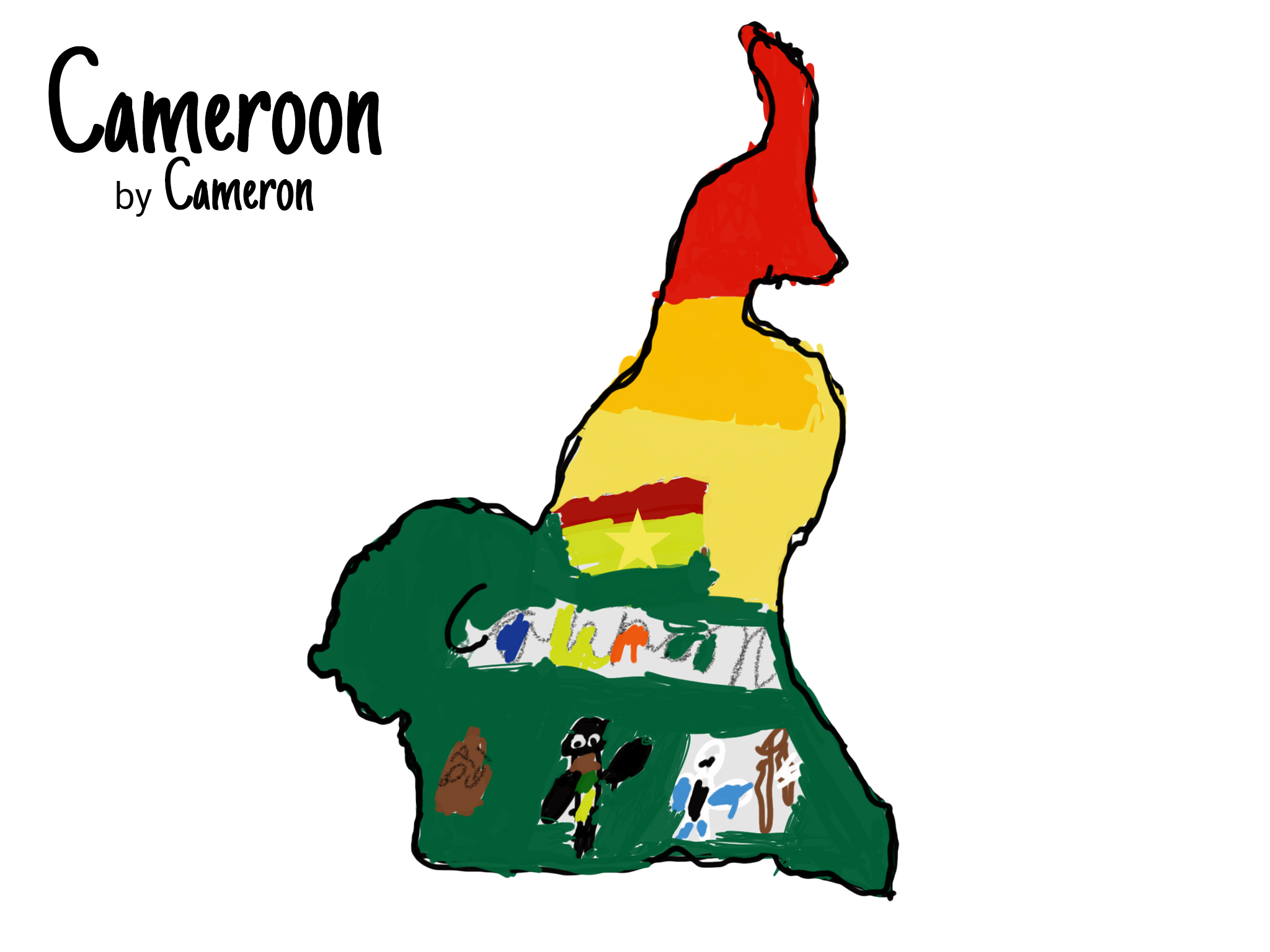
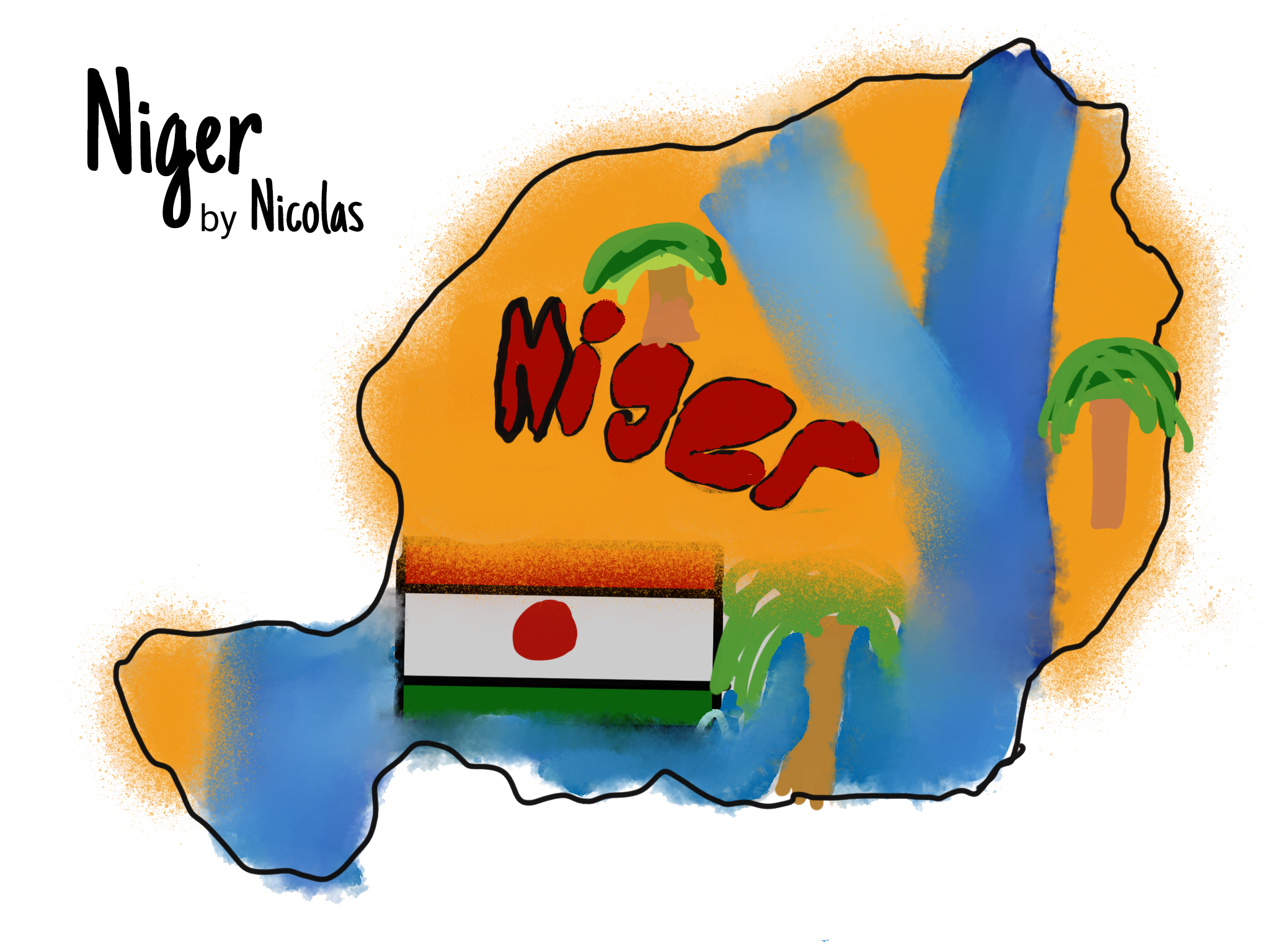
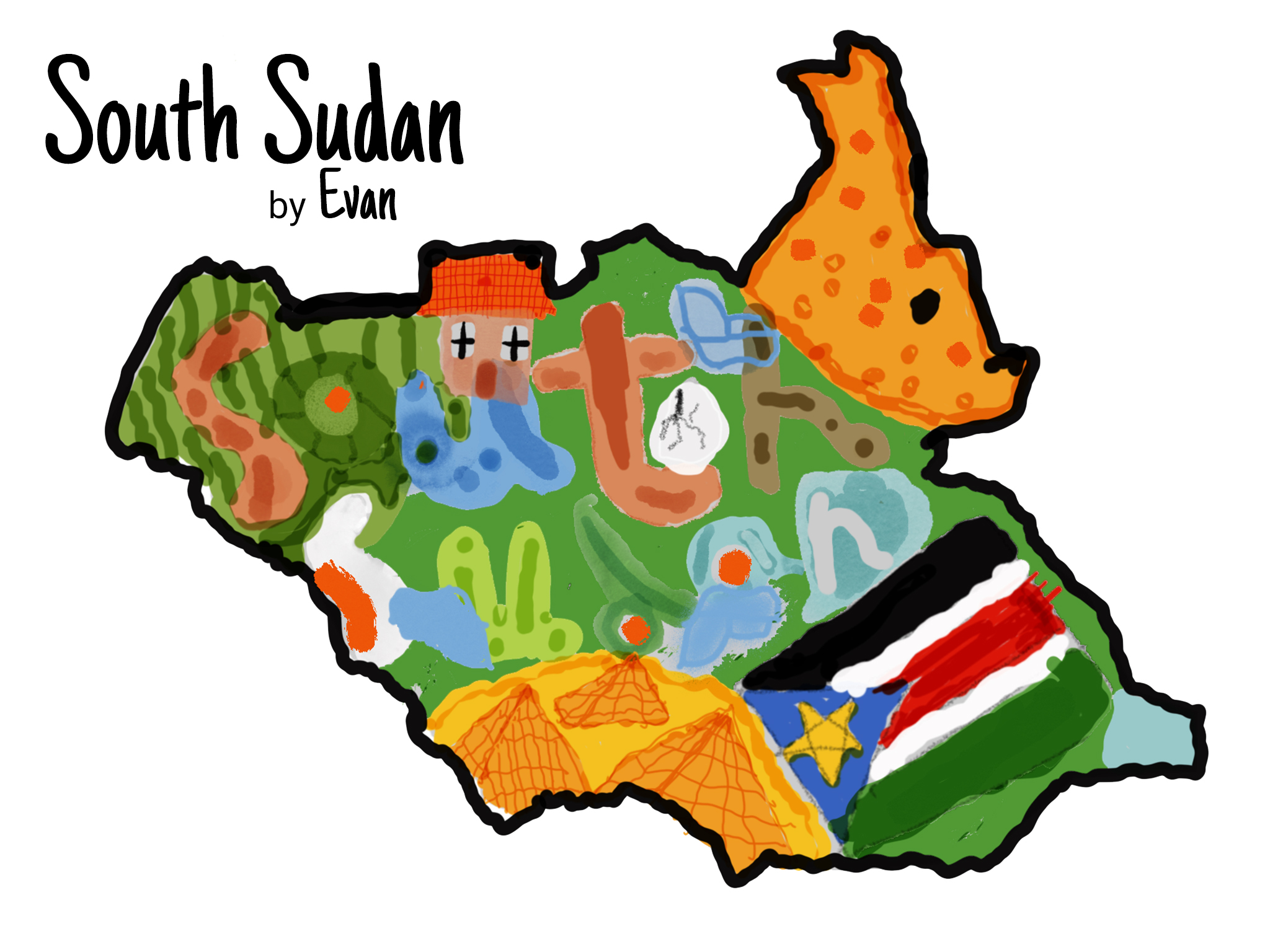
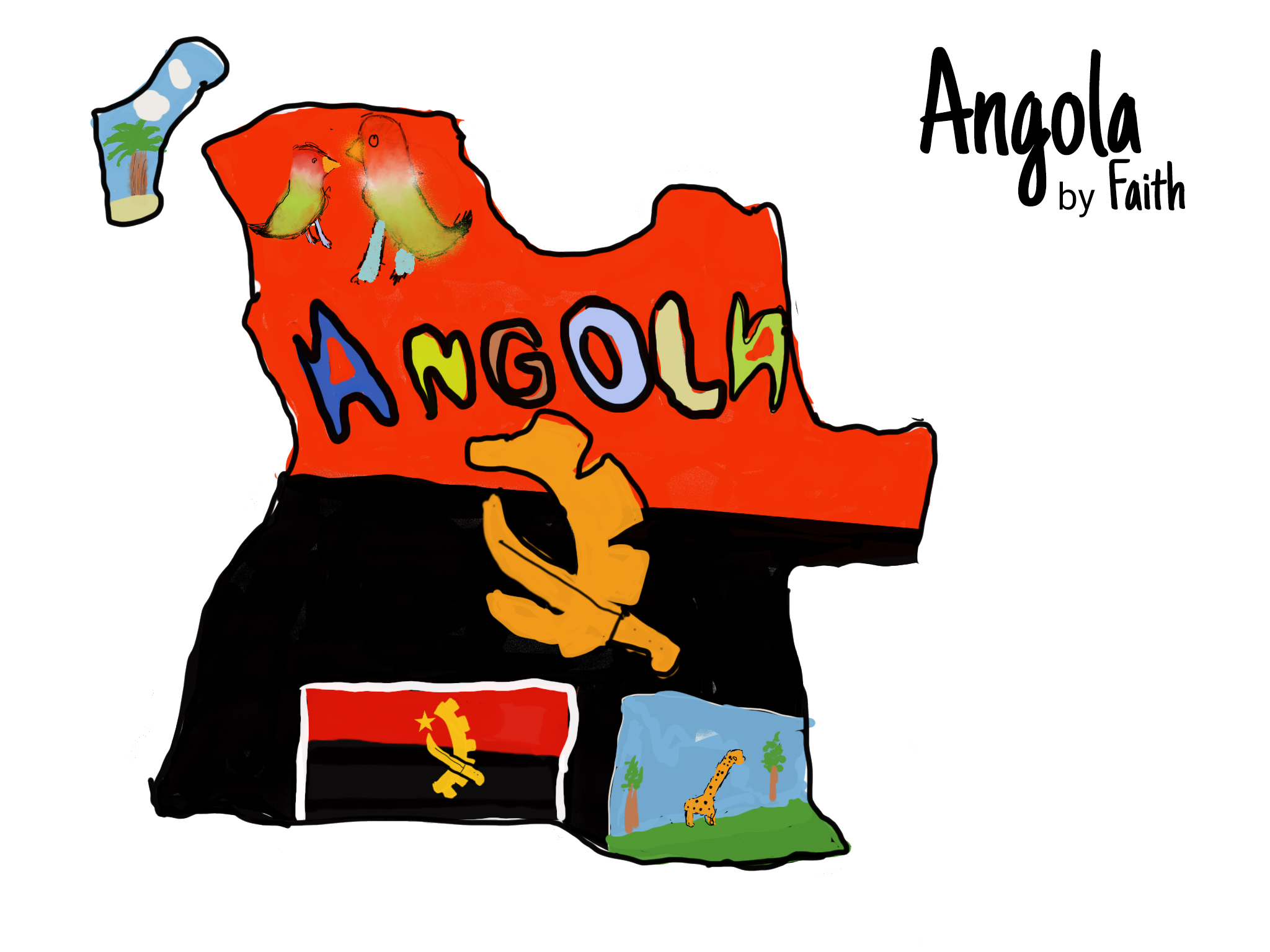
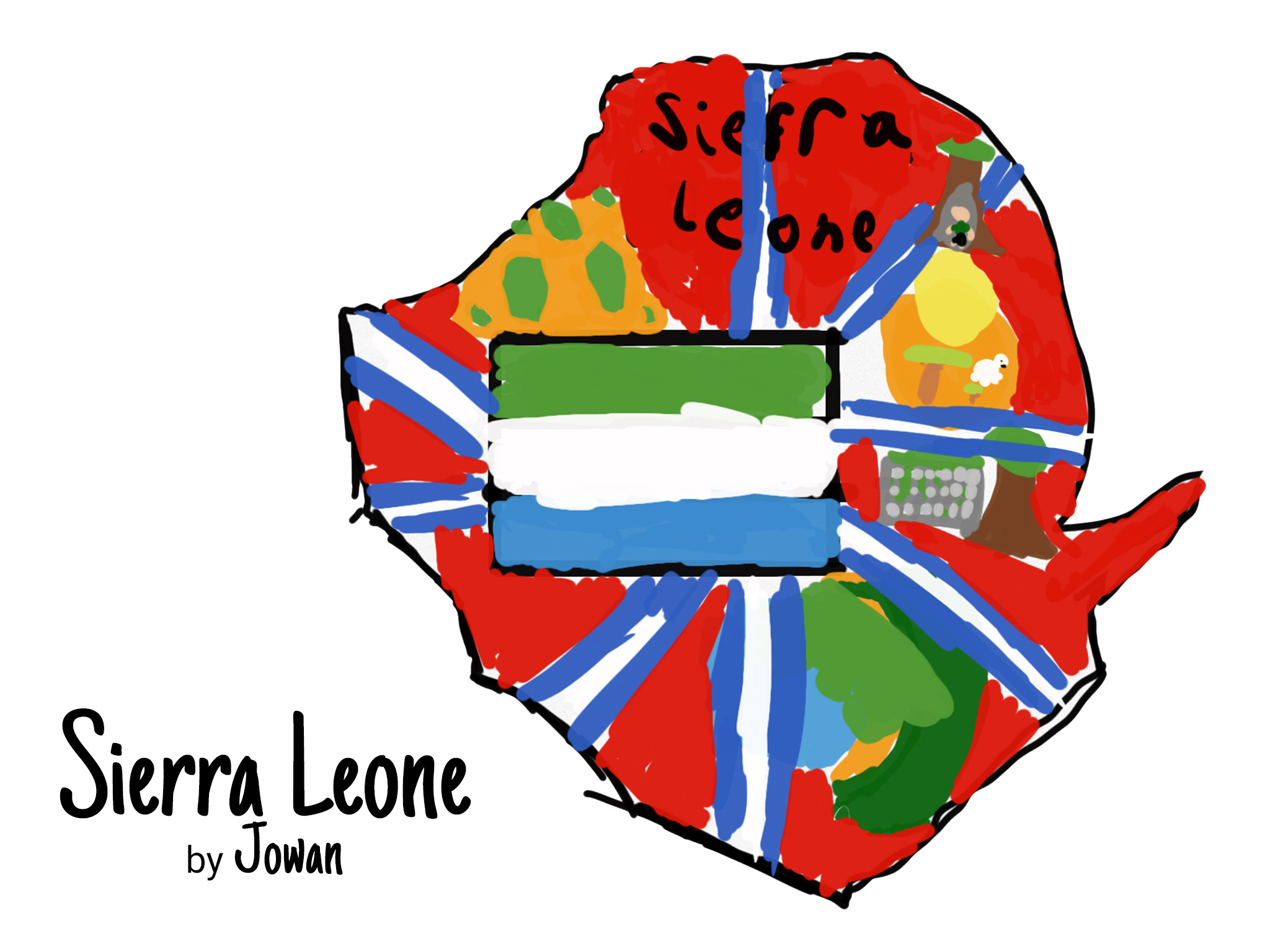
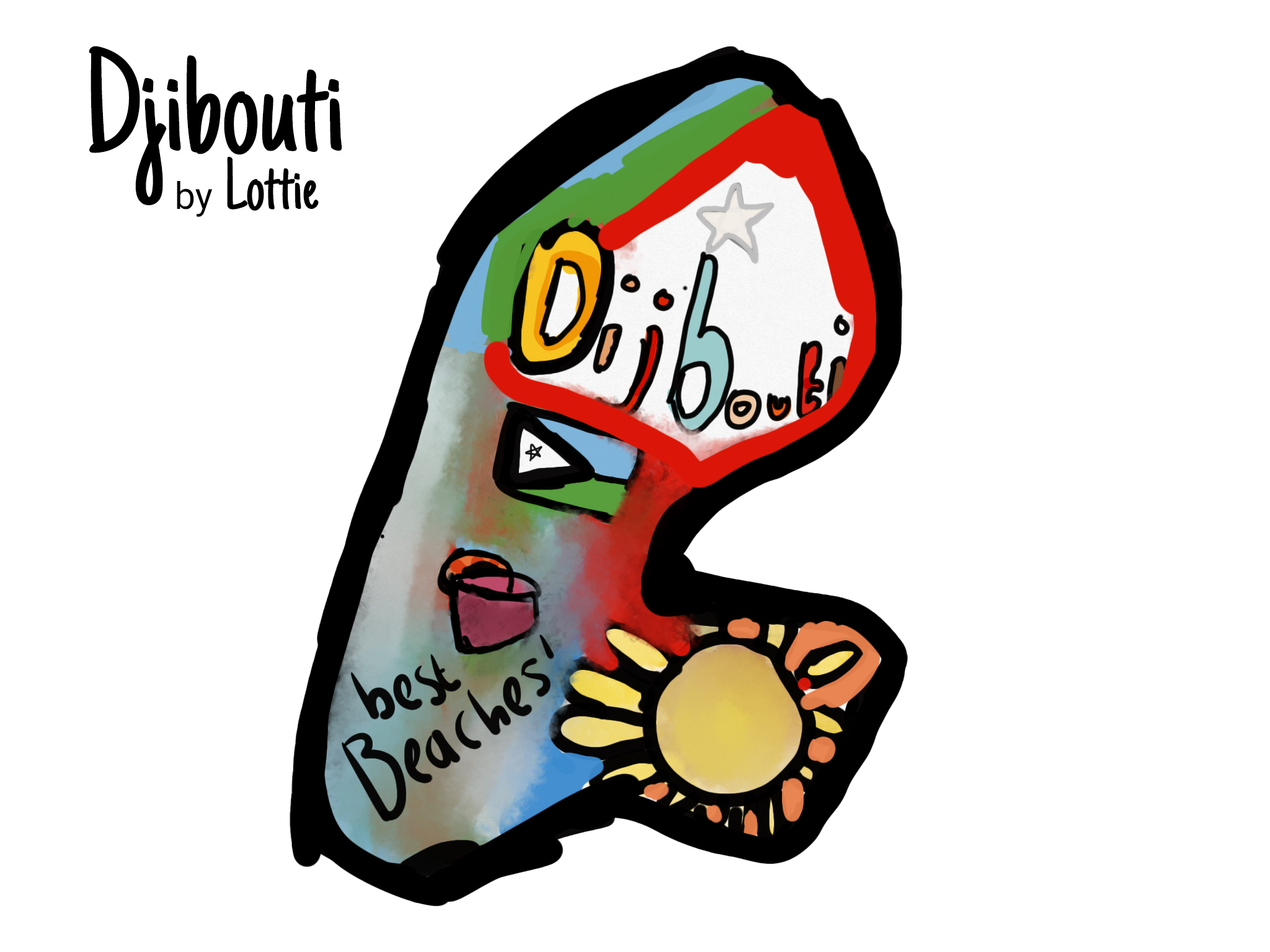
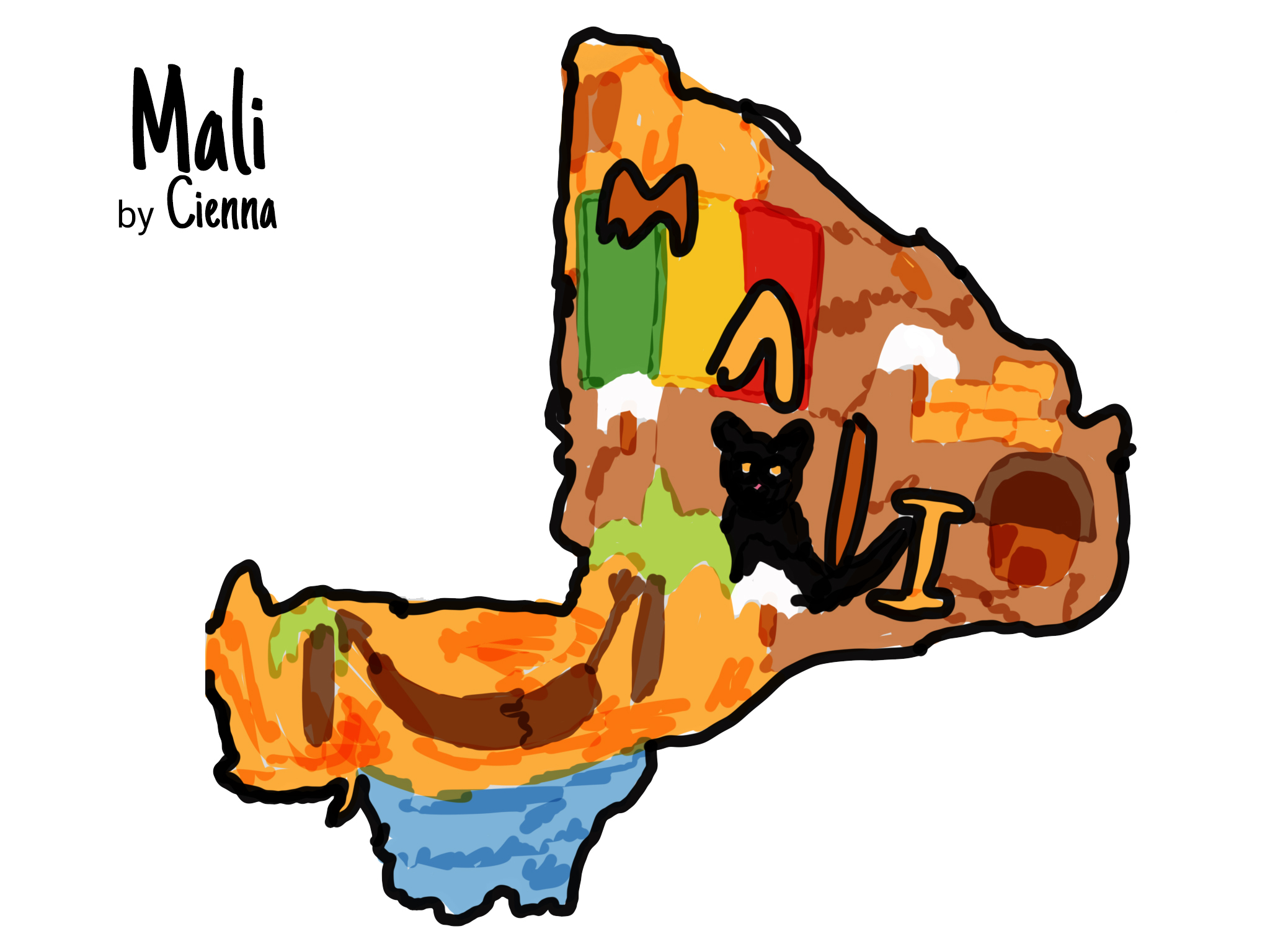
This half term our Year 4’s have been studying ‘Which Way to Africa?’ as their topic.  Part of this exciting learning has involved creating Digital Art on the iPads.  

The children started learning all about the the tools available in our chosen drawing app (Sketches School) and then began to research an individual country in Africa.  We learnt about each country including landmarks, food, art, culture and geographic features.  The children then used this information to inspire them in their digital artwork.

"When I was doing my work I Googled a picture of what my country looks like and it was a burst of colour.  This inspired me to add lots and lots of colours to my picture.  I also searched for patterns from my country which I used in my drawing as well."
Sophia (C9)
South Africa

"This was an amazing project to work on and I wish I could do it over and over again with different countries! I learnt that Angola has amazing famous sculptures and building and many famous birds and beautiful patterns.  I think that the map itself looks amazing now it's all put together!"
Faith (C9)
Angola

To aide their artwork, each child created a ‘mood board’ of imagery from their chosen country.  We then used Adobe Colour on the iPads to extract the key colours from the images.  This meant each child had a custom palette of colours for their country – helping them all stand out and look unique.

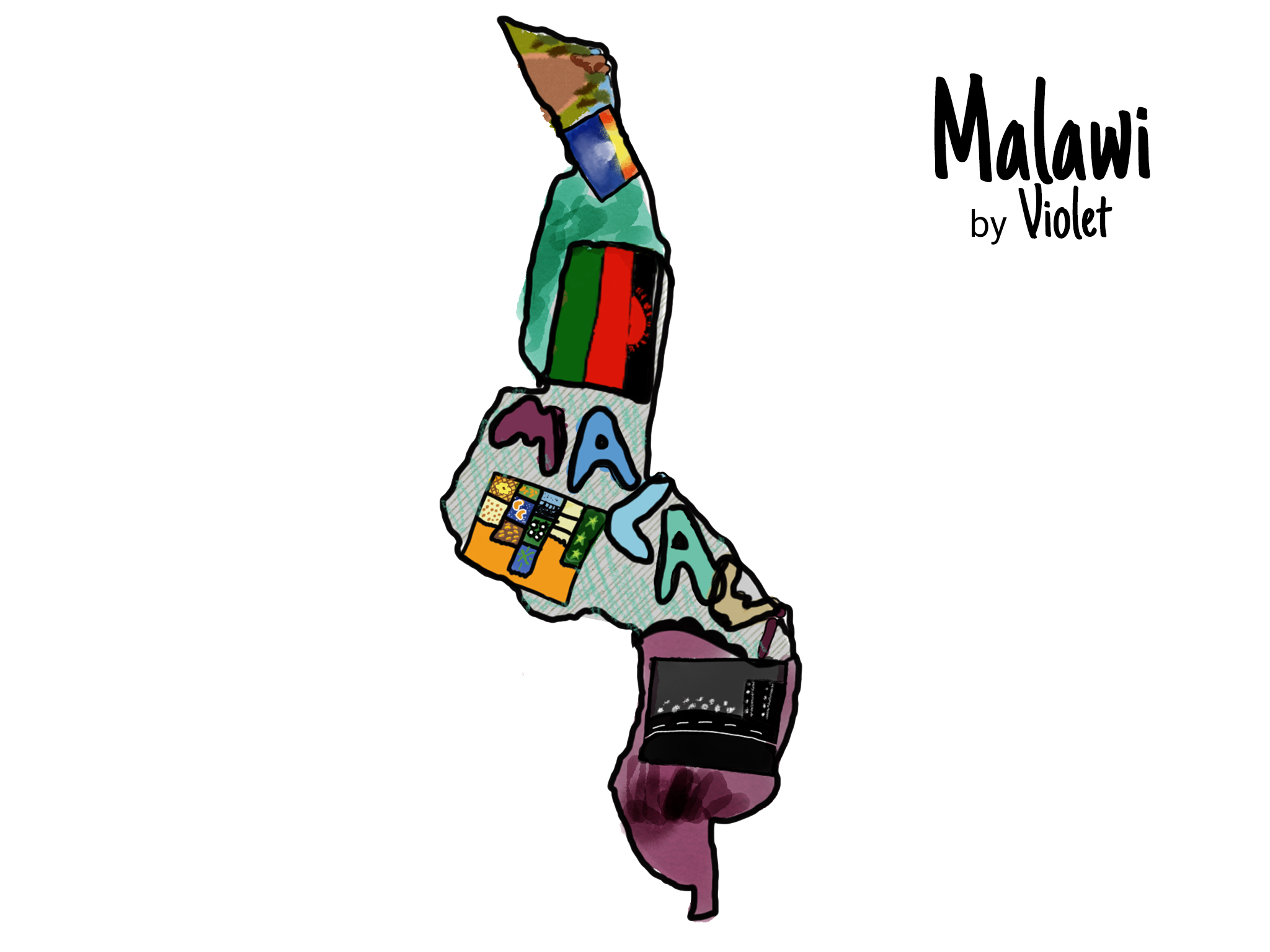
"When Mr Woolcock first sent me my country I felt a bit nervous because I didn't know much about my country or what I could fit into the map, but at the end it turned out to be something that I'm really proud of.  My favourite part of the picture was doing the bubble writing, I really like doing the writing on the iPads!"
Violet (C9)
Malawi

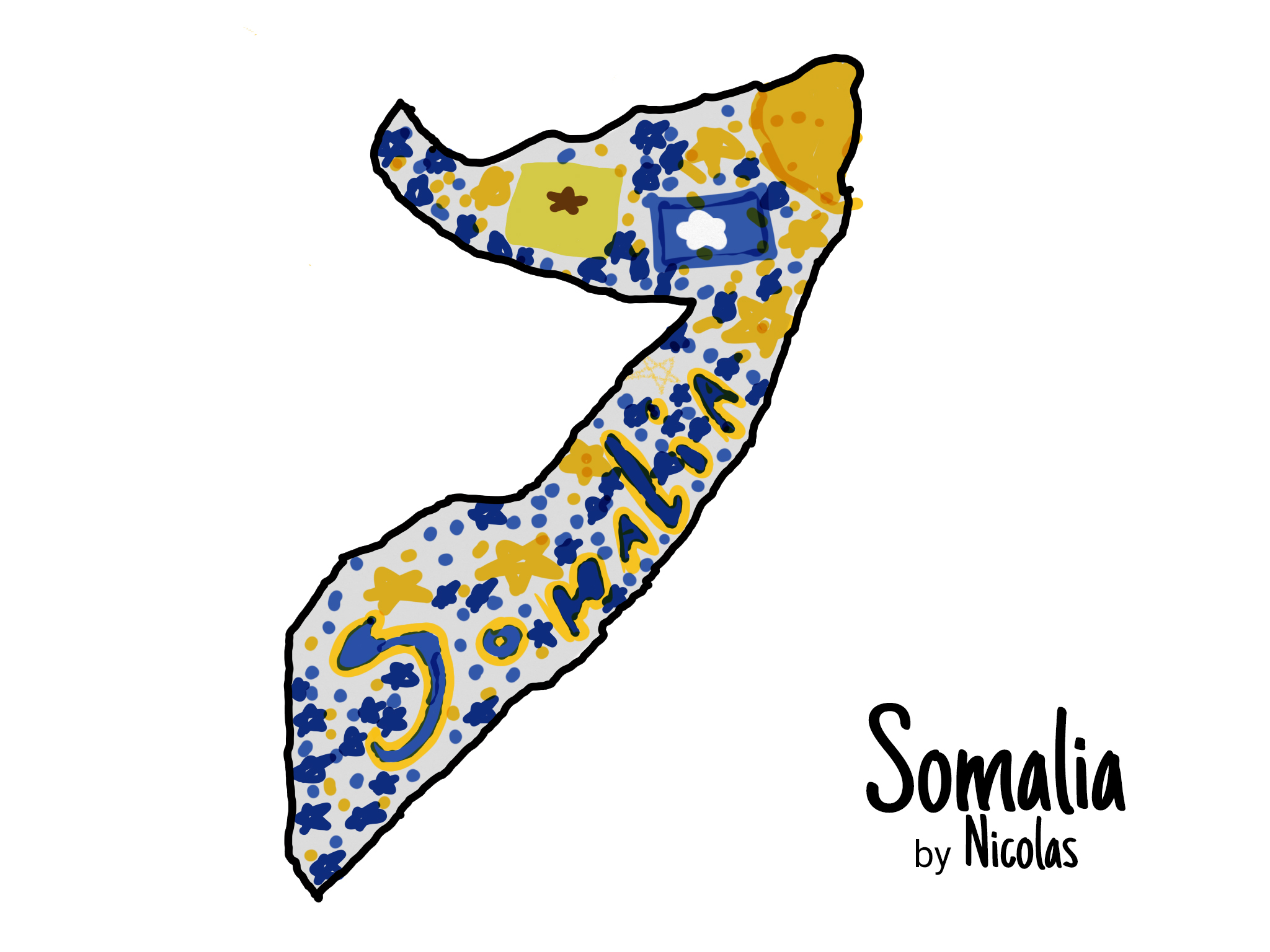
Finally the children bought everything together to fill in the outline of their country with themed text, imagery, the countries flag and other graphical elements which they felt best represented their chosen country.  

As well as combining these into the map above, you can also explore each individual country below.

Making Music with Micro:Bits in Year 3

Over the past few weeks Year 3 have been learning to code on our Micro:Bit computers.  These tiny devices are a great way to get hands-on with Computing and enable our students to write programs that they can run on real hardware in their hands.

To start with we explored the concept of Input and Output by using buttons, sensors and the LED displays on the Micro:Bits.  It was interesting to see the range of programs that could be created with just two buttons.

Once the children felt confident with this aspect of the device then took things a step further by using some LED light strips which connected to the pins at the bottom of the Micro:Bits.  

Suddenly the Mac Suite was transformed into a disco! We had colour changing, flashing and rainbow coloured lights everywhere.  

When we finished having a mini party we used the opportunity to learn about using loops and repeat blocks to create colour changing light patterns.

And that brings us on to today, where the children have been using the Micro:Bits in an entirely different way.  

By using three crocodile clips and some nifty external speaker modules, our Year 3s have been creating music!  From individual notes to complete melodies, the Mac Suite was the place to be on Monday morning if you wanted some music. 

(I must stress the word ‘music’ is used loosely here – it sounded less like Taylor Swift and more like an old fairground where the rides were breaking down and the normally happy music had started to sadly fade away into a sea of 8-bit beeps and bloops…)

As part of this activity the children embarked on some challenge based learning, where they were required to problem solve and troubleshoot both the code and the physical connection between the devices to get their music working.  This proved to be a lot of fun and certainly got their brains thinking!

We love using Computing in hands-on ways at Penpol – why should we be confined to a screen when we can have colour changing lights and music coming out of our Micro:Bits?!  

I dare say Year 3 would certainly agree.

Here are some more photos from our 'Musical Micro:Bits' lesson: